web
You’re offline. This is a read only version of the page.
close
Skip to main content
Community site session details

Community site session details

Session Id :
Microsoft Dynamics GP (Archived)

Dynamics GP & SQL Local Install

(0) ShareShare
ReportReport
Posted on by 12

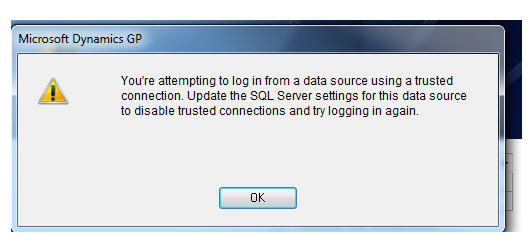
I have installed SQL and GP 2013 on local created user DSN ran utilities and created Dynamics as well as another company.  But when I login to GP I am getting the following error can anyone help on this.  I tried sa using sa as password as well as the new password which I created while running the utilities for Dynamics.
 

*This post is locked for comments

I have the same question (0)
  • Suggested answer
    Mahmoud Saadi Profile Picture
    32,738 on at
    RE: Dynamics GP & SQL Local Install

    Hey babu, 

    check this out; Error message when you try to start Microsoft Dynamics GP: "You are attempting to log in from a data source using a trusted connection"

  • babubaskaran@outlook.com Profile Picture
    12 on at
    RE: Dynamics GP & SQL Local Install

    Hi Mahmoud,

    Yes I have checked that already but its says system DSN and I have created user DSN which can been seen while login to GP and can log to GP utilities also.   I also created system DSN but its not appearing while logging in.

    thanks,

    babu

  • Suggested answer
    Mahmoud Saadi Profile Picture
    32,738 on at
    RE: Dynamics GP & SQL Local Install

    Babu,

    With 64 bit, Check the ODBC on the following path; C:\Windows\SysWOW64\odbcad32.exe

    You may remove the ODBC, create a new one by following the steps provided on the link below; Microsoft SQL Server DSN Configuration

    More easily, while installing Dynamics GP, let it create the ODBC by just specifying the SQL server, In your case (Local Installation), type a (.) to indicate that the SQL server is Local.

  • Suggested answer
    babubaskaran@outlook.com Profile Picture
    12 on at
    RE: Dynamics GP & SQL Local Install

    That's look great solutions I will do the same and let you know Mahmoud

    Thanks,

    Babu

  • Ian Grieve Profile Picture
    22,784 on at
    RE: Dynamics GP & SQL Local Install

    The error message you got is usually because the authentication check was set to "Integrated Windows authentication" while creating the System DSN rather than "SQL Server authentication".

  • babubaskaran@outlook.com Profile Picture
    12 on at
    RE: Dynamics GP & SQL Local Install

    Hi Mahmoud,


    After doing this change I am getting the following error.  My system is 64 bit OS and GP 2013.


  • Ian Grieve Profile Picture
    22,784 on at
    RE: Dynamics GP & SQL Local Install

    Are you logging in with the sa user or a normal user?

    If a normal user, when you recreated the DSN did you enter the Server exactly the same as the old one?

  • babubaskaran@outlook.com Profile Picture
    12 on at
    RE: Dynamics GP & SQL Local Install

    Hi Ian,

    I tried using sa/DYNSA as well as new user I created through SQL but none of them working.

    Babu

  • Verified answer
    Mahmoud Saadi Profile Picture
    32,738 on at
    RE: Dynamics GP & SQL Local Install

    Babu,

    Have you considered Mr. Ian point above regarding integrated windows authentication ?

    The latest message you posted is resulted when GP authentication (user name or password) is incorrect. If you have installed SQL server with Mixed Mode, please reset your 'sa' from SQL management studio and retry to login to Dynamics GP.

    As a prerequisite, check the link above to help you configure ODBC correctly.

  • Verified answer
    L Vail Profile Picture
    65,271 on at
    RE: Dynamics GP & SQL Local Install

    Hi Babu,


    I'm going to parrot what everyone else is telling you, except with pictures.

    First, you need to create a 32-bit ODBC connection. You cannot use the Data Source icon in control panel, it will not work. Navigate to

     C:\Windows\SysWOW64\odbcad32.exe

    While the .exe file is named the same as the one in the control panel, they are not the same.

    You can create either a system or user DSN, both will work for that individual user on that machine, but do NOT name them the same. Here's what it looks like as you create it:

    Step 1 - select a driver:

    6710.dsn-identify-server.png

    Step 2 - name the DSN and identify the SQL server. Use the instance name if you have one. If my SQL instance name were 'DYN2' and my server name were dv4-2167, my SQL server name would look like this:

    7823.dsn-connection-options.png


    Step 3 Set authentication method:

    If you want to, you can put in any valid SQL user, you do not have to use 'sa'. You don't have to enter anything here at all if you don't check the box at the bottom. Neither the user ID nor password is saved with the DSN.

    Step 4 - advance through the setup and uncheck all of the boxes.

    This should do it.  If, for some reason, you still cannot see your server in the drop down list, try modifying your Dex.ini file (in the Data folder under the GP root) so that the line reads SQLLastDataSource=GP (put the name you gave your datasource here).

    Kind regards,

    Leslie


Under review

Thank you for your reply! To ensure a great experience for everyone, your content is awaiting approval by our Community Managers. Please check back later.

Helpful resources

Quick Links

Responsible AI policies

As AI tools become more common, we’re introducing a Responsible AI Use…

Pallavi Phade – Community Spotlight

We are honored to recognize Pallavi Phade as our Community Spotlight honoree for…

Leaderboard > 🔒一 Microsoft Dynamics GP (Archived)

#1
Community Member Profile Picture

Community Member 4

#2
Victoria Yudin Profile Picture

Victoria Yudin 1

Last 30 days Overall leaderboard

Featured topics

Product updates

Dynamics 365 release plans