




 4,009
4,009 Like
Like Share
Share
 Report
Introduction:
As I upgraded my Business Central AL Language Extension and VS Code, I noticed that I was no longer authenticated to deploy my app to Business Central Sandbox using (Ctrl + F5)So I noticed a process change in authenticating VS Code and Business Central and you will find the details below.
Pre-requisites:
- Microsoft Dynamics 365 Business Central v15 Sandbox
- VS Code
- AL Language 5.0.254558
Demonstration:
After running AL : Clear credentials cache, I tried AL: Downloading the SymbolVS Code will give you a Pop-Up to Open the Window. Make sure you copy the code and click on Copy & Open
 |
| Trying to Download Symbols |
 |
| Select Copy & Open |
 |
| Paste the Code from VS Code |
This will open the Login page with your accounts to select.
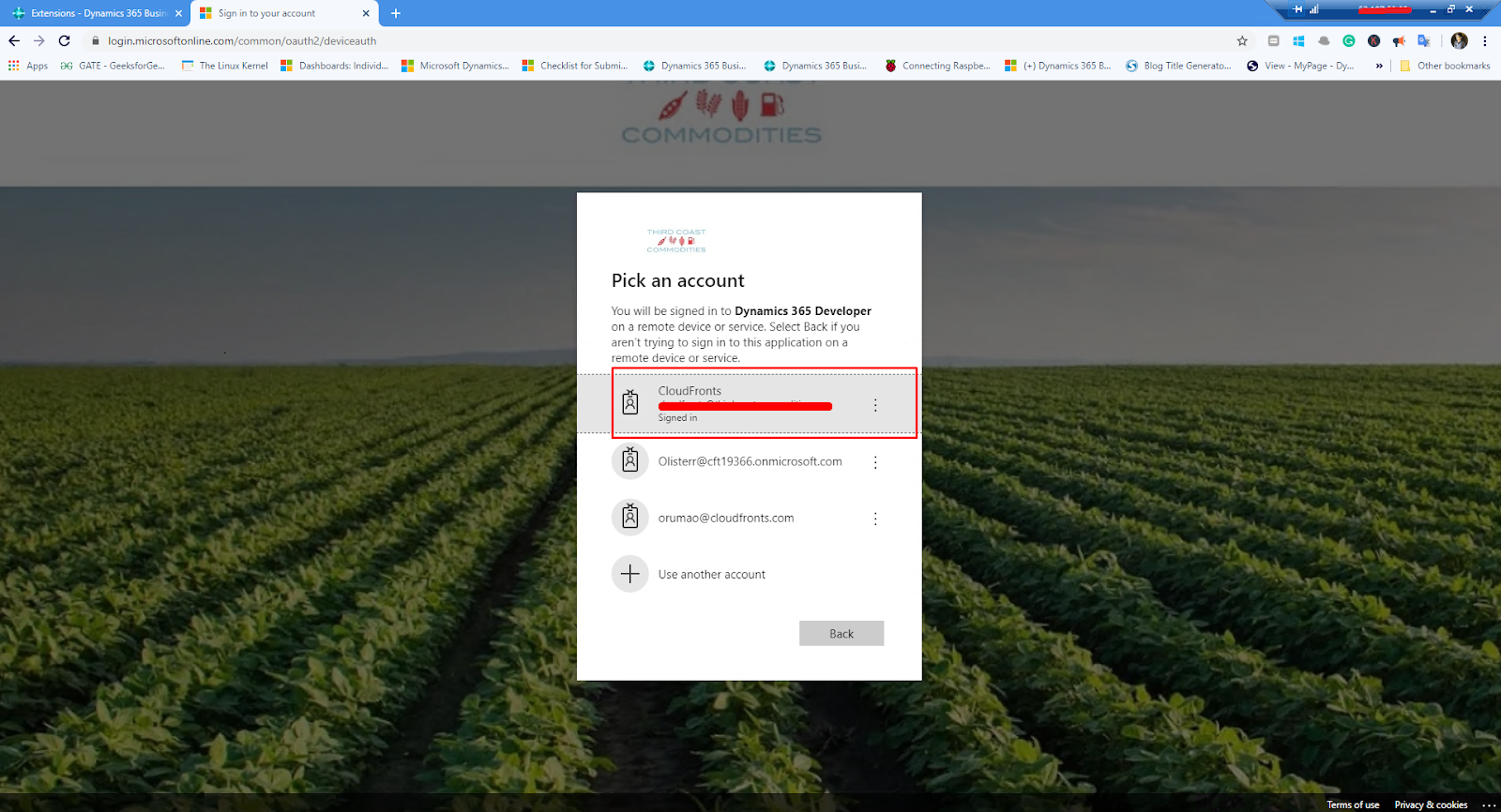 |
| Select your Account |
After this you will get a Message on the Browser and your Symbols will start Downloading in VS Code.
 |
| Post Authentication Message |
 |
| Symbols have started to download |
Conclusion:
This is simply a process change for authentication observed after updating the AL Language Extension.
I hope this helps!
I hope this helps!
*This post is locked for comments