





Configuring Forward Mailbox in Microsoft Dynamics CRM and Exchange Online
Views (8124)
 abhishek_255
 1,614
1,614
 Like
Like Share
Share
 Report
- Individual Mailbox - Each CRM user has its own incoming and outgoing server synchronization set up.
- Forward Mailbox- A centralized mailbox at exchange, CRM monitors this mailbox for incoming messages. And all CRM user's mailbox monitors this Forward mailbox.
Forward mailbox reduces administrative effort. To configure forward mailbox, adminstrators would require to do configuration (Create rules to send incoming emails to Centralized mailbox) both at Exchange and CRM end.
Configuration Exchange On-line

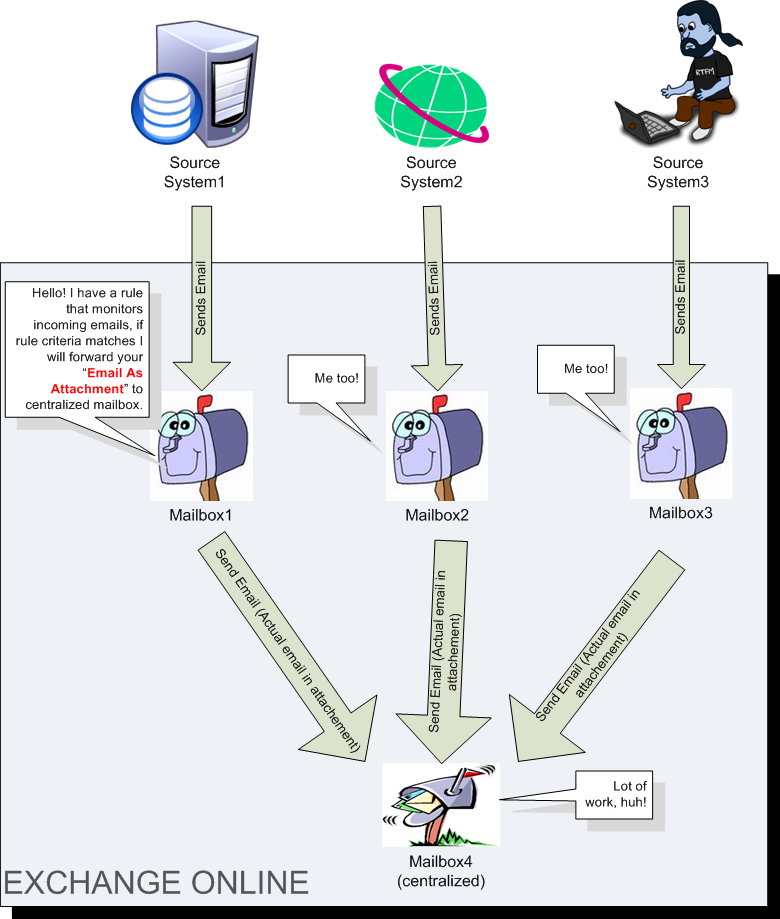
In the above diagram, Mailbox 1, Mailbox 2 and Mailbox 3 have rules on incoming emails, if rule condition matches then incoming email is forwarded as attachment to Mailbox 4.
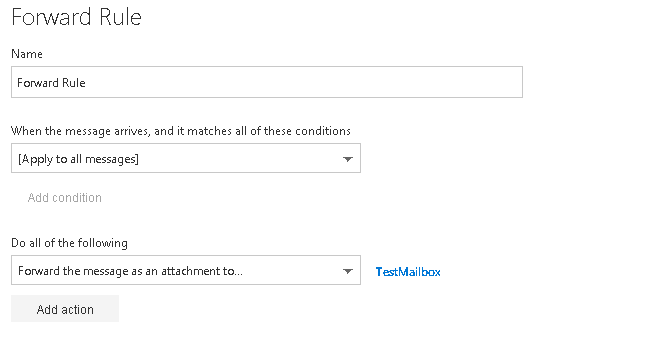 |
| Rule - Exchange Online |
Configuration Microsoft Dynamics CRM
Add Forward Mailbox
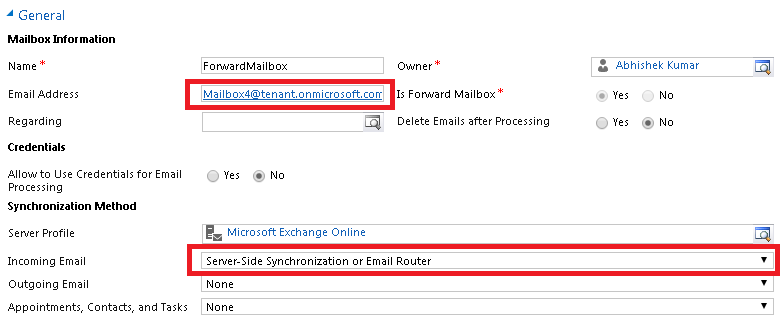
Go to Settings, Email configuration.then click mailboxes. Click Add new forward mailbox.
*Note:
- Email address will be your exchange email address (Mailbox that receives all the forwarded emails)
- Server Profile should be Microsoft Exchange Online (If exchange is hosted in office 365)
- Incoming Email should have server side synchronization.
- Forward mailboxes does not have Outgoing email synchronization. It should be set "None"
Update User Mailbox - Change Synchronization Method (Incoming Email)
Open any existing user mailbox and change incoming synchronization from "server side synchronization" to "forward mailbox".
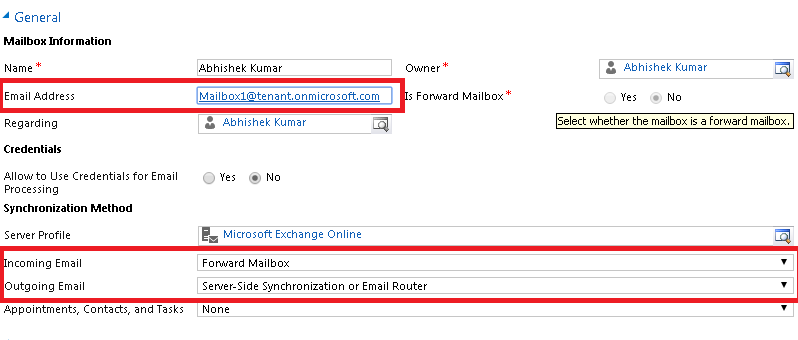
Click Save and Test and Enable Mailboxes.
Now you are all set to receive emails from forward mailbox in MS CRM.
This was originally posted here.
*This post is locked for comments