




 45,095
 Like
Like Share
Share
 Report
Sometime we may need to set default value for the entity field in portal forms. In this post we are going to discuss, how we can leverage entity form metadata to fulfil this requirement.
Requirement: Identify if case is created from Dynamics 365 Portal.
Solution: If you have worked with custom service module earlier then you might be aware of the Case Origin (caseorigincode) field which is a option set field. This field is used to configure case origin, for example if case is reported through phone, email, web etc. We can reuse this field to identify if case is reported from the Customer Portal. Let’s see how we can implement this using following steps:
1. First add an option for Portal in case origin field, navigation to Settings->Customizations->Customize the system from top navigation bar.
2. Navigate to Fields under Case entity and open case origin field.
3. Click on Edit button and add new option for Service Portal
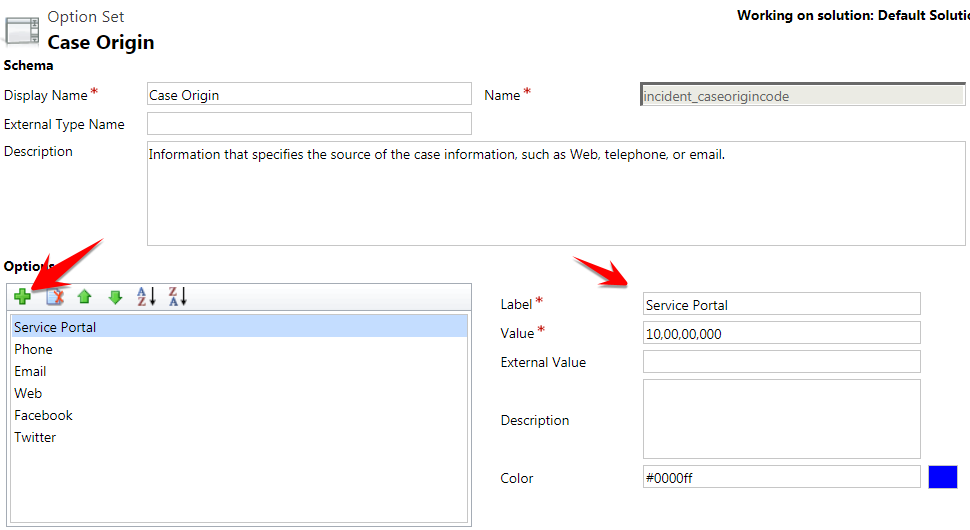
**Keep note value of the Service Portal
4. Save and publish your changes.
5. Navigate to Portals->Entity Forms from top navigation bar.
6. Open your case entity form and Navigate to Entity Form Metadata section
7. Click on + sign, to create new Form Metadata record
8. Set Type as attribute and set attribute name

9. Navigate to Set Value On Save and use following option

**Make sure value is matching to your Service Portal option value
10. Save and Close your changes.
Now when you will create case from Portal, case origin will be set as

Hope it will help someone!!
*This post is locked for comments