




 Like
Like Share
Share
 Report
Introduction:
In this blog, we’ll see the ‘UserName’ authentication in Dynamics NAV. It is used when we want to use the existing Windows User and has a password associated with it. This method is preferred when two or more users use the same machine and require a simple password security so that only they can access their account.
Prerequisite:
Microsoft Dynamics NAV
Procedure:
- Create a User in Windows Client by going to Administration > IT Administration > General or by typing Users in Search.

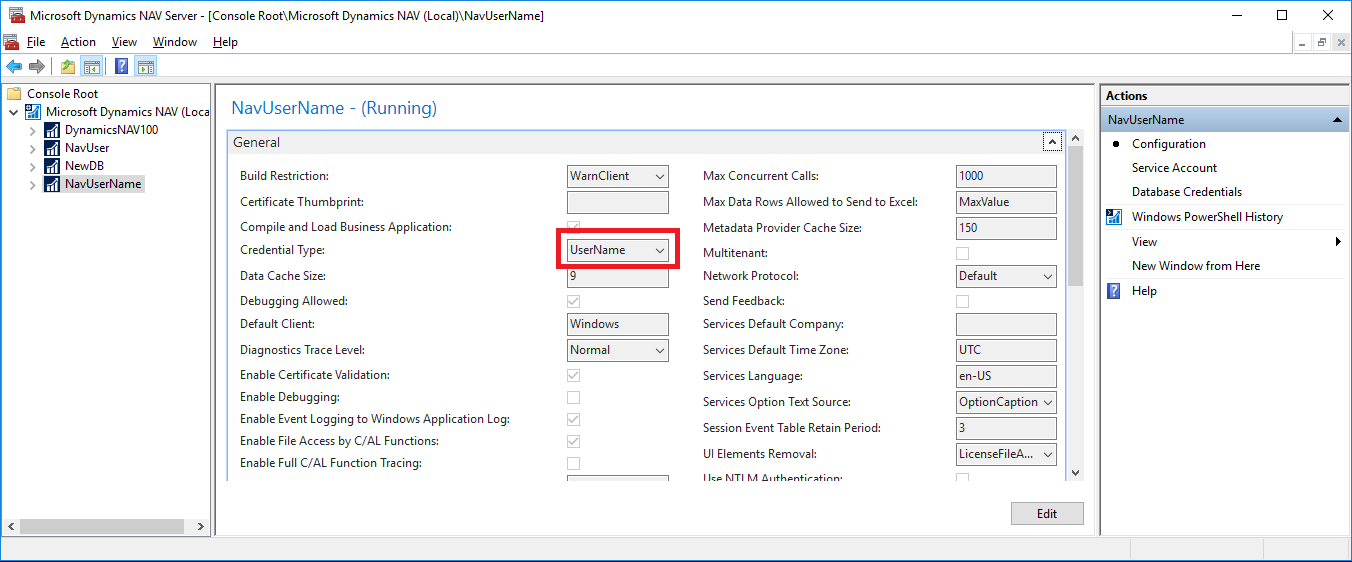
- Create a NAV Server Instance from Administration with Credential Type as ‘UserName’.
- Change the ClientUserSettings ‘C:\Users\<Username>\AppData\Roaming\Microsoft\Microsoft Dynamics NAV\100\ClientUserSettings ‘
Give the Server, ClientServicesPort, Server Instance & ClientServicesCredentialType.

- Open the Windows Client and enter the credentials.

Windows Client HomePage:

Conclusion:
Thus, this method is preferred when two or more users use the same machine and require a simple password security so that only they can access their account.
The post Setup UserName authentication in Dynamics NAV appeared first on CloudFronts - Microsoft Dynamics 365 | Power BI | Azure.
*This post is locked for comments