




 4,009
4,009 Like
Like Share
Share
 Report
Introduction:
Now that NAV 2017 Database is upgraded to Business Central v14 (Refer link), it's time to connect your AL Development with your Business Central environment.
One of the issues with this approach is that NAV Database does not have the symbols generated.
One of the issues with this approach is that NAV Database does not have the symbols generated.
Pre-requisites:
- Upgraded DB from NAV to BC- VS Code & AL Language Extension
- finsql.exe
- Business Central On-Premise with Windows Client
Books & References:
https://docs.microsoft.com/en-us/dynamics365/business-central/dev-itpro/developer/devenv-running-cside-and-al-side-by-sideDemonstration:
1. Connect VS Code to Business Central Database:- Ensure that in Business Central Administration > Development > Enable Development Service Endpoint and Enable Debugging and Enable loading application symbol references at startup.
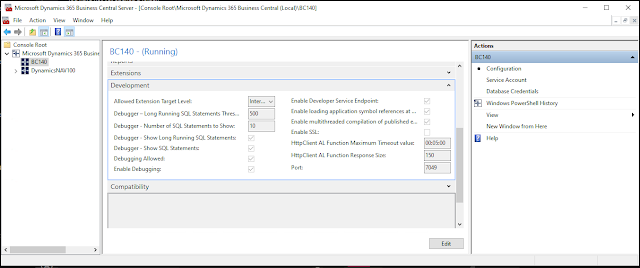 |
| Enable Development in Business Central Administration |
- Ensure that the launch.json file in your project corresponds to your Business Central On-Premise Server
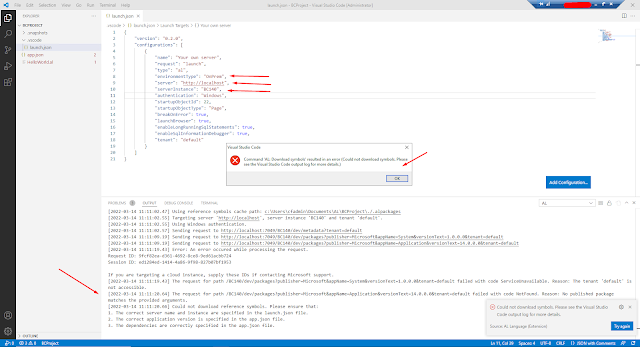 |
| VS Code Configuration and issues. |
2. Check if Symbols are present in the Database:
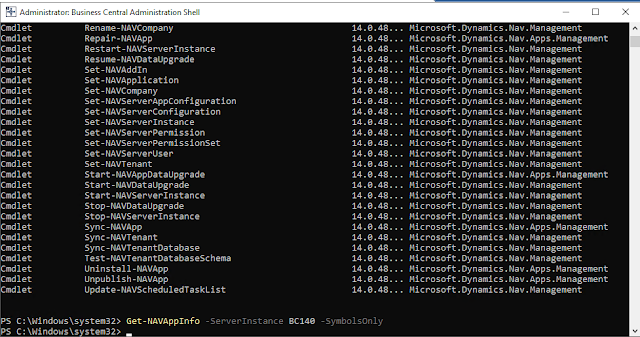
After running the Get-NAVAppInfo -ServerInstance <ServerInstanceName> -SymbolsOnly, I realized that the symbols are missing.
After running the Get-NAVAppInfo -ServerInstance <ServerInstanceName> -SymbolsOnly, I realized that the symbols are missing.
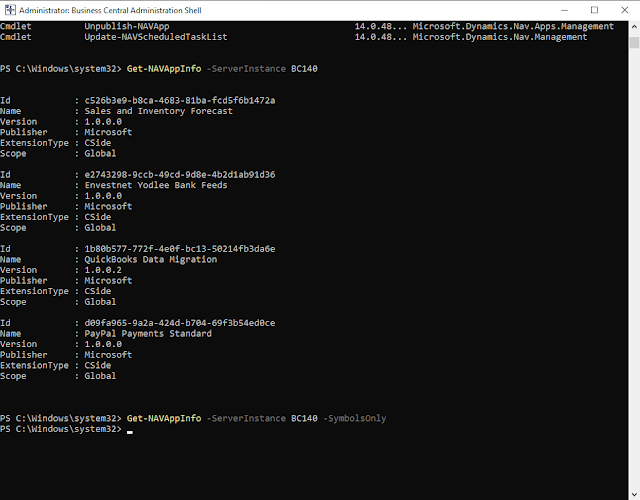 |
| Get-NAVAppInfo Command results |
To generate the symbol reference run the command finsql.exe Command=generatesymbolreference, Database="<Database Name>", ServerName=<ServerInsstanceName>
Go to C:\Program Files\Microsoft Dynamics 365 Business Central\140\Service, run CMD Prompt as Administrator and paste the above command
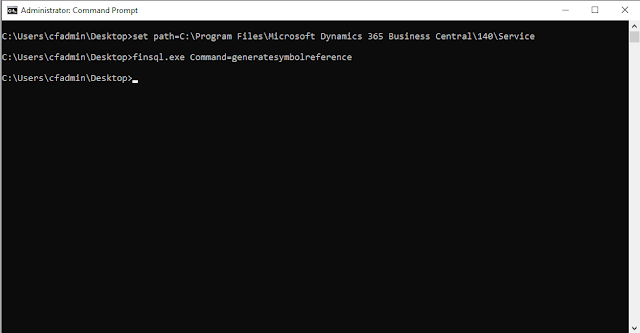 |
| Running finsql.exe Command=generatesymbolreference |
This didn't generate the symbols.
To install the System App and Test App as a part of symbols, go to the Product DVD and search for *.app in Folder
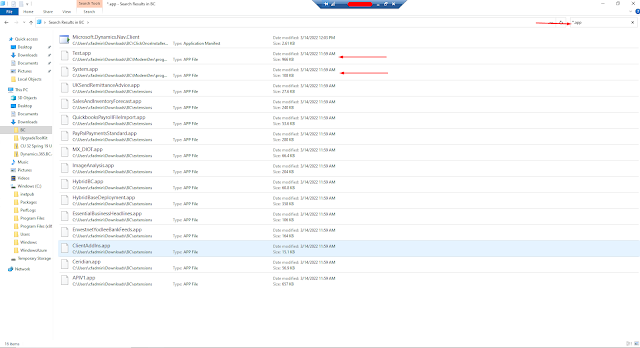 |
| Search System.App and Test.App |
Now you can use Publish-NAVApp to upload extensions to Business Central
 |
| Publish-NAVApp Test App and System App |
Now, upon running Get-NAVAppInfo
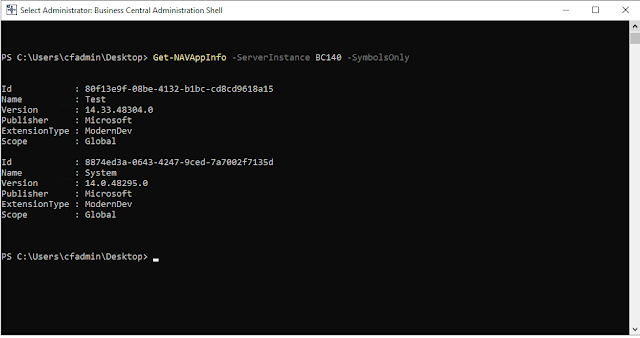 |
| Get-NAVAppInfo with Test App and System App |
Hence, its now time to refer to my old blog Tenant default is not accessible
So, now that only the Application(BaseApp) App is yet to be installed, the steps are as follows.
- Export TXT Objects into a single folder. Exception: Codeunit ID should not be >= 2000000001
- Export TXT Objects into a single folder. Exception: Codeunit ID should not be >= 2000000001
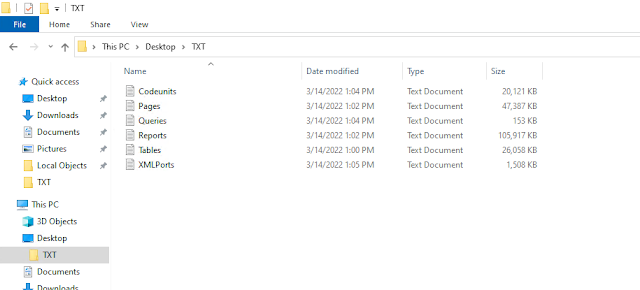 |
| Exported TXT Objects in a folder |
- Run Generate Symbols:
"Microsoft.Dynamics.Nav.SymbolReferenceGenerator.exe" "C:\Users\cfadmin\Desktop\TXT" "C:\Users\cfadmin\Desktop\App.app" Application 14.0.29530.0
"Microsoft.Dynamics.Nav.SymbolReferenceGenerator.exe" "C:\Users\cfadmin\Desktop\TXT" "C:\Users\cfadmin\Desktop\App.app" Application 14.0.29530.0
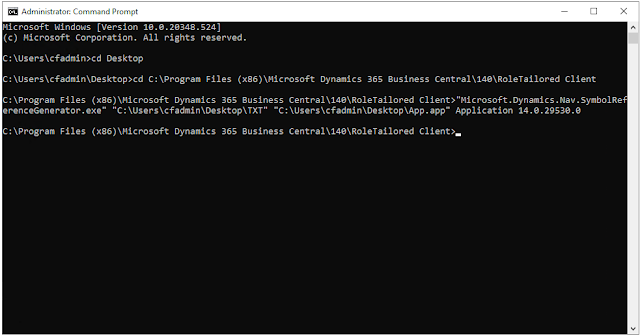
Now the App file is generated, you need to publish using Publish-NAVApp and check with Get-NavAppInfo
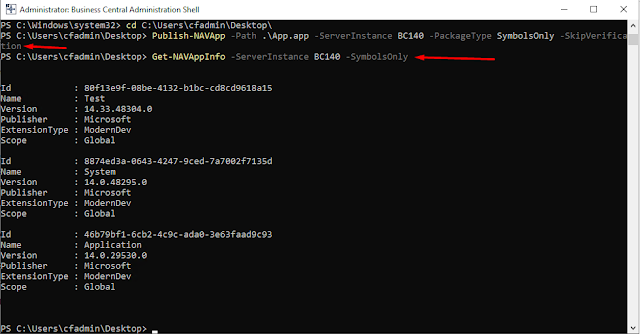 |
| PublishNAVApp for BaseApp |
Now Restart the Server Instance and download symbols from VS Code.
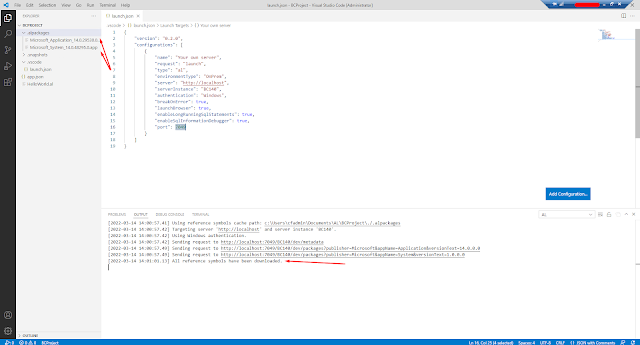
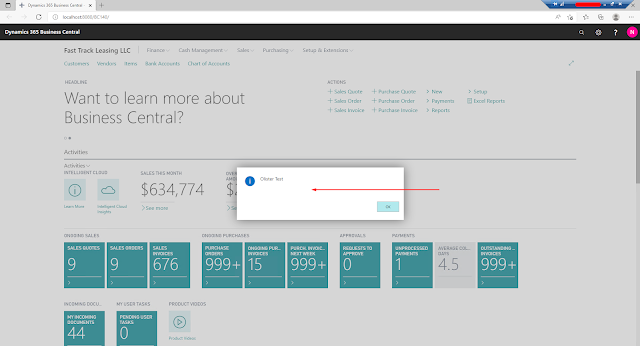
and upon installation of the extension, the Business Central Environment shows the successful deployment of the extension.
Conclusion:
This blog focused on the area where you can migrate your customization with the upgraded database.
Also, the data can be migrated into respected tables using OnInstall and OnUpgrade triggers in AL Development.
Hopefully, this blog helps in installing your AL Language Customization to BC Upgraded Database.
Also, the data can be migrated into respected tables using OnInstall and OnUpgrade triggers in AL Development.
Hopefully, this blog helps in installing your AL Language Customization to BC Upgraded Database.
*This post is locked for comments