




 2,289
2,289 Like
Like Share
Share
 Report
Introduction:
In this blog we will see how to install Smart Buttons for Ribbon Workbench using XRMToolBox
Implementation Steps:
1. Navigate to https://make.powerapps.com
2. Click Solutions
3. Select Import Solutions and import Ribbon Work Bench (Download here)

4. Once Solution Imported then Click Gear Icon at the Top and Select Advance Settings

5. Select Solutions --> You will find Ribbon Work Bench

6. Click the Ribbon Work Bench it will open PopUp like below
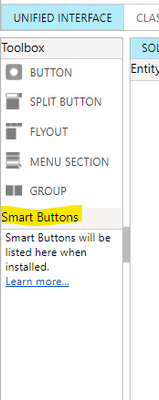
7. At the Left side you can see the Smart Button but it does not contain any values
Let's see how to show SMART Buttons
8. Now Click Below Link
https://ribbonworkbench.uservoice.com/knowledgebase/articles/896958
9. Once You Opened Link you will find another Link
https://github.com/scottdurow/RibbonWorkbench/releases
10. Once you clicked on Above Link you will redirect to Github and Download the Highlighted Solution

11. Now again go to Solutions (Follow Point 1 and 2)
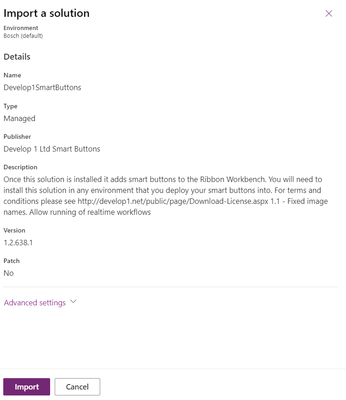
12. And Import Solution downloaded from Point 10
13. Select the Solution and Click Import
14. Now again go to Legacy Mode and Click on Solutions and Select Ribbon Work Bench Again
15. Once page loaded you can find the Smart Buttons.

That's it 
*This post is locked for comments