




 Like
Like Share
Share
 Report
In finance and operations for making any changes in License configuration form, you need to enable maintenance mode and after making desirable changes you need to disable to this mode. You can enable or disable maintenance mode using SQL query as well as command prompt. In this blog, we are performing this operation using the SQL query.
The following are steps to enabling/disabling maintenance mode:-
- Open SSMS(Microsoft SQL Server Management Studio) in your server.
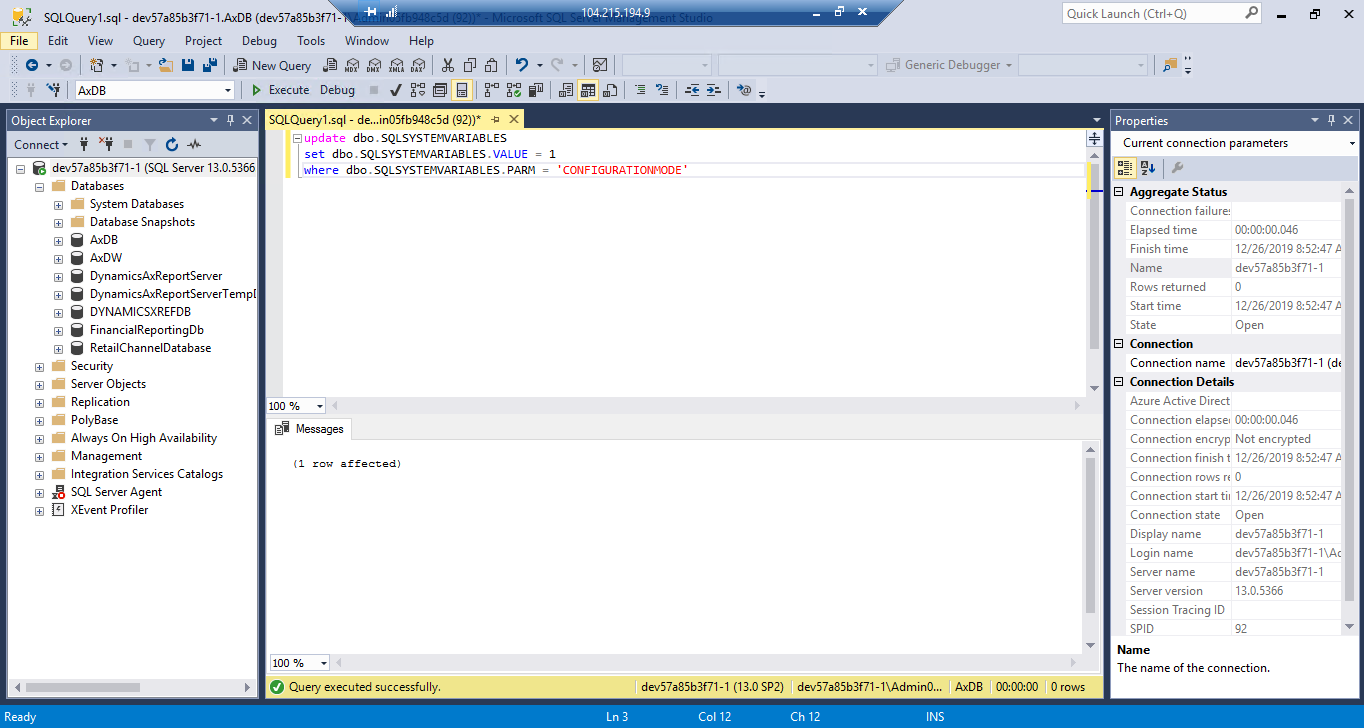
- Click on New Query and enter the following query to enable maintenance mode:-
update dbo.SQLSYSTEMVARIABLESset dbo.SQLSYSTEMVARIABLES.VALUE =1
where dbo.SQLSYSTEMVARIABLES.PARM = ‘CONFIGURATIONMODE’
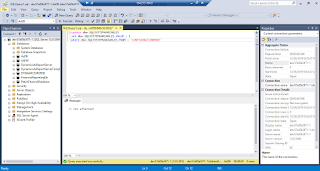
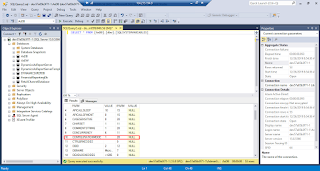
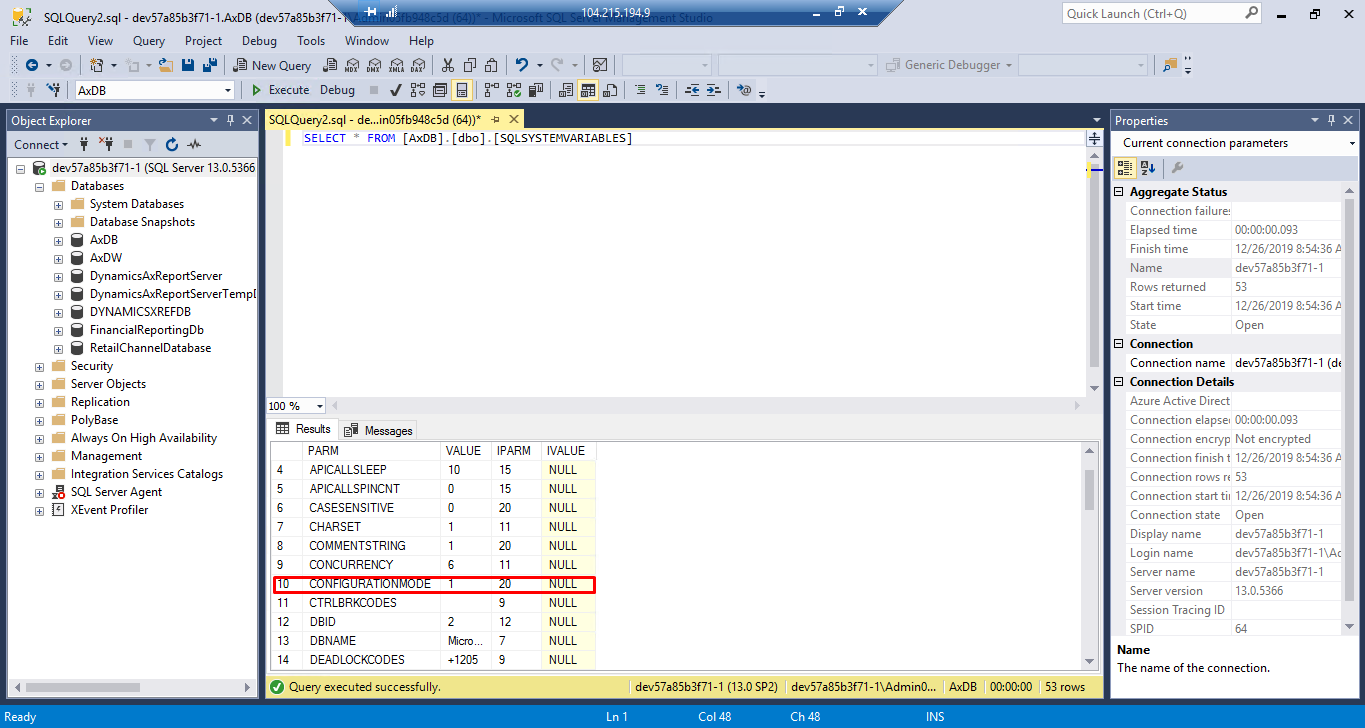
- You can verify status using following command:-SELECT * FROM [AxDB].[dbo].[SQLSYSTEMVARIABLES]
- After this restart IIS services in some cases, you need to restart the server.
- perform your changes to the License configuration form.
- after desired changes are made you can disable mode using the following command
update dbo.SQLSYSTEMVARIABLESset dbo.SQLSYSTEMVARIABLES.VALUE =0
where dbo.SQLSYSTEMVARIABLES.PARM = ‘CONFIGURATIONMODE’
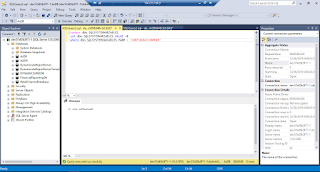
- Now again you can verify status using the same query in step 3 and again repeat step 4.I hope this blog will help you

*This post is locked for comments