




 32,738
 Like
Like Share
Share
 Report
The release of Dynamics NAV 2017 presents several important features, which proves how advanced this release is. One of these important features is the item attributes which are highly essential features especially for companies with high variations of SKUs such as but not limited to distribution, retail and manufacturing companies.
Item attributes are completely different that item variants, you may refer to the previous post on Dynamics NAV essentials for a better understanding of the item variants on this link.Item attributes are more of characteristics of the same SKU while an item variant is a variation that can be tracked under an item SKU.
Item Variants versus Item Attributes | Example:
Lets suppose that a distribution company has an item which has three specific colors (red, blue and white). There are two different scenario that can be considered:
1- Creating one item card, with three different variants (red, blue and white) | for that the system will support quantity tracking for all variants across all locations. Although, the system will have one item code under which there are three variations.
2- Creating three different item cards, and creating one attribute called (Color). The first item will be assigned to the item attribute value (red), while the second will be assigned to the second item attribute value (blue) and the third one will be assigned to the item attribute value (white). Although, there will be three separate item codes in the inventory module.
Understanding Item Attributes
In Dynamics NAV 2017, item attributes can be assigned either to single items or to item categories. Although, it is definitely better to assign attributes to the categories in order to make sure that they are inherited by items when assigned to categories.
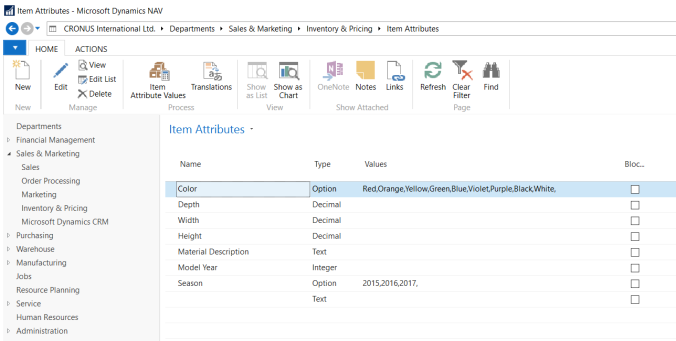
Item Attributes
When creating a new item attribute, you can choose from one of the following types:
- Option (predefined list)
- Text
- Integer
- Decimal
Note: Both decimal and integer can be assigned to a predefined unit of measurement.
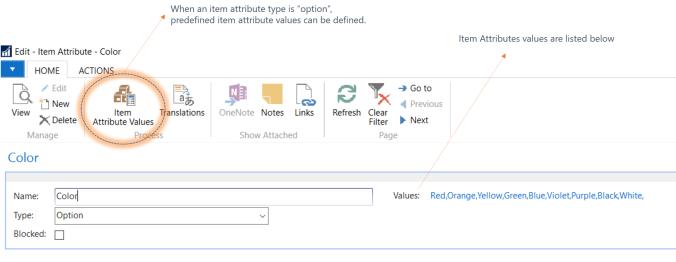
Item Attribute Values
Now the next step is to assign a specific set of attributes for either an item category or to an item card. As shown below, the item category (Table) is assigned to a set of attributes which are (Color, Depth, Height and Material Description), it means that once an item is added to the system and assigned to the item category (Table), it will automatically inherit all these attributes.
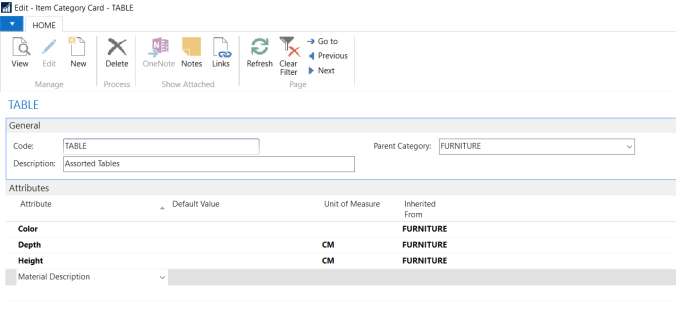
Item Category – Attributes
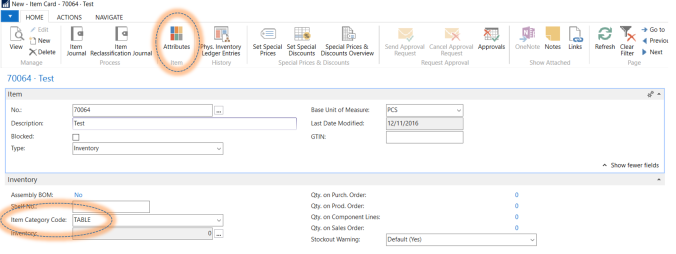
Item Card – Category and Attributes
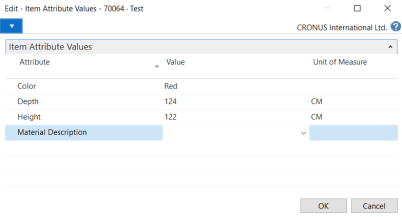
Item Card > Attributes Values
It is worth to mention finally that item attributes could have default values either on the item category level or item card level.
The next post will shed a light on the technical aspects of item attributes, SQL tables and import insights.
Best Regards,
Mahmoud M. AlSaadi


*This post is locked for comments