




 4,009
4,009 Like
Like Share
Share
 Report
Introduction:

I'm sure many saw this and wondered what this is. Let me explain.
WSL allows you to integrate your Linux Applications, Tools, directly inside Windows.
Refer What is Windows Subsystem for Linux | Microsoft Learn for more details.
Pre-requisites:
- Basic Understanding of Linux
- Basic Understanding of Virtual Machine
- Basic Understanding of OS Installation / Dual Boot
Books & References:
Demonstration:
1. Direct Installation via wsl --install:
You can open PowerShell running as Administrator.
Note that this method is only available to Windows 10 version 2004 and higher (Build 19041 and higher) or Windows 11.
2. I will follow the Manual way of installation:
i. Enable Windows Subsystem for Linux:
Run the following command in Powershell with Administrator rights.
dism.exe /online /enable-feature /featurename:Microsoft-Windows-Subsystem-Linux /all /norestart

ii. Enable Virtual Machine Feature:
Run the following command in Powershell with Administrator rights.
dism.exe /online /enable-feature /featurename:VirtualMachinePlatform /all /norestart
You will need your machine to have virtualization capabilities. Restart the machine to complete WSL install correctly.

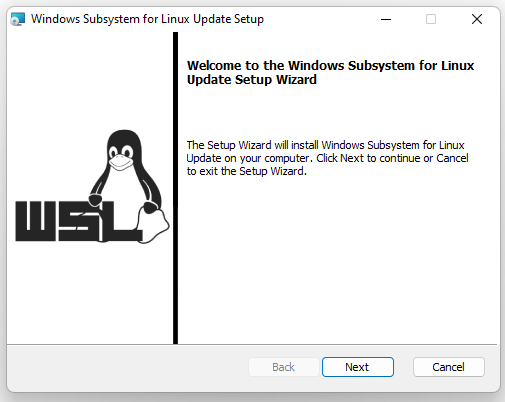
iii. Download the Linux Kernel Update Package and Install:
You can get the package from Linux Kernel Update Package from here and run the installer.

iv. Set WSL2 as the default version:
Run the following command in Powershell with Administrator rights.
wsl --set-default-version 2

v. Install a Linux Distribution from Microsoft App Source:
Go to Microsoft App Source and install Ubuntu Linux Distro.

vi. Open the Linux Distribution App and complete User Setup:
You will see a CLI version of Ubuntu started asking for Username and Password.


vii. Setup a GUI through LXDE Desktop Environment:
I tried setting up LXDE Desktop Environment. However, it did not work as expected.

Conclusion:
For any questions feel free to reach out to me at olisterr@outlook.com
*This post is locked for comments