






Dynamics 365 – Unified Service Desk
Views (5337)
 Zohaib Uddin Khan
 2,822
2,822
 Like
Like Share
Share
 Report
Author: Zohaib Uddin Khan
Let’s discuss about the Unified Service Desk, What is Unified Service Desk or USD?
Unified Service Desk for Microsoft Dynamics 365 provides a configuration-based framework for quickly building agent applications for call centers. You can aggregate customer information from different areas in Microsoft Dynamics 365 into a single desktop and get a 360° view of customer interactions.
It has two components to be installed, one component to be installed in your Organization another is the Client Application.
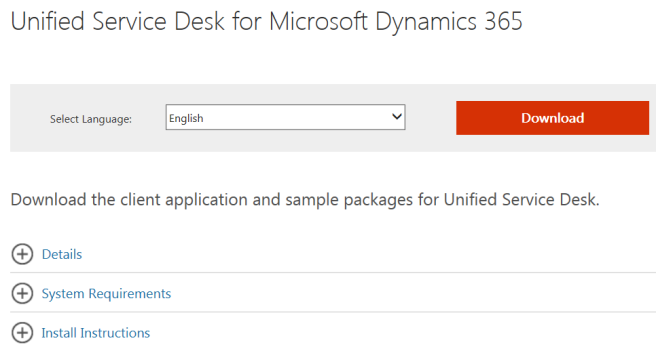
- As I mentioned earlier, USD has two components, so we’ll download:-
- Dynamics365-USD-2.2.0.755-PackageDeployer.exe (Compulsory)
- Dynamics365-USD-2.2.1.806-amd64.exe (Optional. Since, my development machine is 64 bit, so I chosed this one.)
or
- Dynamics365-USD-2.2.1.806-i386.exe (Optional)
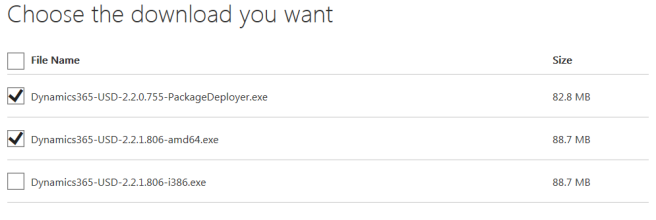
- Once, download finished, double click the ‘Dynamics365-USD-2.2.0.755-PackageDeployer.exe’.
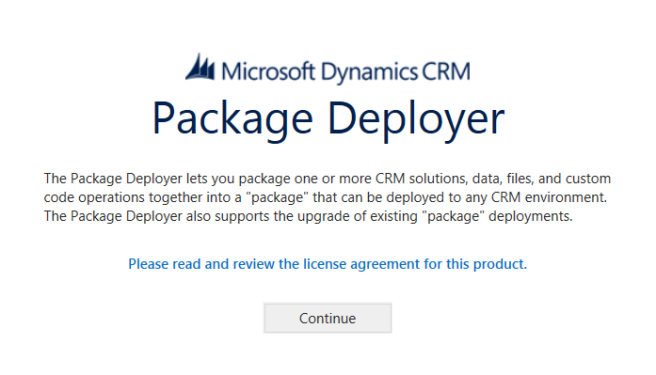
- Enter the necessary information of your organization. Keep remember the user should have ‘System Administrator’ role.
- As a new comer to Unified Service Desk, I recommend you choose ‘Unified Service Desk – Microsoft Dynamics 365 Web Client’ because in this option, sample configuration data is included. While, if you’re installing on UAT/Production environment, then ‘Unified Service Desk – New Environment’ option is your choice.
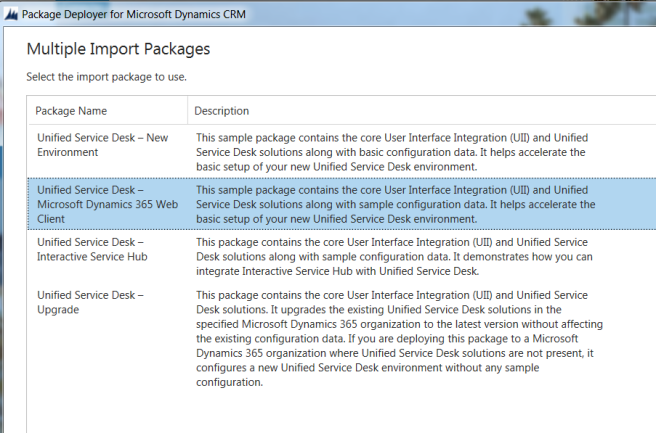
- Couple of clicks on Next button and Unified Service Desk is installed in your organization. In case, if it throws an exception while installation, then click on the ‘View Log File’ in the installation screen. (Installation will take 15-25 mins approximately)
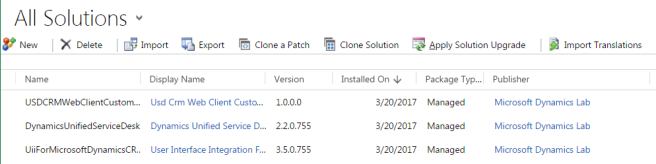
- Go to your CRM Organization, Settings -> Solutions -> Verify that following solutions are installed:
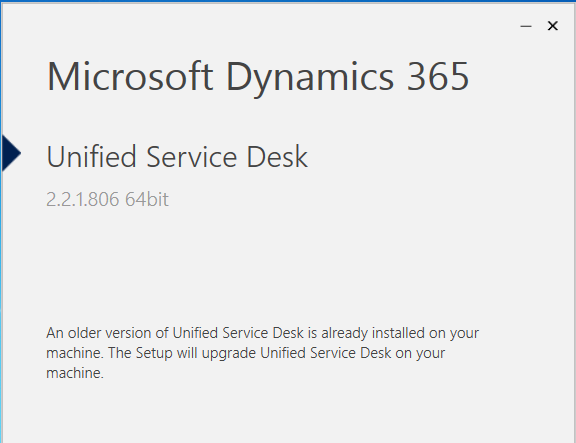
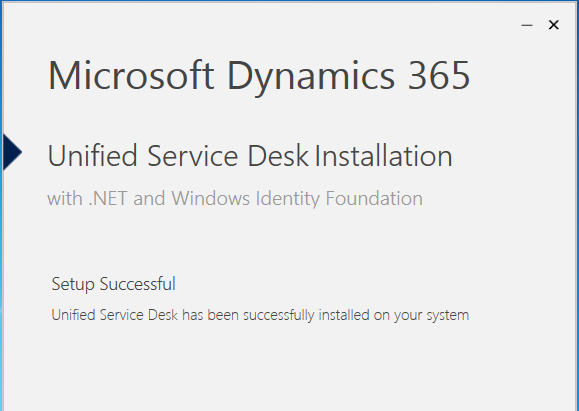
- Now, let’s start installing the Client application. Double click on the ‘Dynamics365-USD-2.2.1.806-amd64.exe’ or ‘Dynamics365-USD-2.2.1.806-i386.exe’.
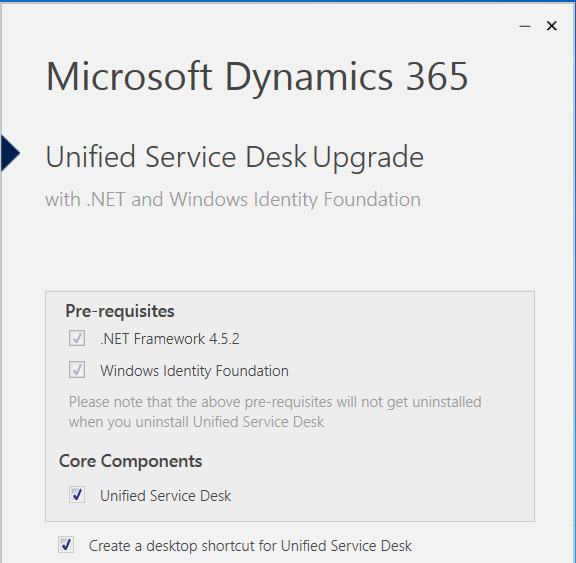
- Couple of clicks on Next button and Unified Service Desk Client Application is installed on your computer.
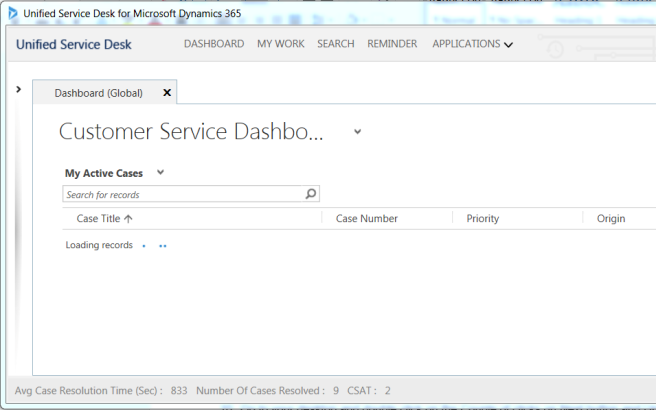
- Go to your desktop and double click on the Couple of clicks on Next button and Unified Service Desk Client Application is installed on your computer.


This was originally posted here.
*This post is locked for comments