




 17,887
 Like
Like Share
Share
 Report
HOW..??
Just log in to your LCS account from here
lcs.dynamics.com/v2
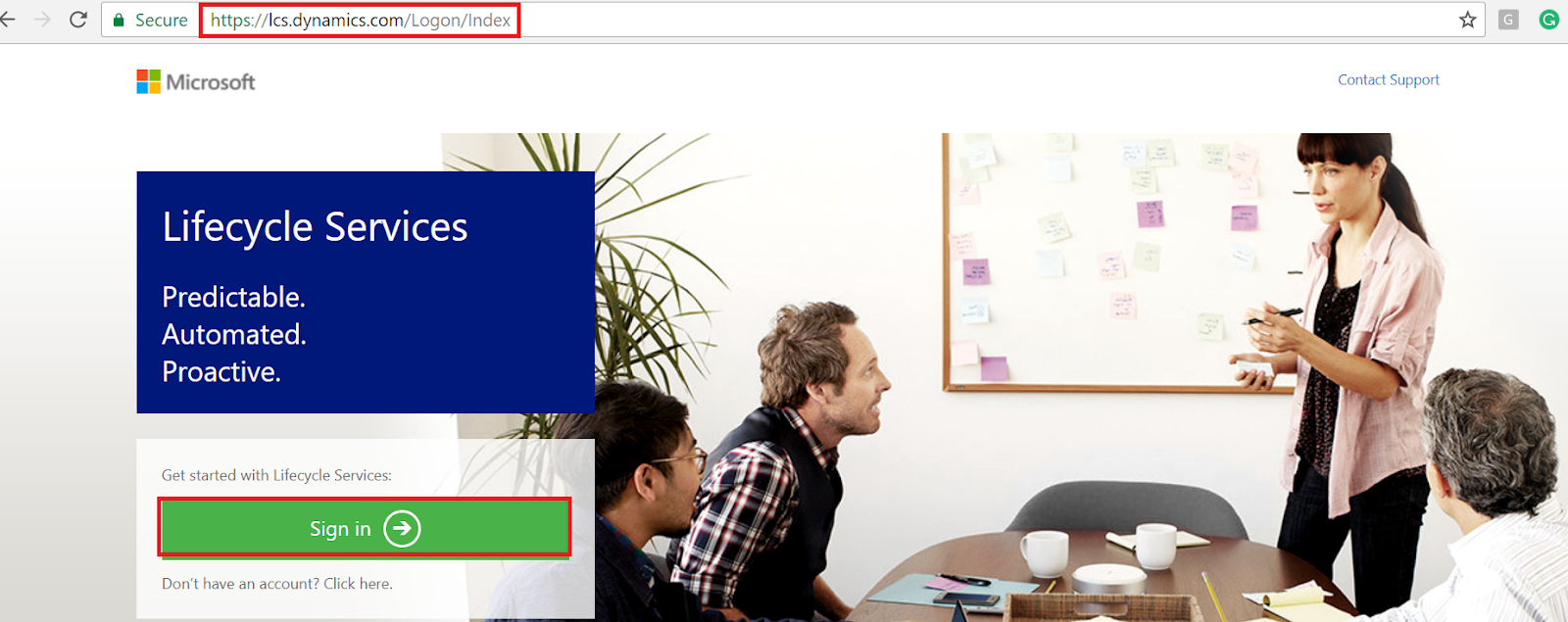
assign the username and password and click next
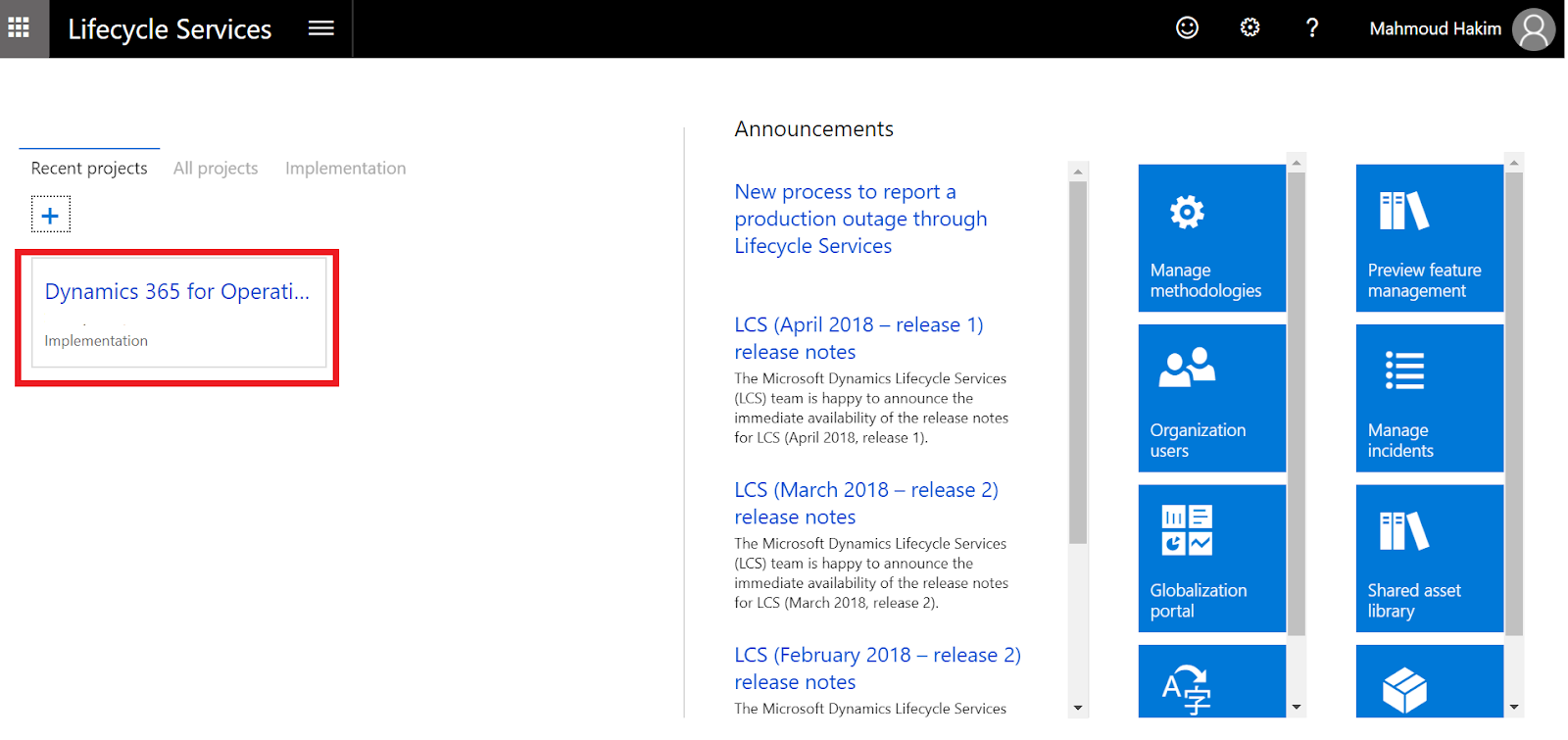
select your project and select the specific environment

click Full Details and click maintain
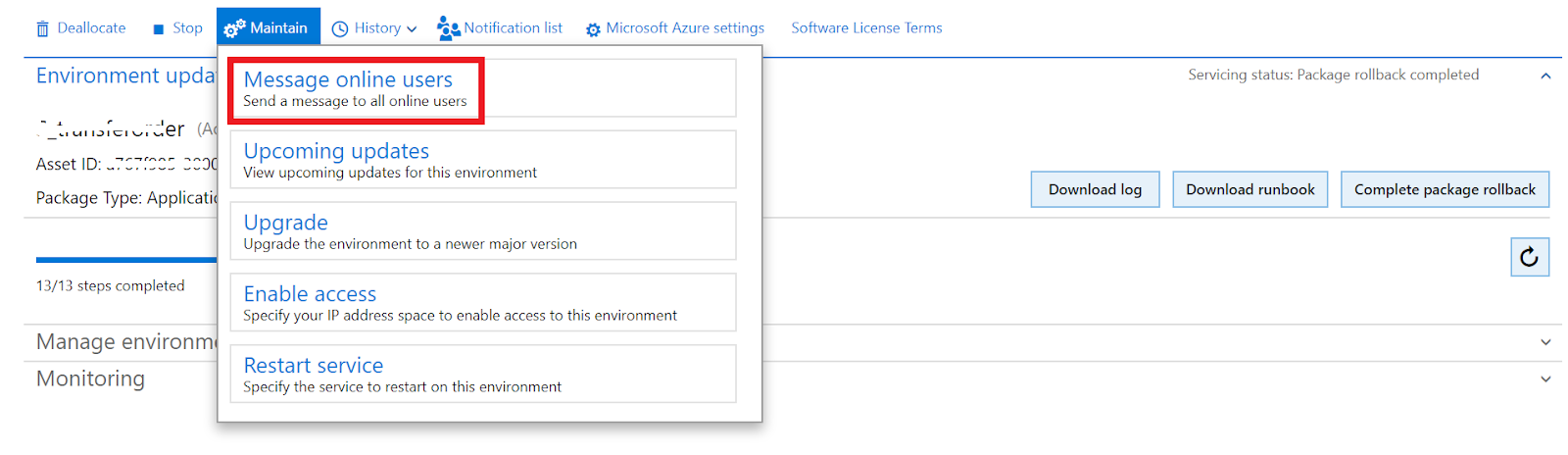
click message online users and select the change type

You have two options::
1-- Broadcast a new message for downtime: to Send a message to all online users about planned downtime
2-Cancel message:: to cancel the active message

Set the time for this message (valid from ..to) and click POST

you see the message that will send to users
("This system will be temporarily unavailable starting at 2018-04-23 09:41 due to scheduled maintenance. Please save your changes and logout before the maintenance begins.")
Click YES

if you go to the browser and refresh the application page, you will receive the below message

To Cancel message, just select cancel message type

Thanks.
*This post is locked for comments