




 22,784
 Like
Like Share
Share
 Report
 This post is part of the Implementing SmartView for Microsoft Dynamics GP series were I am taking a look at the SmartView product from eOne Solutions which provides another way of using SmartLists.
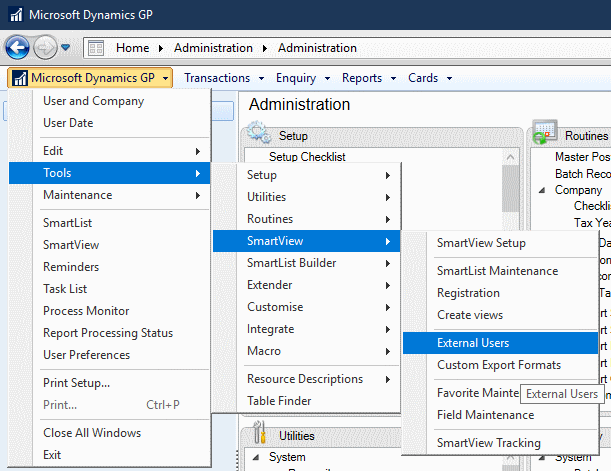
Before users can access SmartView External, they need a user created. These are maintained through ()Microsoft Dynamics GP menu » Tools » SmartView » External Users:
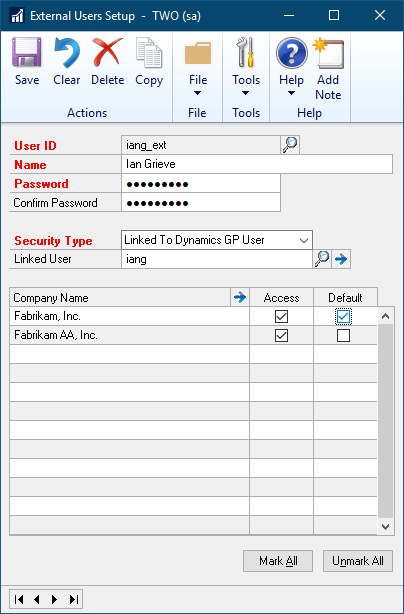
Enter a unique User ID along with the users Name, Password Confirm Password.
You can then choose a Security Type of Linked to Dynamics GP User or Dynamics GP role which determines the security roles and tasks they have (which in term determine which SmartList objects they can see in SmartView External).
Mark access to the companies the user will view SmartLists in and mark one of them as default. Click Save to create the user:
Read original post Implementing SmartView for Microsoft Dynamics GP: Configure Users for SmartView External at azurecurve|Ramblings of an IT Professional
*This post is locked for comments