




 2,890
2,890 Like
Like Share
Share
 Report
Hi Guys, I am here with a new information on Dynamics AX for Retail. Most of us might have encountered a scenario where we require to rename the text for few of the fields on AX 2012 POS screen. For instance if you want to change the text which is above the numpad – Search or enter quantity to Entry (as shown in screenshot)

This can be achieved through the Customization from backend with the help of a developer. But here I will tell you how to do this without any technical help and simply through configuration.
So to start with, you have to first make the field numbers visible on the POS screen. This field numbers are very helpful when changing the field names. On the POS desktop shortcut, right click and click on Properties.

In the target section add the text -tr after giving a space after exe”. (see the screenshot below) . Click Apply and OK.

Now open POS application and then you will find out that all the text are showing the numbers. Lets identify the number for the Search or enter quantity field.
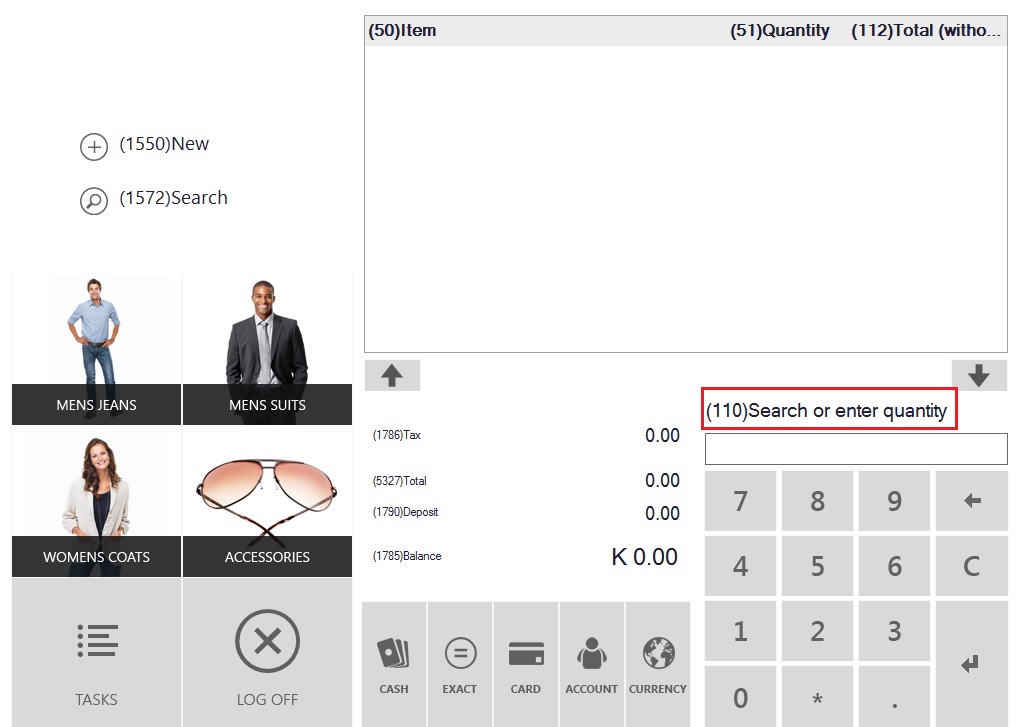 The field number is 110. Now once you have identified the field number. Lets configure another text for it.
Open AX client >> Retail >> Setup >> POS >> Profiles >> Language text. Create a new record and enter the below details:
Language ID : Enter the language ID which is same as attached to the worker.
Text ID : Enter the field number.
Text : Enter the new Text. This is just a text field. It is not mandatory to have English language text in this field, you can enter any language text over here. The same will be displayed on the POS Screen. This way you can achieve to have multiple language text on the same POS screen at the same time.

Now run the scheduler job 1090 – Registers.
Open the POS, and check the change.
 Hope this might help you at any moment in you project timeline.
Do write me if you need any help with regards to this feature.
Enjoy RetailDAXing!!! :)


*This post is locked for comments