




 1,424
1,424 Like
Like Share
Share
 Report
Purpose:
The purpose of this post is to share how can we resolve Azure build pipeline errors.
Application:
Dynamics 365 Finance and Operations
Problem:
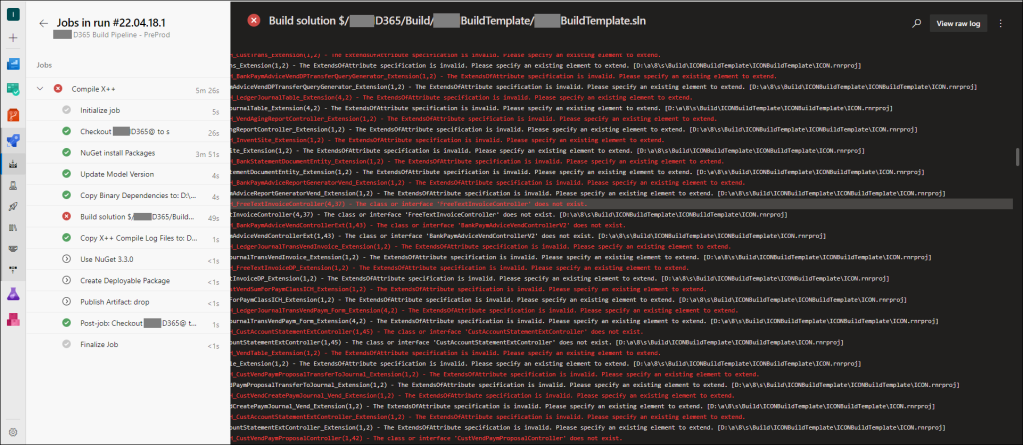
Recently I faced an issue while running build pipeline in Azure DevOps. The pipeline failed with errors like:
The ExtendsOfAttribute specification is invalid. Please specify an existing element to extend.
The class or interface XXX does not exist
The underlying type XXX or its base type for table XXX field XXX does not exist.
The name XXX does not denote a class, a table, or an extended data type.
The XXX argument of the XXX compile-time function does not specify a known table/map/view/data entity.
Solution:
The pattern I noticed was that all of the errors were coming from elements that were in the Application Suite model.
After investigating I found that for versions 10.0.18 onwards, we need to use 4 NuGet packages instead of 3 because of the Microsoft.Dynamics.AX.Application.DevALM.BuildXpp NuGet size is getting near or over the max size which is 500MB and will come as 2 NuGet packages from now on.
Reference:
https://docs.microsoft.com/en-us/dynamics365/fin-ops-core/dev-itpro/dev-tools/pipeline-nuget-split
To resolve this issue
- Update packages.config file
- Add new variable to the pipeline
- Add reference to the variable in the build script
1. Update packages.config
The packages.config file will have an additional line for the Application Suite NuGet.
<?xml version="1.0" encoding="utf-8"?>
<packages>
    <package id="Microsoft.Dynamics.AX.Platform.DevALM.BuildXpp" version="7.0.5968.16973" targetFramework="net40" />
    <package id="Microsoft.Dynamics.AX.Application.DevALM.BuildXpp" version="10.0.793.16" targetFramework="net40" />
    <package id="Microsoft.Dynamics.AX.ApplicationSuite.DevALM.BuildXpp" version="10.0.793.16" targetFramework="net40" />
    <package id="Microsoft.Dynamics.AX.Platform.CompilerPackage" version="7.0.5968.16973" targetFramework="net40" />
</packages>
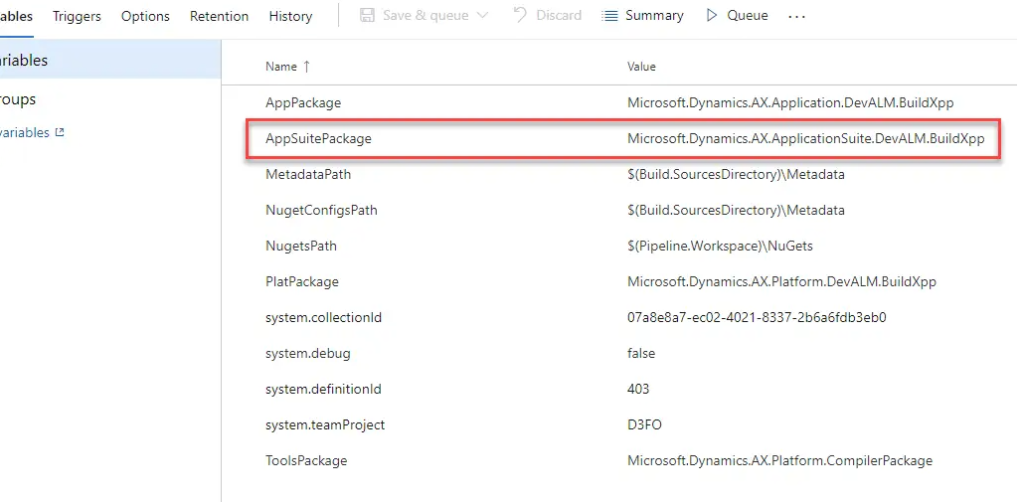
2. Add new variable to the pipeline
Add a new variable to the pipeline variables called AppSuitePackage with the value Microsoft.Dynamics.AX.ApplicationSuite.DevALM.BuildXpp.
3. Add reference to the variable in the build script
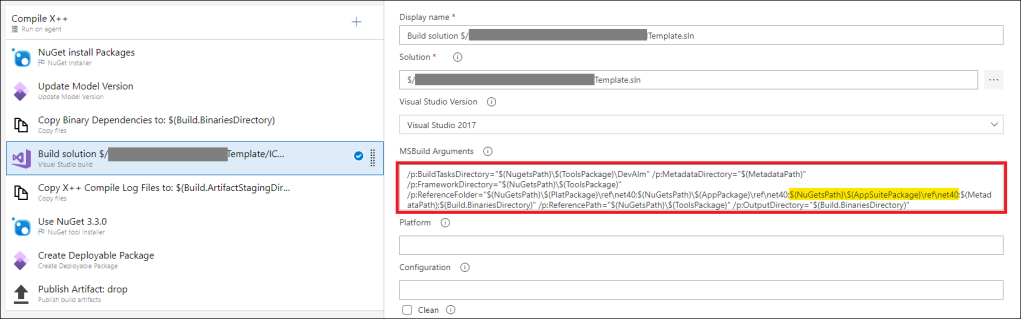
You can get the script from below.
/p:BuildTasksDirectory="$(NugetsPath)\$(ToolsPackage)\DevAlm" /p:MetadataDirectory="$(MetadataPath)" /p:FrameworkDirectory="$(NuGetsPath)\$(ToolsPackage)" /p:ReferenceFolder="$(NuGetsPath)\$(PlatPackage)\ref\net40;$(NuGetsPath)\$(AppPackage)\ref\net40;$(NuGetsPath)\$(AppSuitePackage)\ref\net40;$(MetadataPath);$(Build.BinariesDirectory)" /p:ReferencePath="$(NuGetsPath)\$(ToolsPackage)" /p:OutputDirectory="$(Build.BinariesDirectory)"
*This post is locked for comments