




 6,230
6,230 Like
Like Share
Share
 Report
If you created a new Microsoft Dynamics instance recently, you may have noticed that the version of the instance is v9.x. If you created this for dev purposes, you may need this to be CRM v8.x or perhaps an even earlier version, and thankfully it’s pretty easy to set this up.
Please note that this should only be used when setting up a NEW instance, as resetting the instance will clear all data.
1. Navigate to the instance admin portal (https://port.crm.dynamics.com/G/Instances/InstancePicker.aspx?redirect=False). Note that this is the url for North American instances. In the case of instances in other regions, substitute [crm] for your region, e.g. [crm6] (Australia) etc.
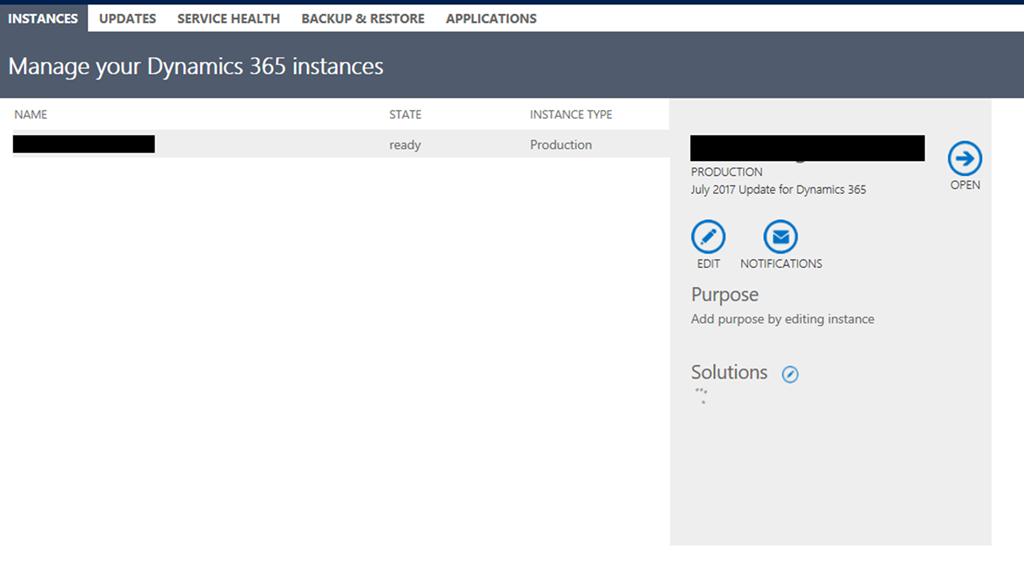
2. Select the instance and click edit
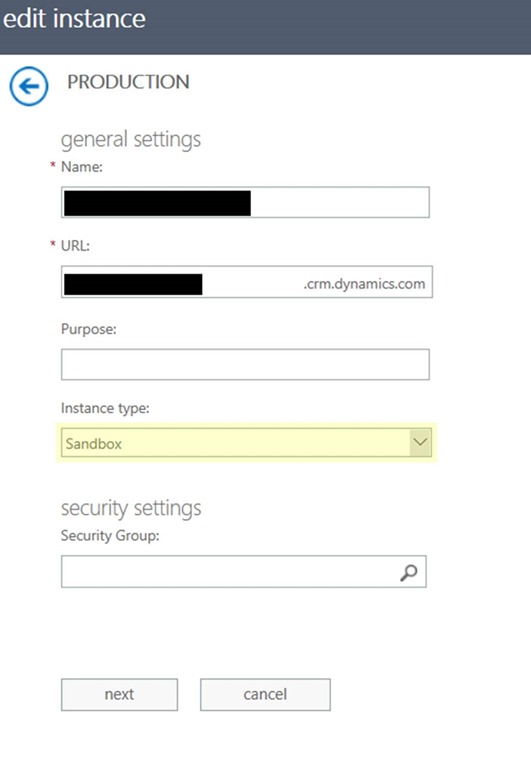
3. Make the instance a sandbox, click next then save. It is necessary to make the instance a sandbox at this point, as production instances cannot be reset.
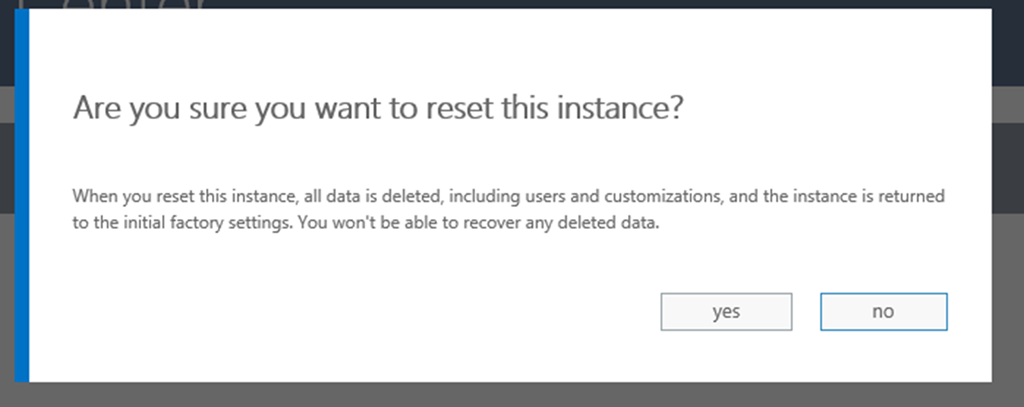
4. Click reset then select target version. You will see the options for which version you can reset to in the screenshot below. Once you have selected the desired version (and any applications you want to install), click reset. You will be given a confirmation prompt. Once you have read this, click yes to continue. The reset process may take some time to complete. THIS WILL DELETE ALL DATA IN THE SYSTEM AND IT WILL NOT BE ABLE TO BE RECOVERED.

5. (OPTIONAL) make instance a production instance again by clicking edit and changing the instance type (similar to step 3).
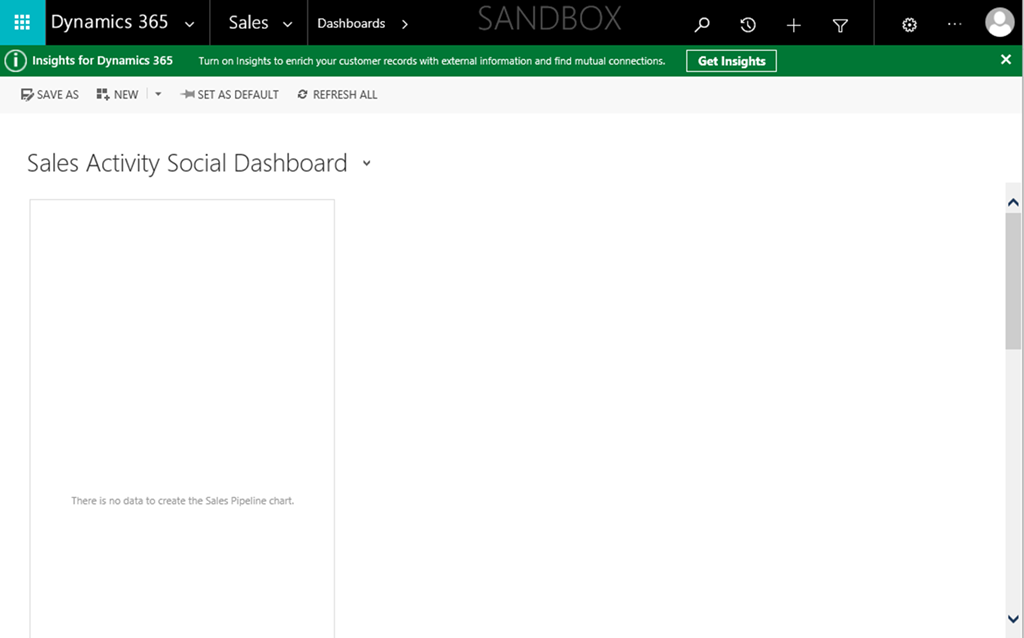
And voila! The instance is now a different Dynamics 365/CRM version.
*This post is locked for comments