




 14,151
 Like
Like Share
Share
 Report
 Earlier this month there was a thread on the Microsoft Dynamics GP community forum which described an issue where there were too many menu choices showing after logging into Dynamics GP.
The issue is not a bug, but standard behaviour in Microsoft Dynamics GP which was causing some confusion for users at the customer’s site.
When you log into Microsoft Dynamics GP, it starts with all of the menu items showing and enabled. Then after login, a background process runs and disables and hides the menus based on the security settings of the current user and company.
Problem
If you are quick to display an area page, for example: Sales, before the clean up of the menus has completed, the Sales area page will show all the menu items for sales. Once the background process has completed, the menu items that you don’t have access to will be disabled and will not work, but are still visible (at least until you refresh the area page, by moving away and coming back).
To see this all happening, you can open the Process Monitor (very quickly) after login and see the Updating Menus process which is calling the CleanUpMenus global procedure.

Selecting the Updating Menus process and clicking the Detail button shows the name of the procedure.

If you only want the CleanUpMenus procedure to disable the menu items and not actually hide them, you can add the following Dex.ini setting. This can be handy for debugging and is exposed in the Dex.ini Settings window of GP Power Tools.
- ShowAllMenuItems=TRUE
You can tell when the background processing has completed because the User Date and Company Name and User Name at the bottom of the main application window become enabled once all the background processing completes.

Solution
The only solution without a little customisation is user education…..
“Don’t change area pages until the company name becomes enabled otherwise it might show items you don’t have access to.”
Better Solution
If you want a better solution, you could just prevent the user from interacting with Microsoft Dynamics GP until all of the background processing at login has completed.
This solution can be written using GP Power Tools, Developer Tools module as a simple customisation.
Below are the screenshots of the project and a quick explanation. The archive containing the xml configuration file for you to import onto your GP Power Tools system is at the bottom of the post.
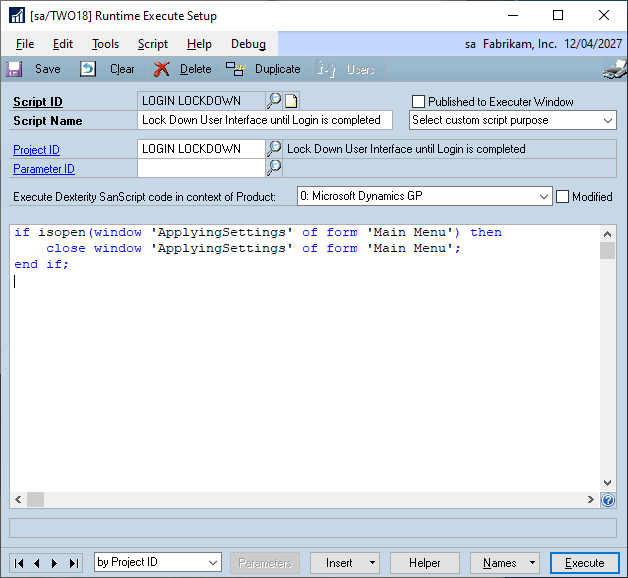
We are going to use the ApplyingSettings modal window on the Main Menu form to prevent user interaction until the background processing is completed. We can achieve this by using a trigger on login to open the modal window, then load and execute a script in the background to close the window. This script will be queue up behind all the other background processes and will close the modal window once everything else has completed.
Here is the Trigger Setup window showing the script:

Note: The Options Do not activate Logging Mode and Minimize Log Entries have been checked to ensure that logging is not enabled and that trigger will only generate log entries if there are errors.
Here the Runtime Execute Setup window with the script which is loaded and called in the background by the trigger:
Finally, here is the Project Setup window with the two components linked to it:

Hope you find this quick solution useful.
David
GP Power Tools Settings Login Lockdown.dbg.zip
30-Sep-2019: Updated Trigger to disable logging mode and minimize log entries. Screenshots and attached zip file updated.
This article was originally posted on http://www.winthropdc.com/blog.
*This post is locked for comments