




 4,481
4,481 Like
Like Share
Share
 Report
Ever wondered why there’s no tutorial on how to create a Sales Order report from scratch in the RDLC? The reason is because it takes a LONG TIME! Even for an experienced developer, it takes a long time. As I previously mentioned on my article, Microsoft really needs to address this in future versions.
The reason for SetData and GetData is not because of performance reason as stated in the manual 80146B. If you’re wondering what the SetData and GetData is for, please look here.
For multiple pages, the header data is dependant on whether there are lines. If you’re printing multiple form type reports like the sales order and you do not use the SetData and GetData, the header will only link to the lines displayed on the first page of the report. So this means that if your sales order is printed to the 2nd page, the header information will all disappear.
Here’s an example if you create a report without using the SetData and GetData logic:
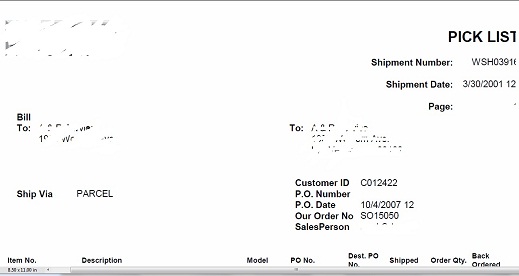
This is the first page. As you can see, the header displays nice and pretty. I used whiteout to remove some sensitive information in Paint.
Now this is what happens when you print the 2nd page:
No, it’s not an error. You’re seeing it correct. It’s a blank page. I didn’t even have to use Paint to remove any information.
The reason why the 2nd page is blank, again, is because the link was done only on the first page on the header. If the report goes to the 2nd page, the link is essentially gone, therefore, no value is loaded and so nothing is displayed.
So when you create a report that has headers in forms (sales order, quote, etc). You need these:
Shared Offset As Integer
Shared NewPage As Object
Public Function GetGroupPageNumber(NewPage As Boolean, PageNumber As Integer) As Object
If NewPage
Offset = PageNumber – 1
NewPage = False
End If
Return PageNumber – Offset
End Function
Public Function IsNewPage As Boolean
NewPage = True
Return NewPage
End Function
Shared HeaderData As Object
Public Function GetData(Num As Integer) As Object
Return Cstr(Choose(Num, Split(Cstr(HeaderData),Chr(177))))
End Function
Public Function SetData(NewData As Object)
If NewData <> “” Then
HeaderData = NewData
End If
End Function
And you need these controls with the proper code:
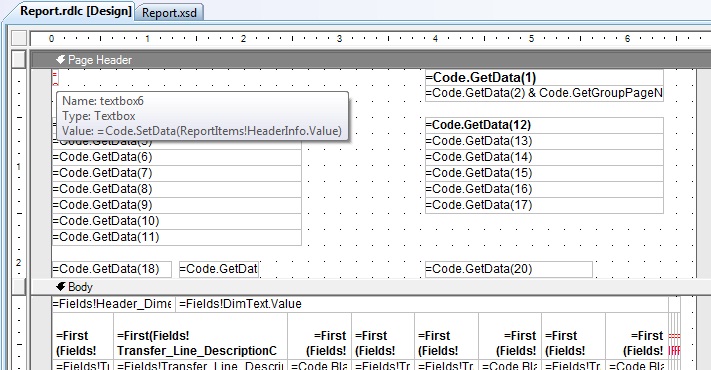
We spent hours and hours trying to get our report header to print on mmultiple pages. Don’t make the same mistakes we did!
*This post is locked for comments