




 Like
Like Share
Share
 Report
Introduction:
This blog explains How to set up Gmail Authentication for D365 Portals.
Steps:
1.) Register D365 Portal with Google API
Go to Google API Console: https://console.developers.google.com/apis/dashboard?project=symmetric-axle-236007
2.) Create New Project or select the Project.
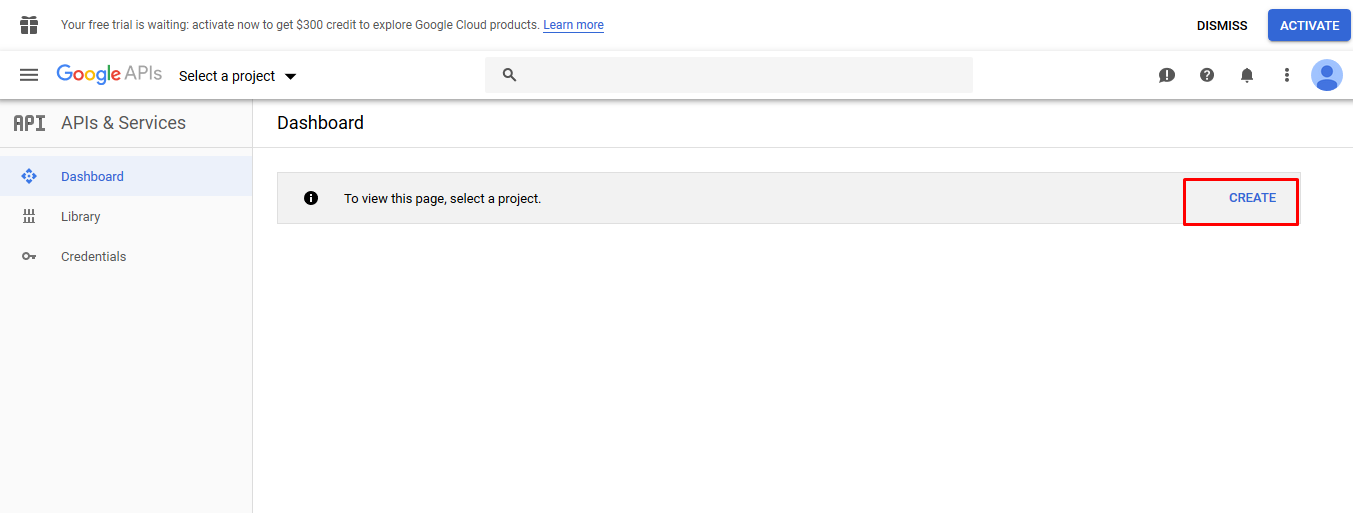
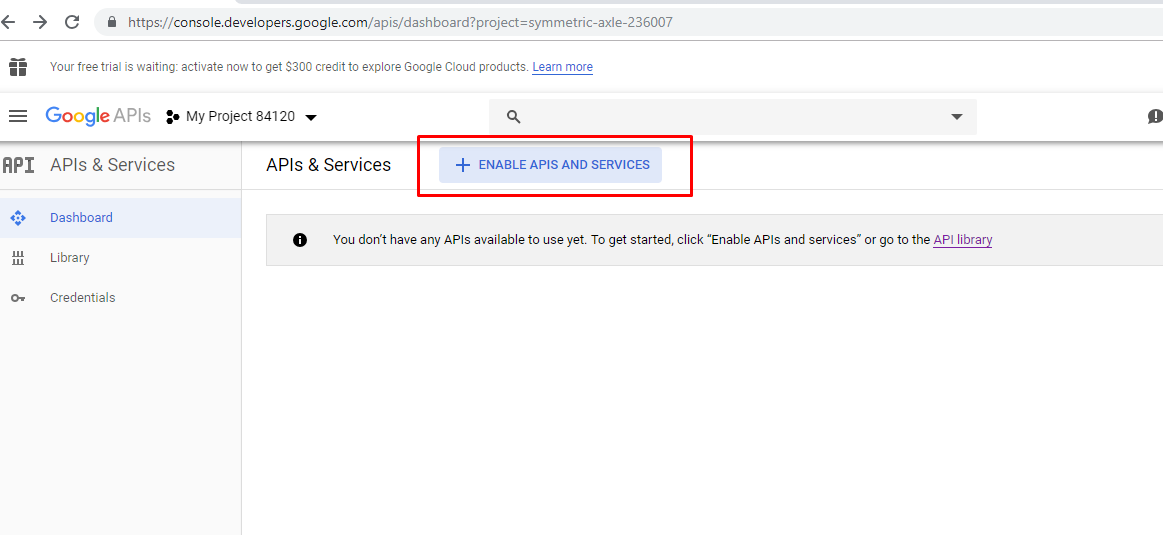
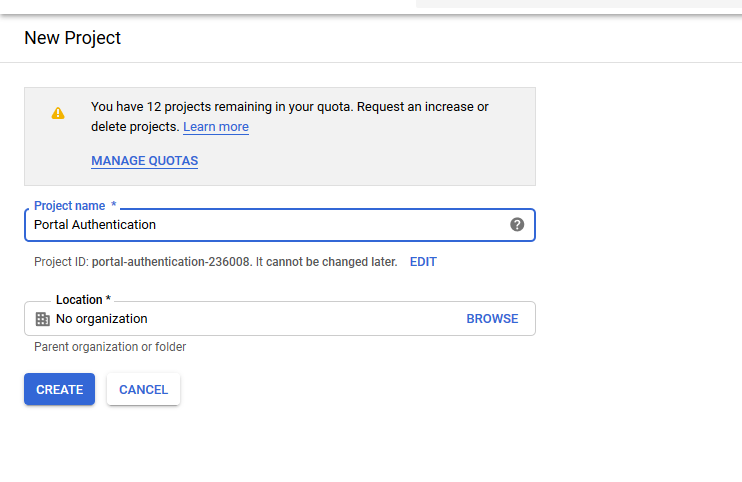 3.) Click on “+Enable APIS and Services”
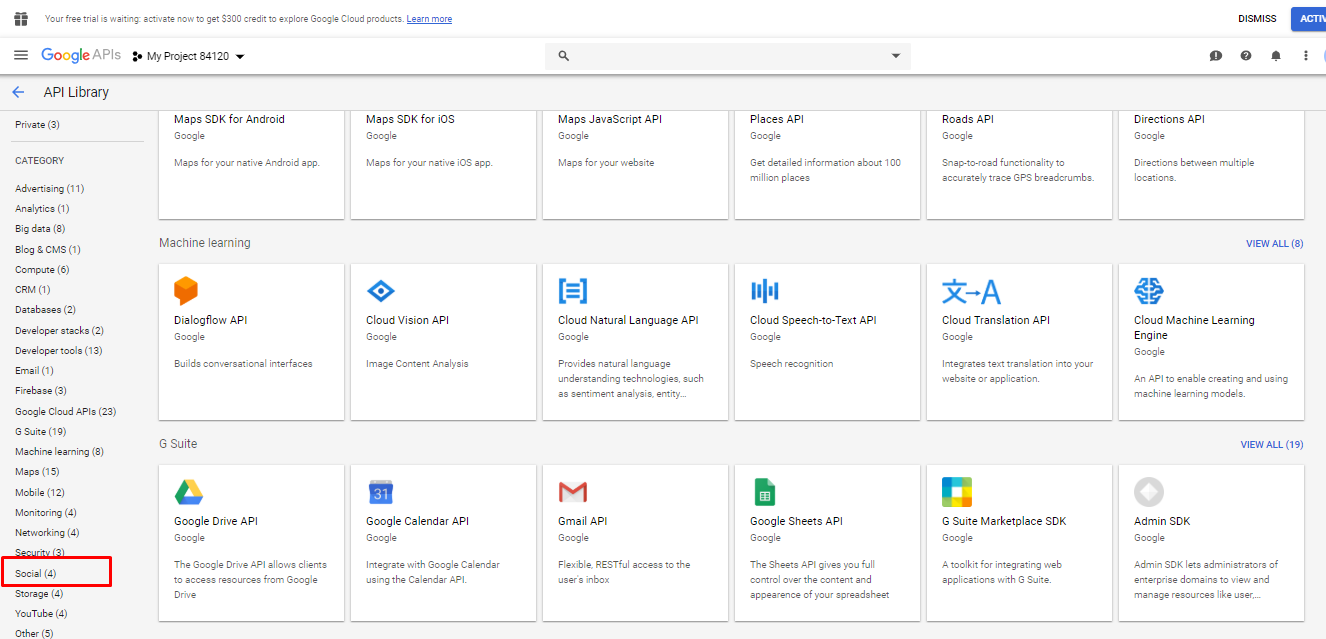
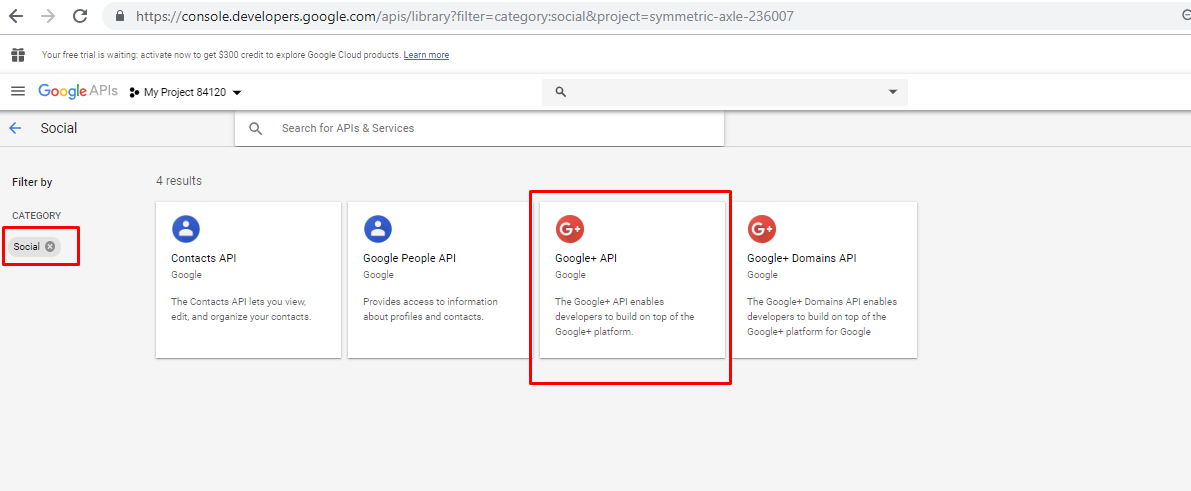
 4.) Select “Social” under category.
5.) Select “Google+API”
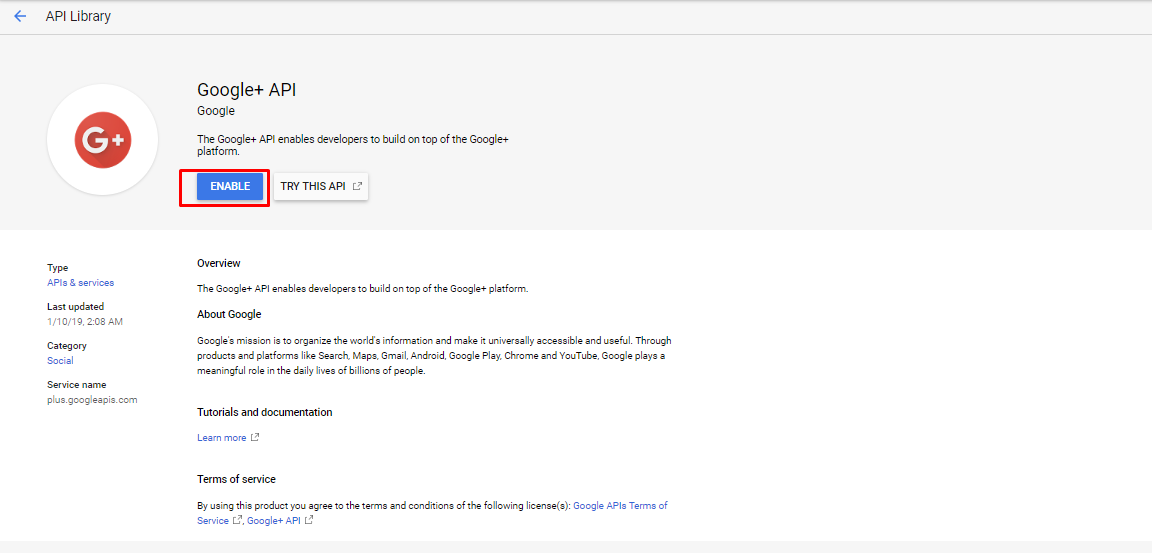
6.) Click on Enable.
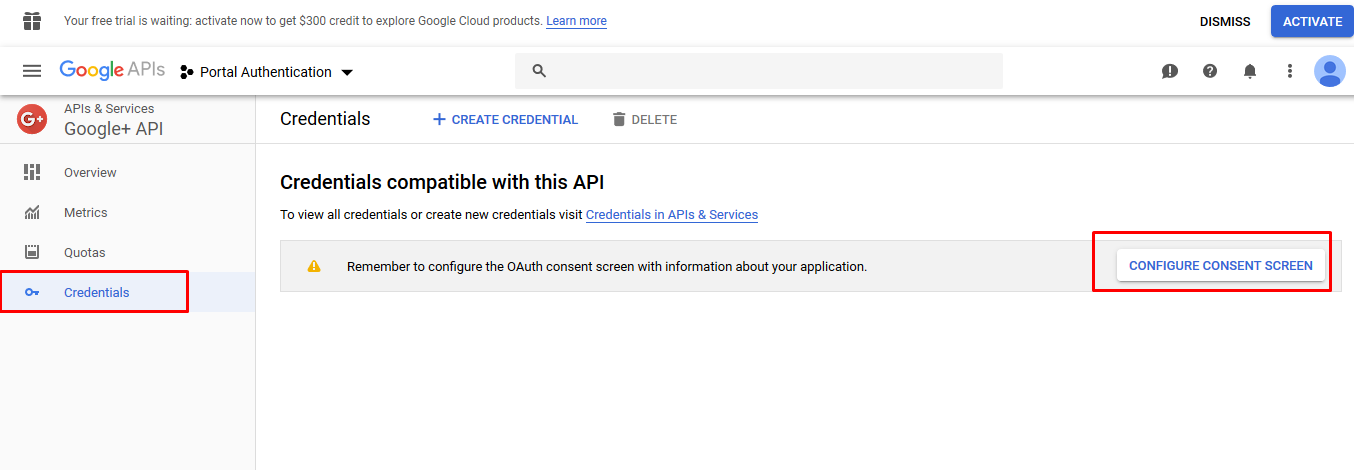
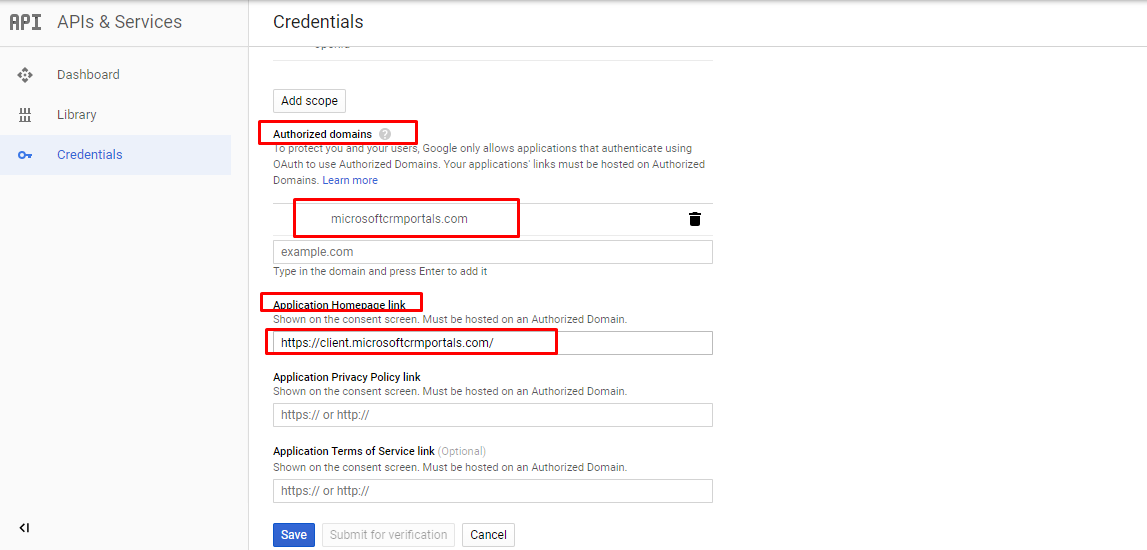
7.) Configure consent screen.
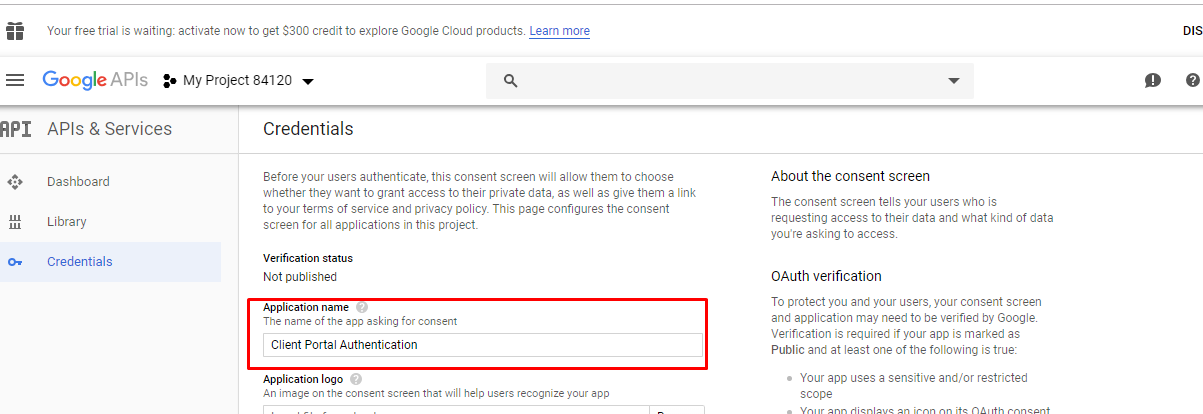
– Enter Application Name.
– Enter Authorized domains: “microsoftcrmportals.com”
– Enter Application Homepage link: “URL of D365 Portal”
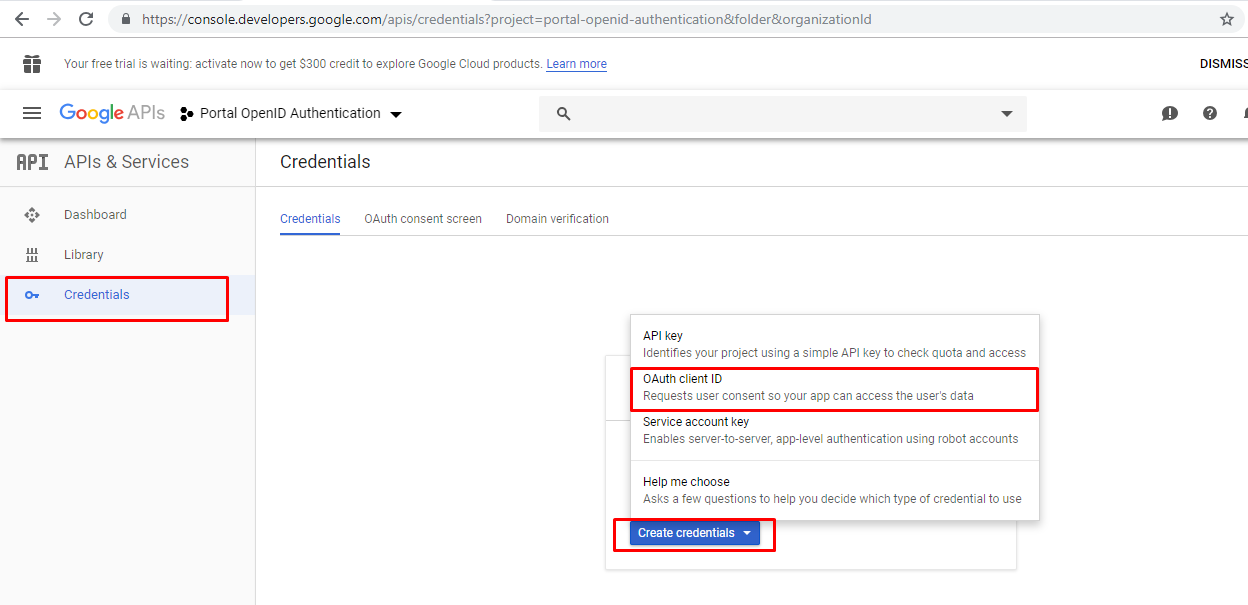
8.) Click on credentials Create Credentials and select OAuth Client ID.
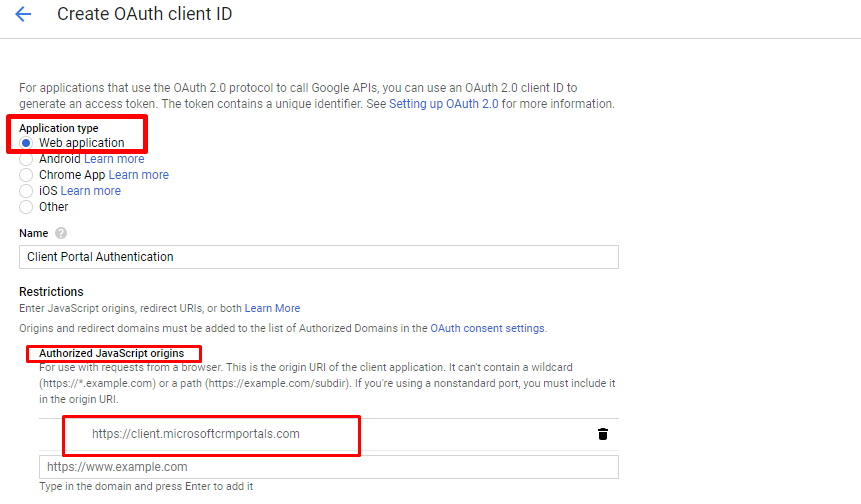
 9.) Enter the below details.
– Select the Application type as “Web Application”
– Enter Name.
– Authorized JavaScript origins: “Enter Portal URL”
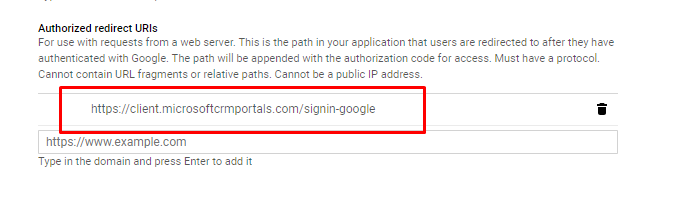
– Authorized redirect URIs: “PortalURL/signin-google”
– Click on Create.
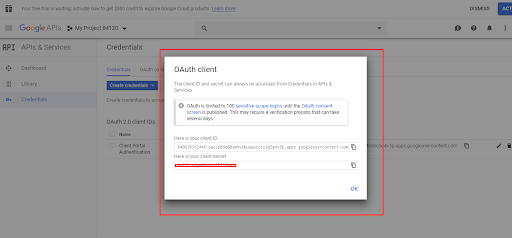
– Popup window will come copy the “client ID” and “client secret” values from that.
Step 2: Creating Site Settings in CRM.
1. Go to Portals Site Settings.
2. Create new records as per below.
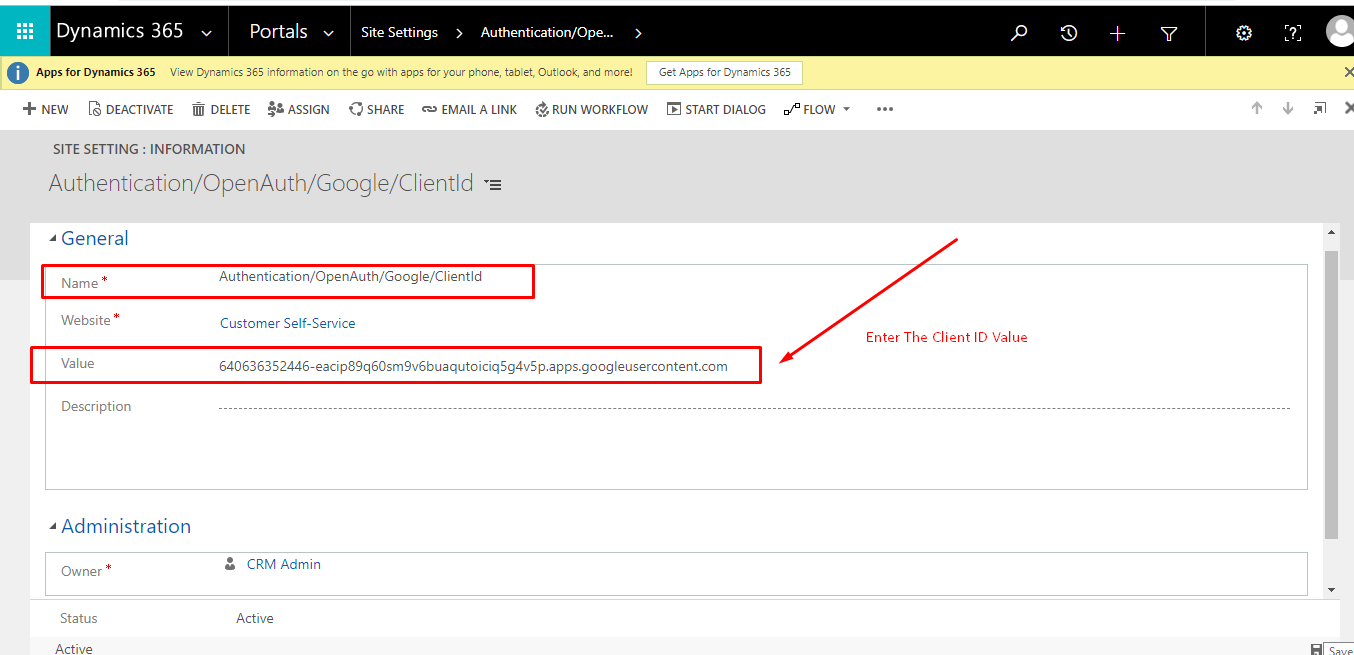
Name: Authentication/OpenAuth/Google/ClientId
Value: Copy and Paste the Client ID value.
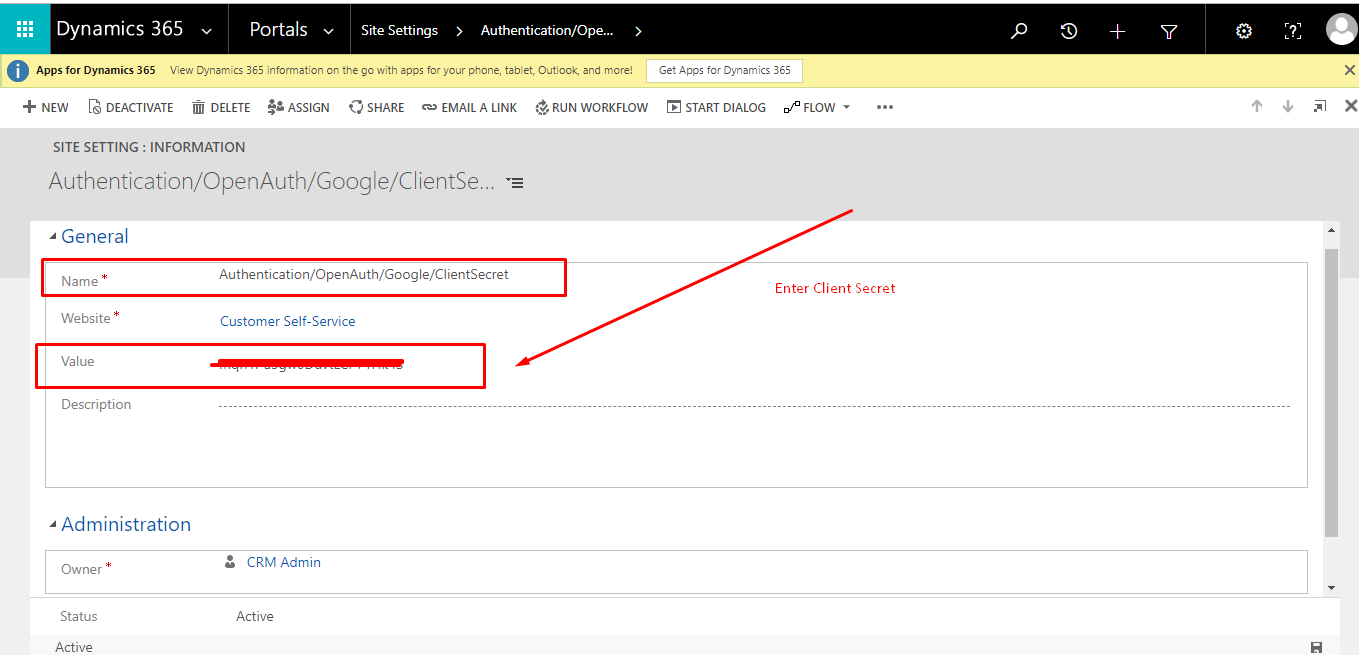
Name: Authentication/OpenAuth/Google/ClientSecret
Value: Copy and Paste the Client Secret value.
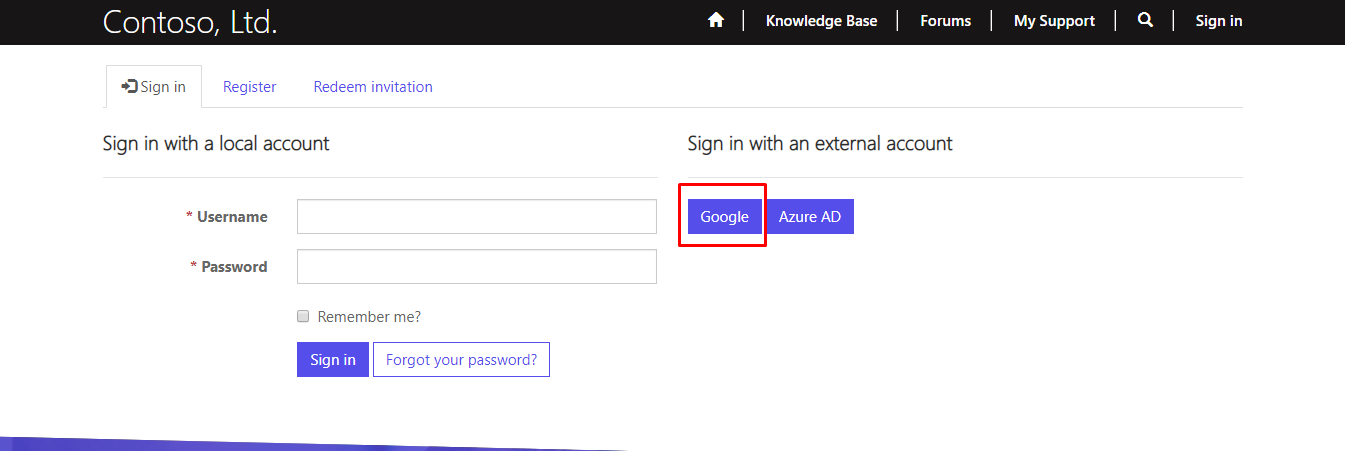
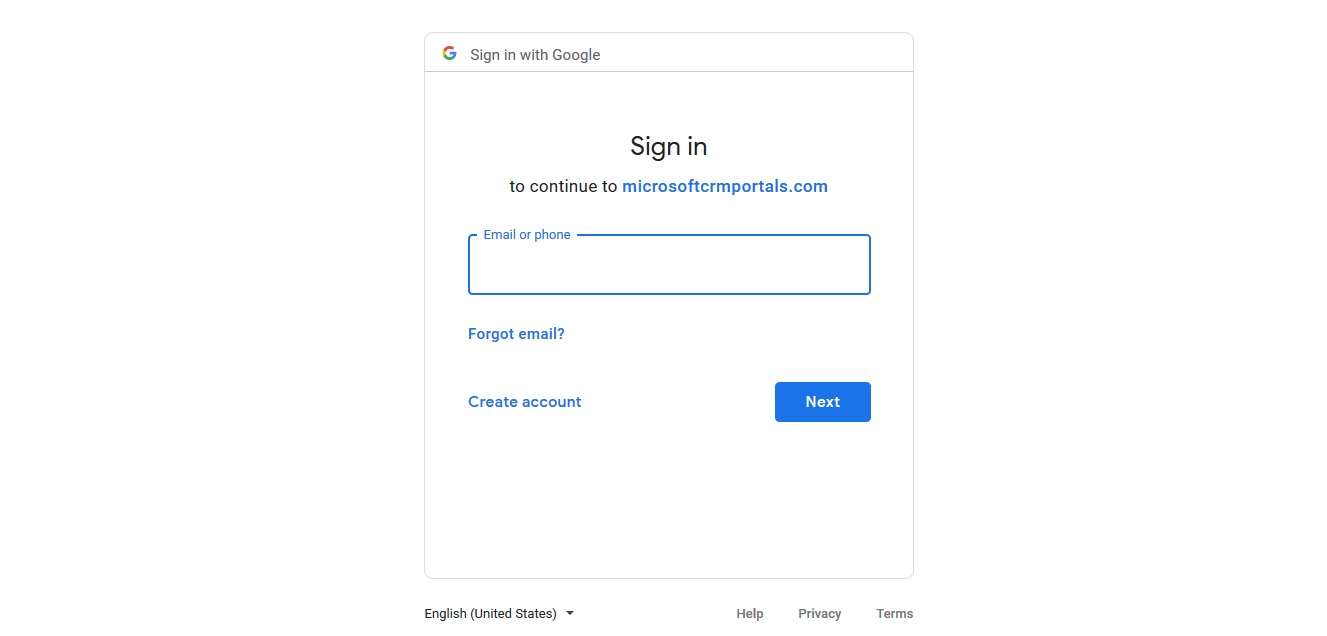
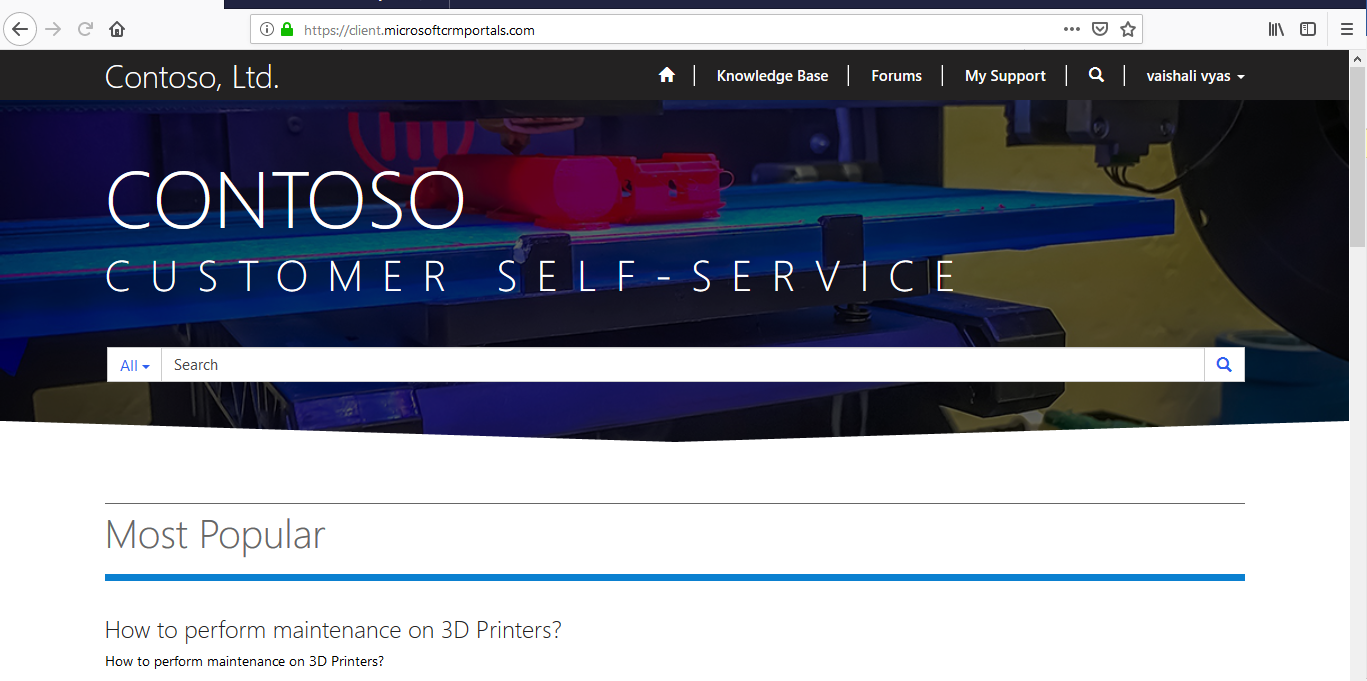
Now you can see “Google” as sign in Option.
The post Set up Gmail Authentication for D365 Portals appeared first on CloudFronts - Microsoft Dynamics 365 | Power BI | Azure.
*This post is locked for comments