




 7,518
7,518 Like
Like Share
Share
 Report
I have been seen lot of folks asking about how to make changes in OOB pages of CRM Portal like Sign In, Forget Password, Reset Password, Redeem Invitation Page etc.
Here are the few articles of Adxstudio Community where people are querying about the same :
https://facebook-community.adxstudio.com/forums/adxstudio-portals/05798180-d7fe-e311-80cd-00155dc0a3d4
https://community.adxstudio.com/forums/adxstudio-portals/05798180-d7fe-e311-80cd-00155dc0a3d4
https://community.adxstudio.com/forums/adxstudio-portals/eac043dc-8caf-e211-b55d-00155d423218
So today in this article I am going to discuss the steps to achieve the same without writing server side code.
As we all know that Microsoft has put significant investment into both improving the stability of the existing features and adding new capabilities and features like CRM Portal in Dynamics CRM 365.
You might have come across the requirement to make changes in OOB pages (as mentioned above) of CRM Portal without having access on server side code.
In Adxstudio On-Premise you had option of Portal server side code through which you could have play around with it, but in case of Adxstudio Online and CRM Portal you do not have access of server side code then in this case how you can edit or change Style/Layout of Portal OOB pages.
Here are the few steps through which you can change the style and layout of portal OOB pages without having access of server side code::
Step 1 - Copy the Sign In page Url of Portal and note it somewhere.
Step 2 - Login with Administrator account on Portal or login with user having administrator privileges
Step 3 - Now hit the Sign In page Url (which you have copied in Step 1) in another or same tab.
By doing this, Sign In page will get opened in Editable mode, Now you can make changes whatever you want.
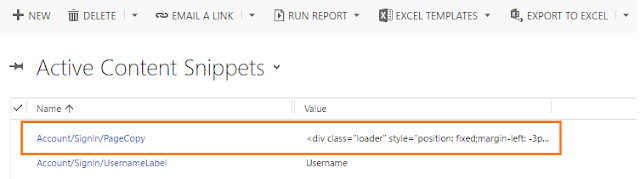
Interesting thing is that, as soon as you make changes in Sign In page and Save it from outside, Portal creates a new record in 'Content Snippet' entity in CRM.
Step 4 - Open this record in CRM, and you can write your own and edit the existing HTML.
In the same way you can edit the style/layout of other pages of CRM Portal.
Hope this article will help someone. Please feel free to share your feedback,
Here are the few articles of Adxstudio Community where people are querying about the same :
https://facebook-community.adxstudio.com/forums/adxstudio-portals/05798180-d7fe-e311-80cd-00155dc0a3d4
https://community.adxstudio.com/forums/adxstudio-portals/05798180-d7fe-e311-80cd-00155dc0a3d4
https://community.adxstudio.com/forums/adxstudio-portals/eac043dc-8caf-e211-b55d-00155d423218
So today in this article I am going to discuss the steps to achieve the same without writing server side code.
As we all know that Microsoft has put significant investment into both improving the stability of the existing features and adding new capabilities and features like CRM Portal in Dynamics CRM 365.
You might have come across the requirement to make changes in OOB pages (as mentioned above) of CRM Portal without having access on server side code.
In Adxstudio On-Premise you had option of Portal server side code through which you could have play around with it, but in case of Adxstudio Online and CRM Portal you do not have access of server side code then in this case how you can edit or change Style/Layout of Portal OOB pages.
Here are the few steps through which you can change the style and layout of portal OOB pages without having access of server side code::
Step 1 - Copy the Sign In page Url of Portal and note it somewhere.
Step 2 - Login with Administrator account on Portal or login with user having administrator privileges
Step 3 - Now hit the Sign In page Url (which you have copied in Step 1) in another or same tab.
By doing this, Sign In page will get opened in Editable mode, Now you can make changes whatever you want.
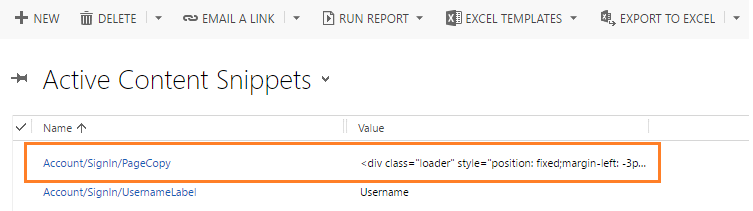
Interesting thing is that, as soon as you make changes in Sign In page and Save it from outside, Portal creates a new record in 'Content Snippet' entity in CRM.
Step 4 - Open this record in CRM, and you can write your own and edit the existing HTML.
In the same way you can edit the style/layout of other pages of CRM Portal.
Hope this article will help someone. Please feel free to share your feedback,
*This post is locked for comments