Introduction
Microsoft Dynamics is a CRM (Customer Relationship Management) platform which helps organise customer details, inventory, and other records for a business. In Kainos, Dynamics is used to manage client projects and awards, ensuring bids are tracked successfully.
The platform itself is hosted on Microsoft’s 365 platform, meaning it can utilise cloud functionality such as storage and processing. To assist with users using the platform for their own use cases, client-side customisations can be employed using “JavaScript”, a programming language which powers many web applications. For Kainos’ implementation of Dynamics, a third-party wrote JavaScript code to customise Dynamics to satisfy certain requirements. Whilst this helped with the initial requirements, over time new requirements were made and the third-party was not available to implement these.
These extra requirements were to clone existing entries within Dynamics, such as sales and opportunities, to speed up the creation of new but similar records. The cloning will greatly reduce the time filling in forms where there are many duplicate entries. There were also some legacy components which were no longer required and added complexity to form filling; these were to be removed alongside the cloning work.
To understand the existing code and how it needed to be modified to satisfy the new requirements, we had to better understand what Dynamics offers and how the code interacts with Dynamics to offer different functionalities.
Getting Started
Although the existing source code scripts from the third-party was available to view, the way Dynamics handles custom code is not intuitive. Dynamics itself heavily relies on a GUI to design forms and allows “advanced functionalities” by linking to scripts. Even after finding these scripts and attempting to understand how they work, and how it uses Dynamics’ Xrm[1] library to interact, further research was required to better understand how everything interacted with each other.
An initial attempt to generate a solution for cloning was made using ChatGPT. The likes of generative AI tools such as ChatGPT allows people to create new solutions, from reports, pictures, and even pieces of code, using simple instructions, or “prompts”. Even though ChatGPT had no knowledge of Kainos’ Dynamics implementation, it was successful enough to provide a (simple) solution to cloning a Dynamics record. The image below shows an example of ChatGPT showing how to copy an opportunity in Dynamics.
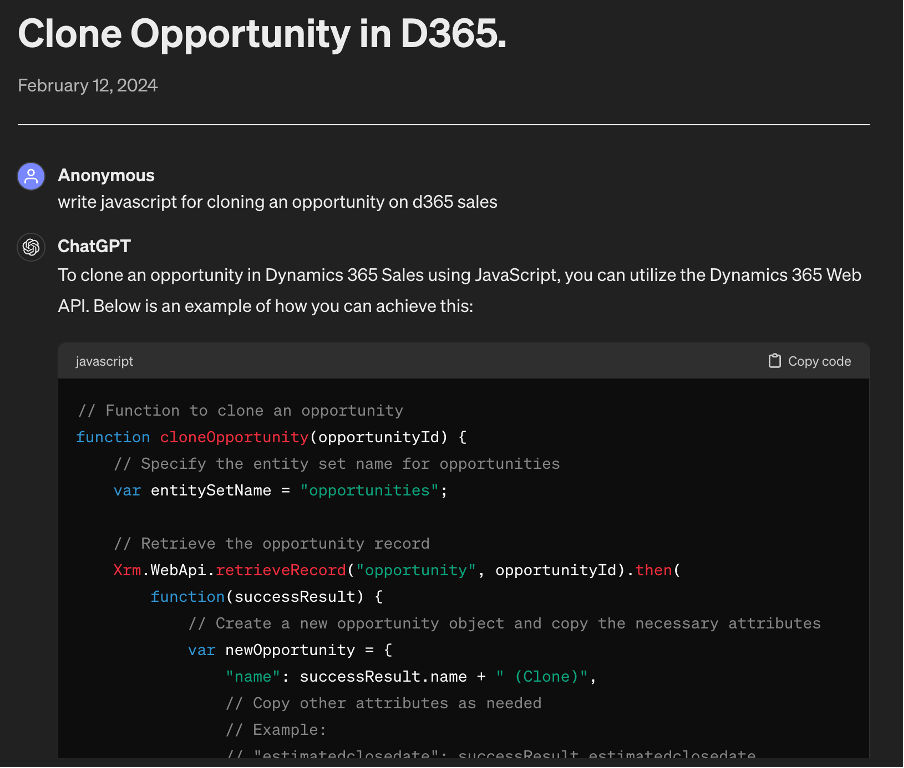
ChatGPT provided a decent solution to cloning a record in Dynamics, but further work is required to integrate it into Kainos’ implementation. This is especially true for the intended end-user of Dynamics (using GUI forms) since the solution only provides a programmatic solution.
Cloning
Cloning simply refers to copying an existing Dynamics record (for example, an Opportunity) and making a new version of it. Dynamics provides some built-in functionality for cloning, but only for a very small number of record types which does not cover Kainos’ requirements.
Before going straight into creating a solution, it’s worth seeing if there are existing solutions available. One of the more popular solutions is called Click2Clone[2] which can clone any type of record, but the costs involved in procuring licences for users does not justify what is needed. Another alternative is using Power Automate[3] which offers automation to repetitive tasks, such as copying a record over to a new instance. Like Click2Clone, there is a fee and can be unnecessarily powerful for the task at hand. Therefore, creating a solution using ChatGPT and the third-party’s code as sources of inspiration was the best bet.
The first attempt in cloning records was to simply make a copy of an existing record and then opening a new form with the copy. Copying involved making a JavaScript object of all the record’s fields and values and then creating a new form (Xrm openEntityForm) using the copied object as form inputs. This worked surprisingly well for most record types and was easy to modify to customise certain values; for example, giving a unique name to the cloned record, but it was soon discovered that it would not solve everything.
One of the record types to be cloned were called “Opportunities”. A Dynamics Opportunity is when a Lead is nearly finalised and Products are offered. The issue with how these Products works in Dynamics is they cannot be copied into a new form like most records, but must be copied using a REST API. REST is very common for web applications, but it is designed for programmatic use rather than be user-friendly like a web form. This meant each Product that belonged to an Opportunity had to be copied using REST before an Opportunity could be fully cloned. Thankfully, Xrm also provides functionality to help retrieve records (in this case Products) and to create and associate them. Creating Products like this presents a chicken-and-egg problem. The first cloning attempt showed a new form without creating a record before saving, but cloning Products required the cloned Opportunity to exist first, so how do we solve this?
Whilst Xrm openEntityForm displays a new record form, the record won’t exist until the user explicitly saves it. We need a way to first clone an Opportunity, copy any existing Products over to the clone, and then show the cloned Opportunity with Products as a form for customisation. To accomplish this, we can use a variation of a opening a new form called “quick create” (see image below) which overlays a simple form and allows functionality to be added to its save button (a “callback”). Now when an Opportunity is saved through this method, the Opportunity and relating Products are cloned programmatically before being shown in an actual form, making the process seamless to the end user.
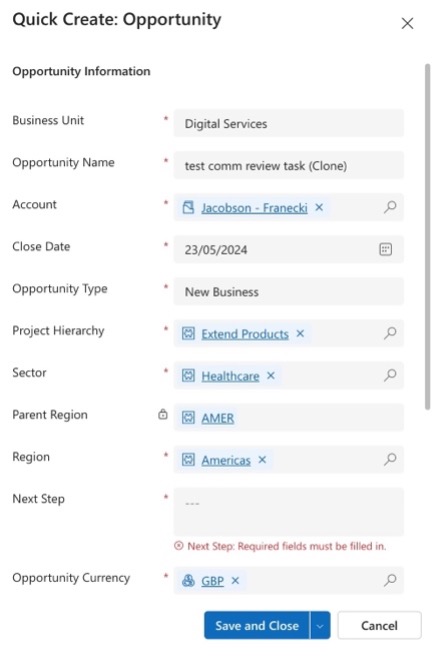
Using the quick create form also allows for modifications to be made before the final clone is saved. Various fields like the name and other properties can be changed automatically to distinguish it from the original.
Conclusion
With Accounts, Leads, and Opportunities now being successfully cloned, this has helped the team in creating similar records whilst saving time. If other types of records have to be cloned in the future, then it should be much simpler by creating variations of the cloning JavaScript code to accommodate for any integrated records (like the Products in Opportunities).
The most difficult parts of this project were becoming familiar with how Dynamics work and how to execute custom functionality. Being able to use a sandbox for development and testing has helped greatly and looking at existing implementation provided a good starting point. Finding out that Opportunity Products had its own unique way of saving was a challenge, especially working out how to trigger it in conjunction with making a new Opportunity, but thankfully did not become a dead end once the initially proposed cloning solution was altered. What would have saved some time was a better method for debugging; custom JavaScript could not easily be paused (using breakpoints) to see what was going on.
[1] https://learn.microsoft.com/en-us/power-apps/developer/model-driven-apps/clientapi/clientapi-xrm
[2] https://docs.inogic.com/click2clone
[3] https://www.microsoft.com/en-gb/power-platform/products/power-automate


