




 Like
Like Share
Share
 Report
Introduction:
Use the Update Block to update existing records in the source or target datastore. While integrating with Microsoft Dynamics NAV as a destination use the Update Merge Block to perform the Update Operation in Microsoft Dynamics NAV. The Update Merge block can configured as follows.

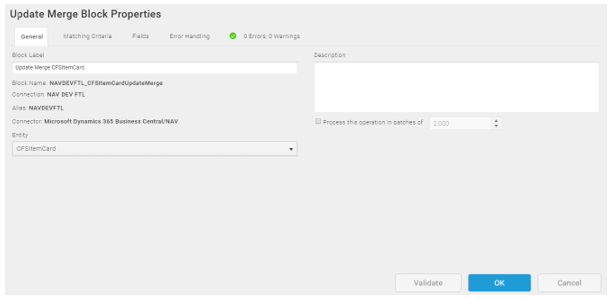
General Tab
Following Options are available under the General Tab.
- Change the Block Label
- Add Description
- Set Batch Processing Options
- Select the entity to use for this Operation.
Matching Criteria Tab
Following Options are available under the Matching Tab.
Specify one or more fields in your source and target data to select records for this operation.

Fields Tab
Following Options are available under the Fields Tab.
Map the required fields from your source to destination directly or based on some formulae.
Note: The following fields must Hardcoded

Error Handling Tab
Following Options are available under the Error Handling Tab.
- When an operation fails — If the record cannot be updated, an error is logged.
- If no matches are found — If the record being processed does not match the criteria in the Matching Criteria Tab, it is not updated, and an error is logged.
Errors and Warnings Tab
Following Options are available under the Errors And Warnings Tab.
Various Errors available are displayed. Once you have corrected the errors click on Validate button to update the Errors and Warnings Tab.
The post Performing Update operation in Microsoft Dynamics NAV through Integration in TIBCO Cloud Integration appeared first on .
*This post is locked for comments