




 46,631
 Like
Like Share
Share
 Report
GP 2013 introduced additional ways to customize how your area pages are arranged. I wasn't real fond of the arrangement in my test system, so I arranged them as in the following screenshot:
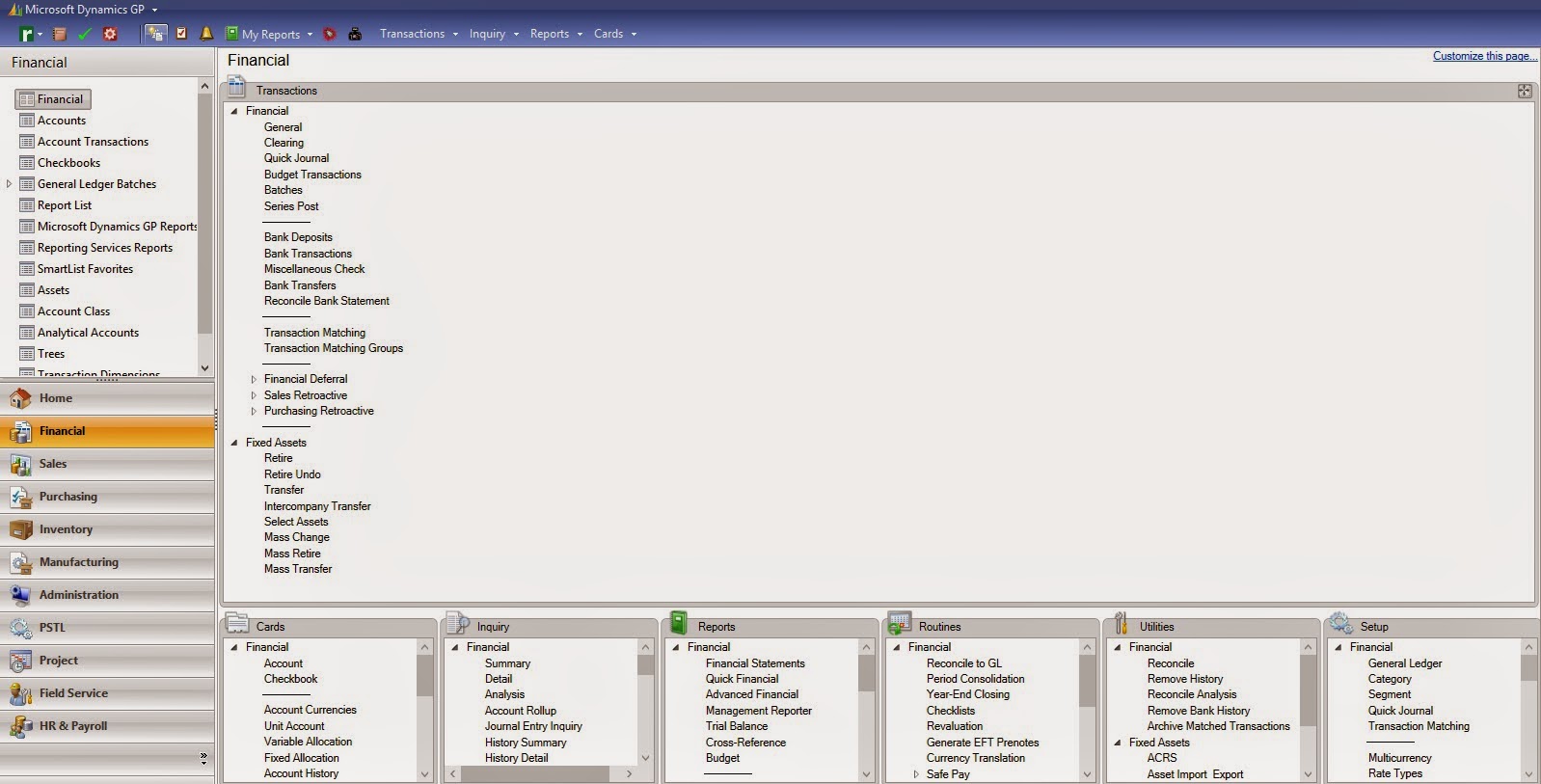
With this arrangement, I can easily see all the menu categories. To make a specific category appear in the expanded mode, click on the little square icon in the upper right corner of each window. Additionally, I went through each module and arranged the menu categories so they all fall in the same sequence.
The key to creating this type of arrangement is selecting the desired 'Column Stack' selection in the Customize Home Page window (Home Page>>Customize this page . . . ). Selecting 'Bottom' places the minimized windows at the bottom, 'Top' would place them at the top, etc.

This should make navigating the menus even simpler than before.
*This post is locked for comments