




 Like
Like Share
Share
 Report
Introduction
LS Central Scheduler Jobs are used for automatic background processing. These jobs use the NAS Service under the hood. We are going to see how to configure the NAS Service for LS Central.
References
Pre-requisites
- LS Central v16.4 – OnPrem
- Data Director
Configuration
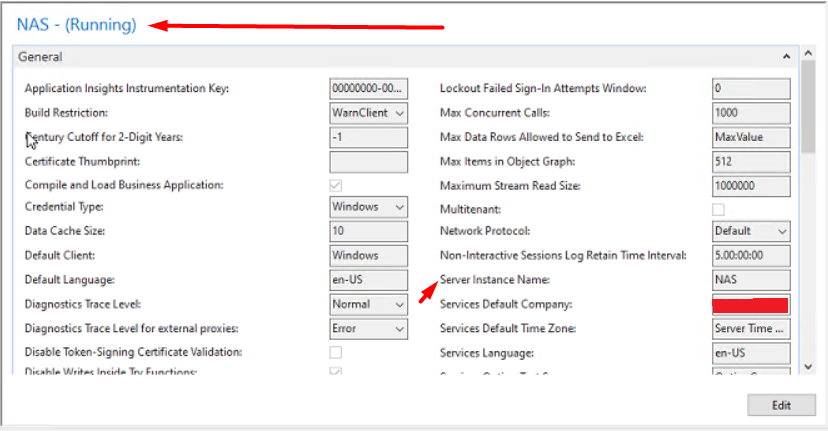
Create a new Server Instance and name it appropriately.
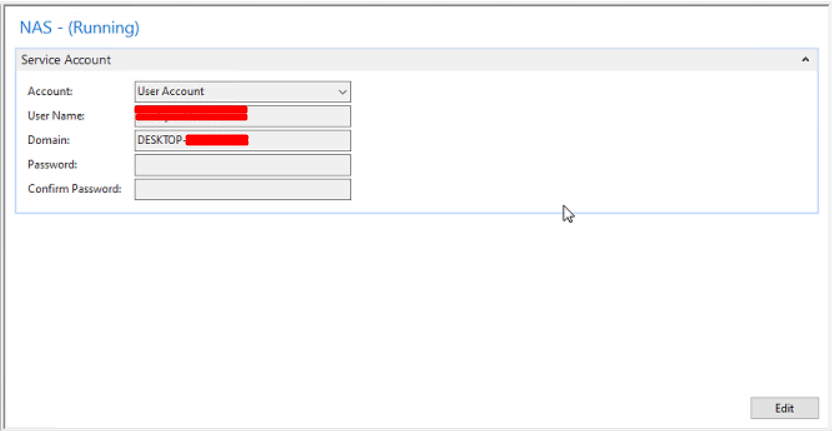
Ensure that the account for this new Server Instance is set to User and the User has Administrator privileges.
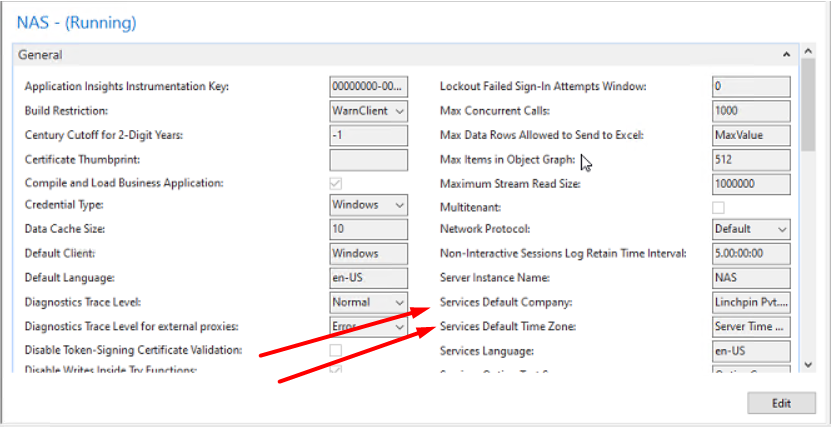
In the General tab, update the “Service Default Company” and “Service Default Time Zone.”
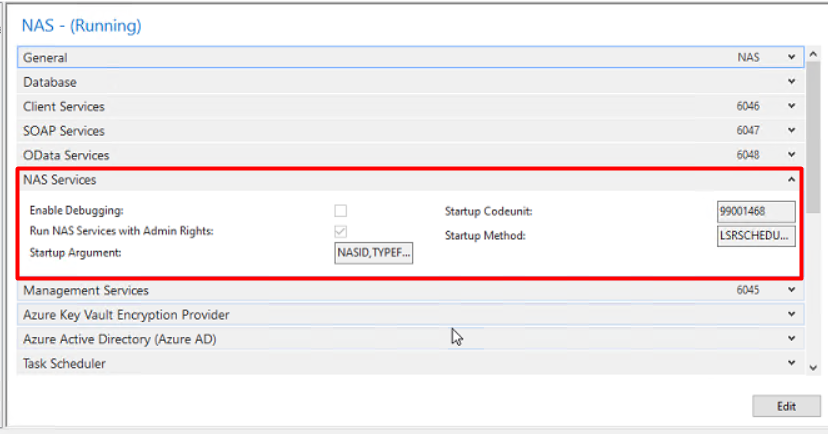
In the NAS Services tab, set the following fields:
- Run NAS Services with Admin Rights: True
- Startup Argument: NASID,TYPEFILTER=,LOG=1,REPEAT=1
- Startup Codeunit: 99001468
- Startup Method: LSRSCHEDULER
Restart the Server Instance.
Open the Scheduler Setup in LS Central and set the “Enable NAS Scheduler” to true.
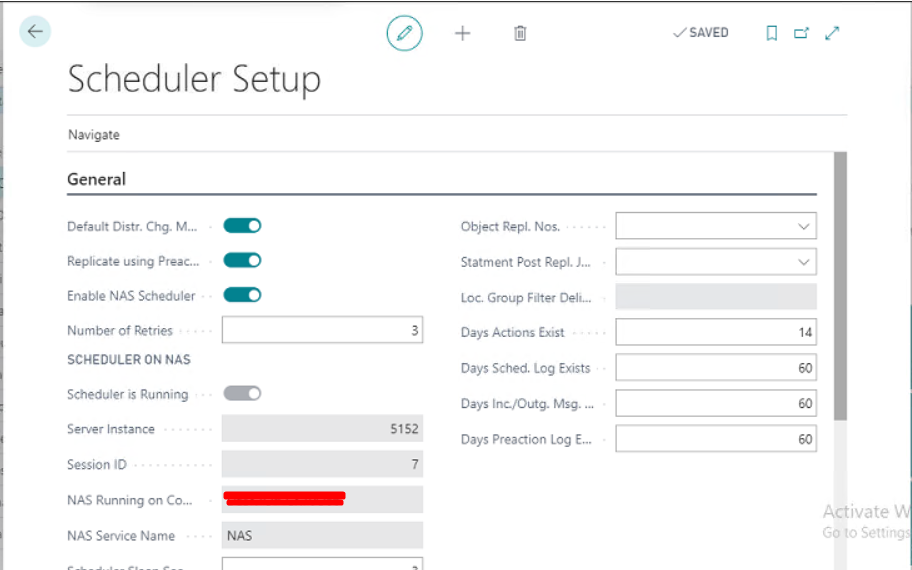
Refresh the page.
Conclusion:
Thus we saw how to configure NAS Services in LS Central.
Happy Coding!
The post Configuring NAS in LS Central for automating Data Director jobs appeared first on .
*This post is locked for comments