




 6,230
6,230 Like
Like Share
Share
 Report
PowerApps can be created using data from an Excel spreadsheet. Users can create their tables in Excel and upload it to OneDrive. In this blog, we will learn – how to create a PowerApp using Data from Excel.
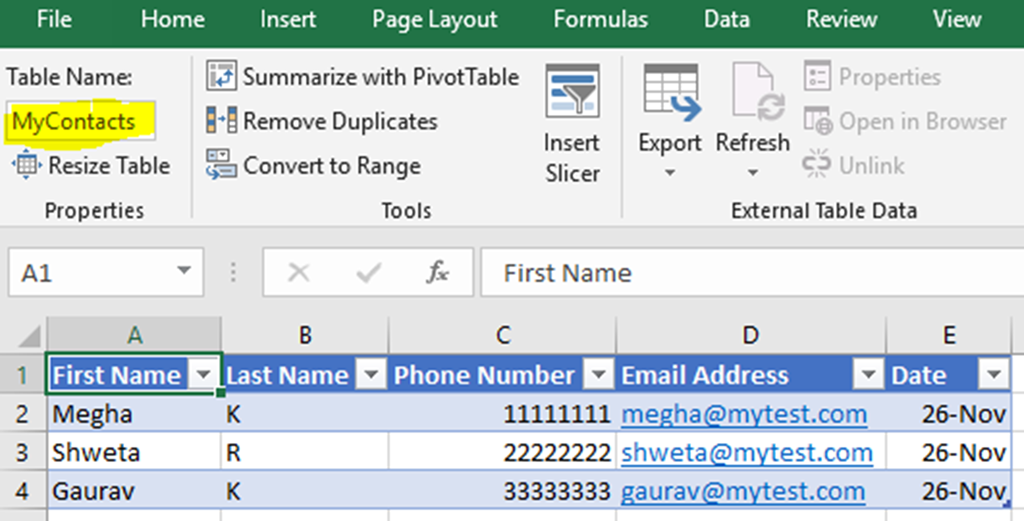
Open a worksheet in Excel and insert a table to it. Add some data such as First Name, Last Name, Phone Number, Email Address, Date etc. Give a name to your table. For this example, I have created a table with only 3 rows and my table name is MyContacts. Save it in your OneDrive account and close your worksheet.
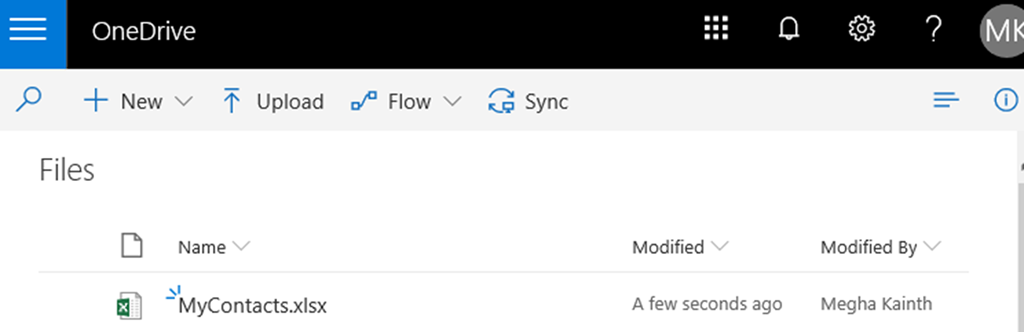
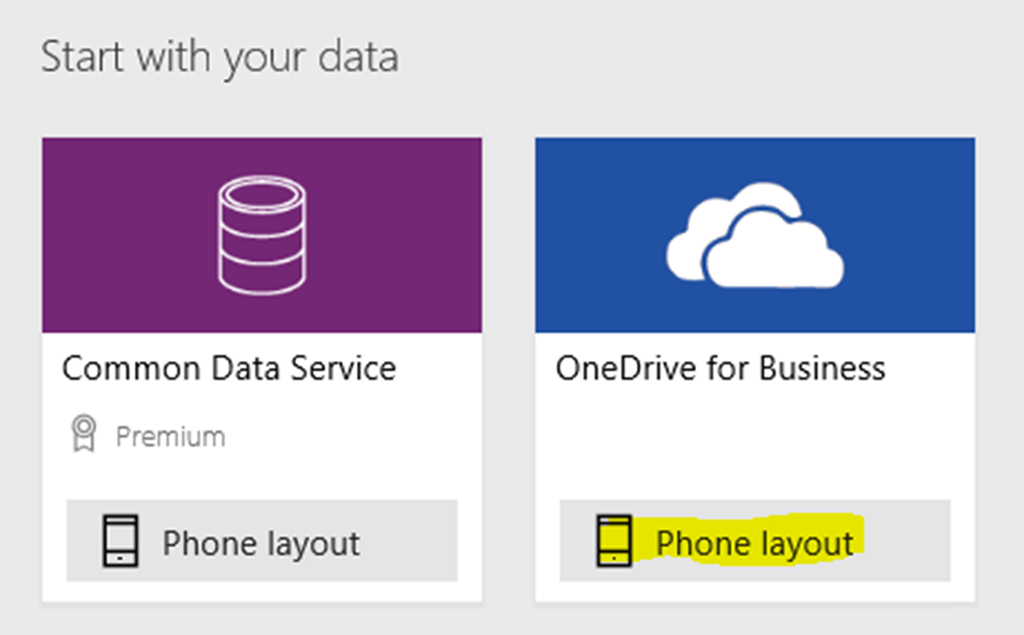
Sign in to Power apps. Once your signed in, Click on Apps> Create an App> Select Canvas App. Click on Phone Layout button under OneDrive for Business.
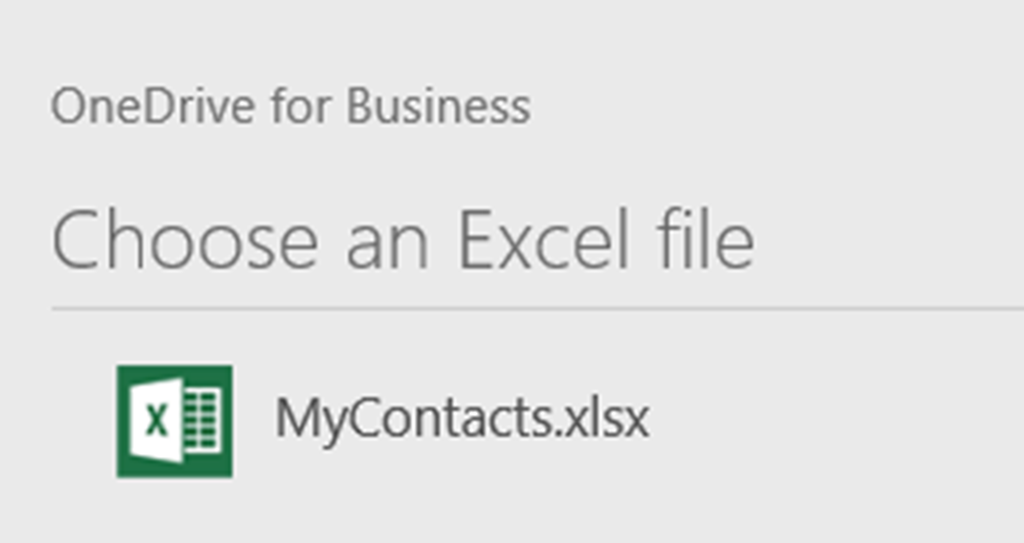
Choose your Excel file
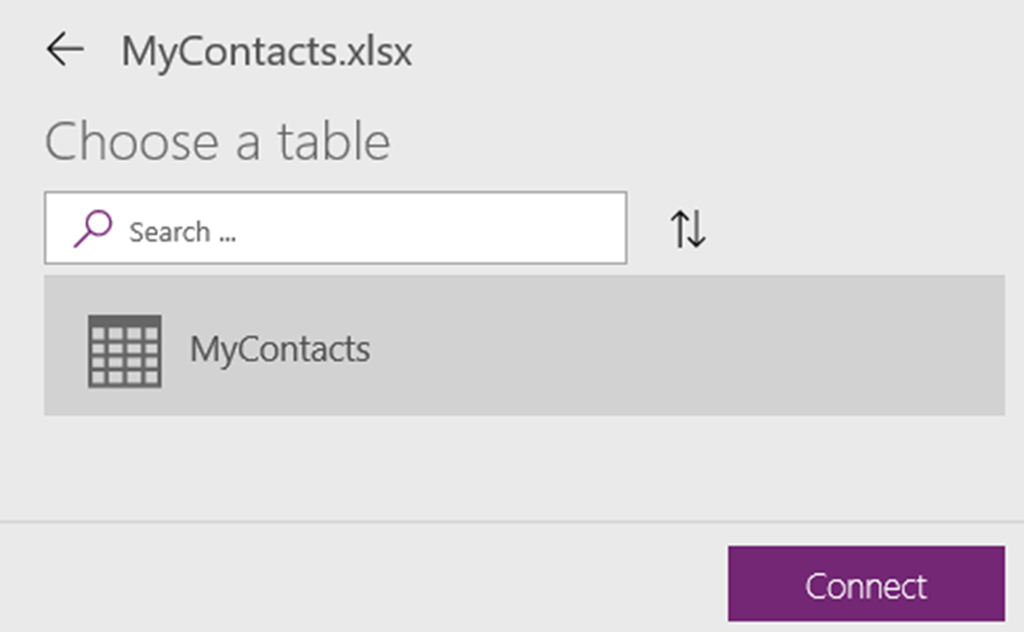
Choose a Table and Click Connect
A multi-screen functional app will get created from the data in Excel table. There will be 3 screens – one screen to Browse data, another one to view Detailed screen and a screen for edit or create data.
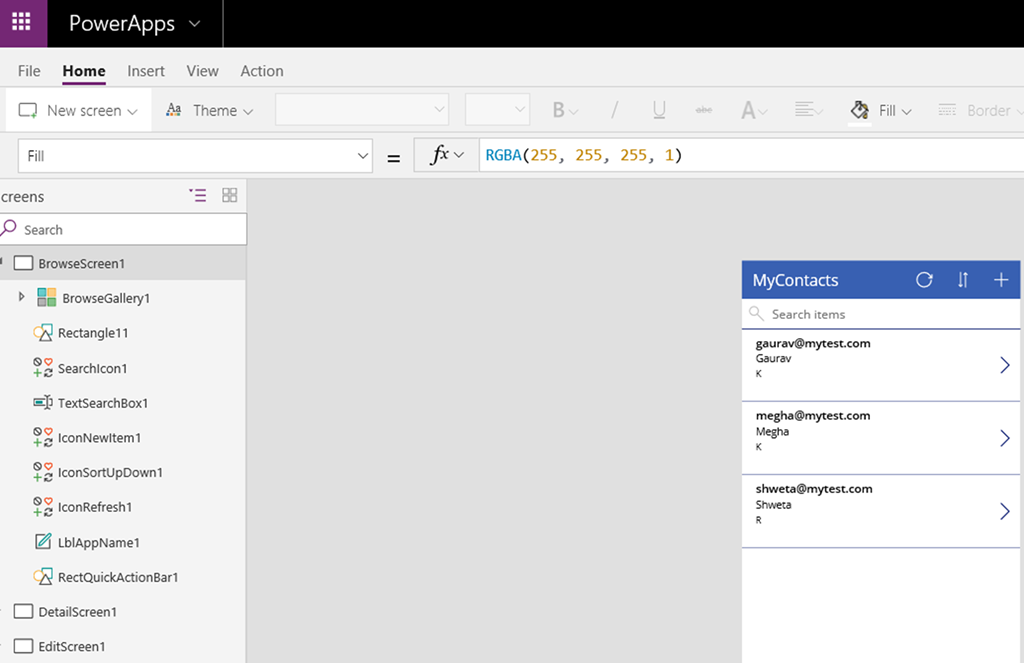
Click on the Play/Preview button at the top to check the functionality of your app.
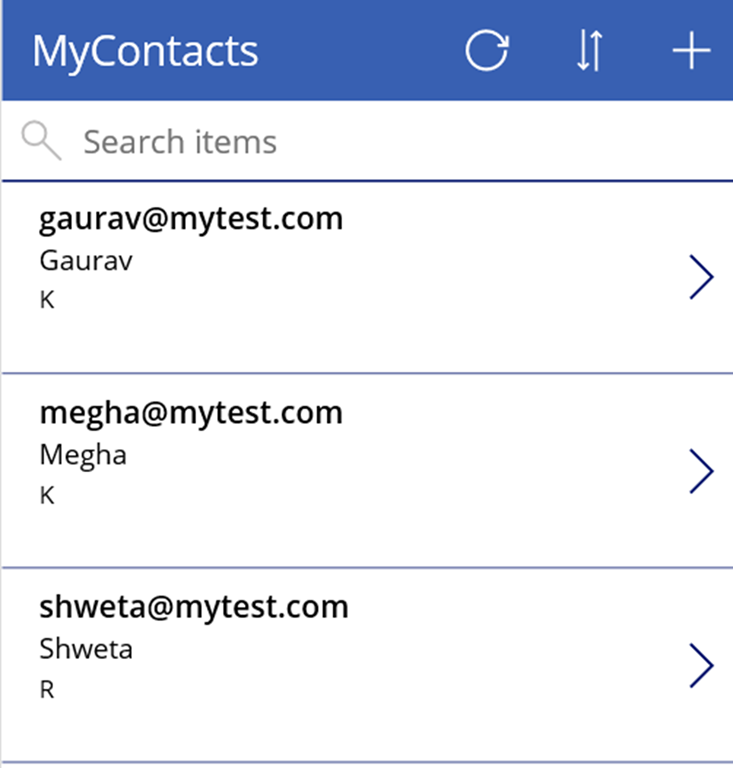
An example of Browsing Screen:
Detailed Screen:

Edit Screen:

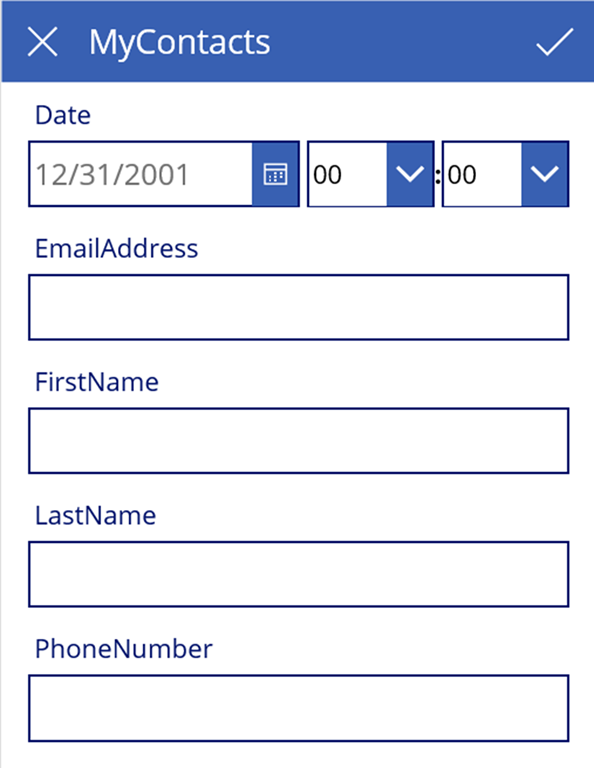
Create Screen:
Once you are done, you can save your App. To Save, Click on File> Click on Save> Give a name to your app> Click Save.
*This post is locked for comments