




 3,569
3,569 Like
Like Share
Share
 Report
The data existing in D365 application represents the most important thing to any customer, and all of us are helping clients to better use and improve the data entry to be more consistent and cleaner as much as possible.
Most fields allow users to enter specific type/format of data, for example, an option set field will provide a list of items to select between them, the lookup field will provide data from another entity, the number field will limit the data to be numeric....
However, the main concern will be on the text fields where the users can enter any info and save it. Here, the data might start to become inconsistent and can lead to erroneous outcome in some scenarios.
Therefore, in order to maintain the consistency of data entered in the text fields especially for the ones that present sensitive info to the business, you can add the Autocomplete control where it will start giving suggestions and handle the data entered in this field, without writing any line of code.
The Autocomplete control will modify the text field behavior inside the form that will look like a drop down where the user can select the needed value. The values listed in the drop down control are based on a source field chosen from the main entity or any other entity.
In the following steps, I will show you how to enable the Autocomplete control for the account name field and check the result.
1. Enable Autocomplete control for account name field

2. Select source data: Select View to choose the source to be a view from any entity
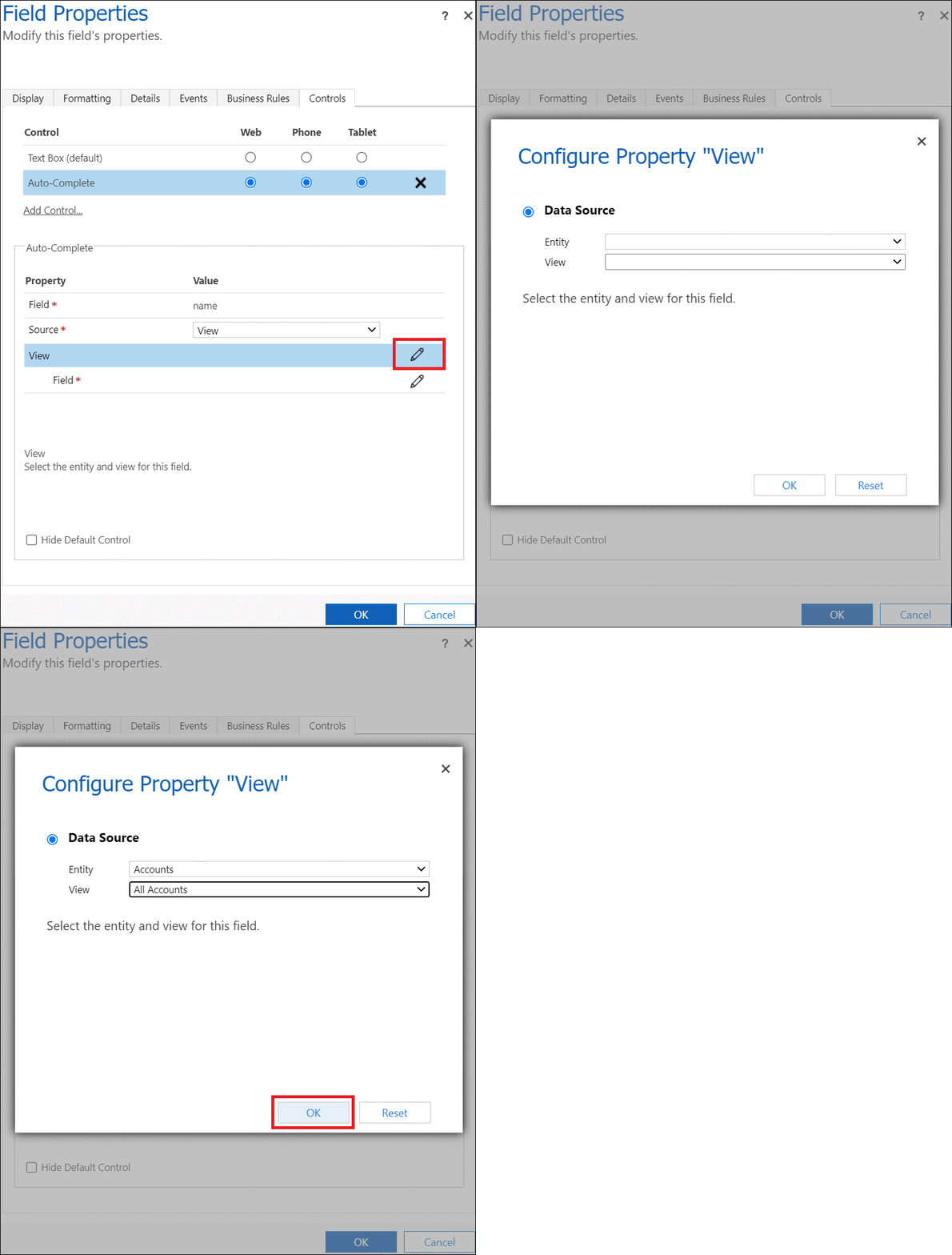
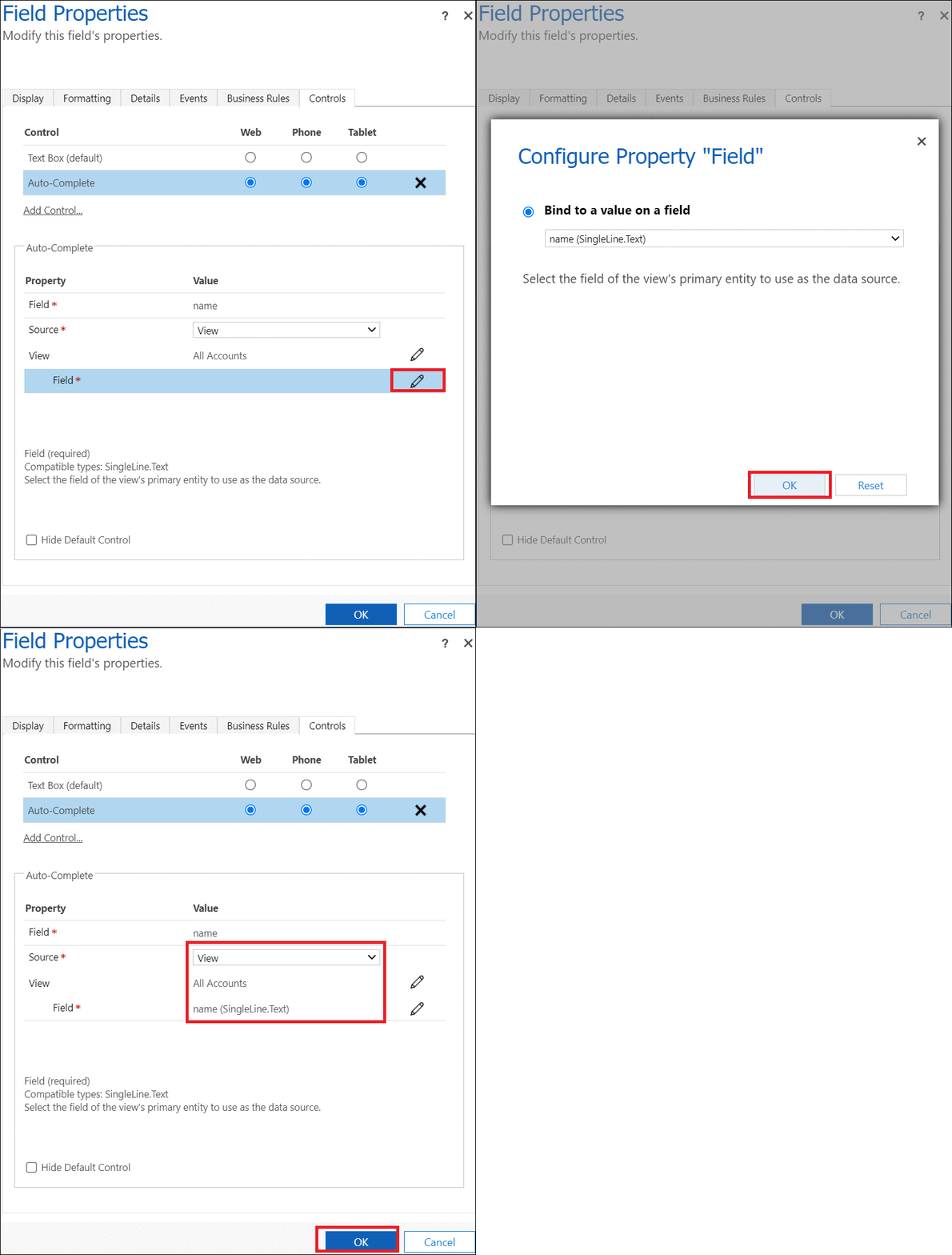
3. Select source field: Select the Field from the entity-view to bind its value in the text field
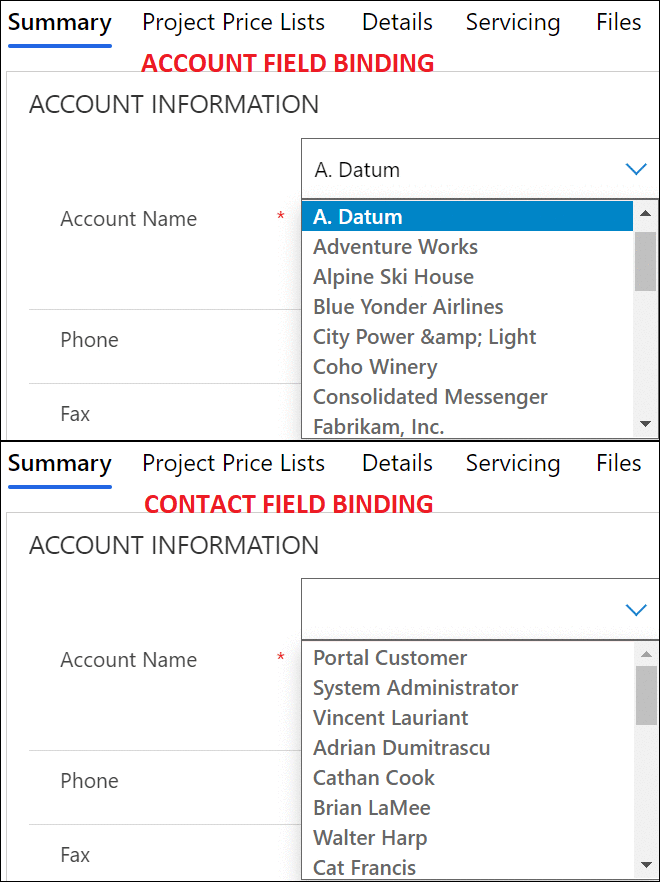
4. End result for the Account name field entry
Bonus Tips:
1. The Autocomplete control can be only enabled for the fields of type Single Line of text having format Text
2. You can select the source data to be an option set field, but, the bound field to select must exists in the same entity
3. When the source is a View, you can select any other entity to bind with the text field
4. You cannot enter data other than the values that exist in the bound field
Hope This Helps!
*This post is locked for comments