




 Like
Like Share
Share
 Report
ZOMG! Your SQL Server only has 8 MEGABYTES of disk space left!!! What do you do???

Obviously, there are many reasons for a full disk--maybe there are extra database backups, or a bunch of large files that are consuming disk space.
But, if you have considered those obvious suspects and already dealt with them, and your SQL Server data disk is still full, what do you do?
I just had a call with a customer who had 8 MB of free space on a 250 GB drive. The drive was dedicated to SQL Server and only had databases on it. Obviously 250 GB is not very large by today's standards, and you could argue that a larger disk would help, but in the short term, we had to deal with the full disk, and as you'll see, 250 GB is plenty of space for this customer's data.
There are a few ways to diagnose the problem, but I like to start with a fantastic tool called WinDirStat. It scans one or more drives, lists files and folders based on how much space they consume, and also provides a visual representation of the files consuming the most space on the drive.
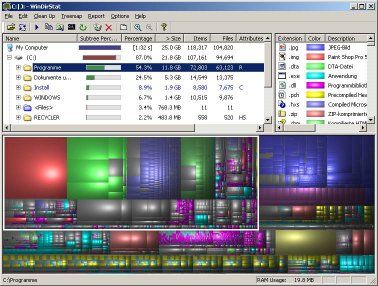
For this customer, we knew that the 250 GB drive only had SQL Server databases on it, but WinDirStat showed us how much space each mdf and ldf file was consuming.
We saw that there were three databases where the the log file was 19.6 GB, but the database was only 18 GB. It turns out that one of those databases was the production company database, and the other two were test databases--copies of the production database. So a backup of production was restored into two test companies, resulting in three copies of the nearly 20 GB SQL log file.
We also saw that the tempdb database was 44 GB! See my post about Dynamics GP and tempdb if you want to learn more about tempdb. As we now know, simply restarting the SQL Server service will recreate the tempdb, which would save over 40GB of disk space.
But what about those large log files? Well, when a SQL log file is larger than the Dynamics GP company database, or even when it grows to several gigabytes, I typically bet that the log file is mostly empty and doesn't need to be that large (for applications other than Dynamics GP, this may not be the case).
Transaction logs are used to record database activity that occurs between SQL Server backups. As the activity occurs, the transaction log will typically grow automatically as needed. This is fine. But sometimes there is a ton of activity--say the customer imports thousands of historical transactions--which causes the log file to grow abnormally large.
When the next SQL Server backup occurs, the log file will be cleared out, but by default, the log file will not shrink. So the log file may be 20 GB, but only 10 MB of that file may actually be used--it's essentially empty, but it still consumes 20 GB of disk space.
So how can you tell? There are probably a few better ways, but I like to go into the SQL Server Management Studio Shrink Files window. Right click on the database, select Tasks -> Shrink -> Files.
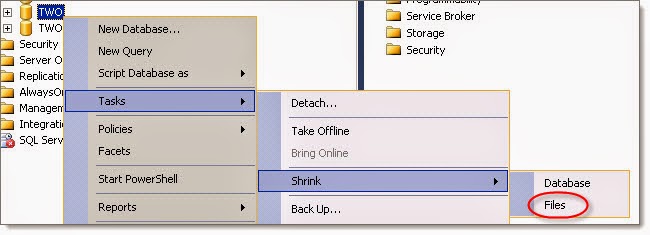
When the Shrink File window opens, change the File type to Log.

Notice that the log file in this screen shot is 20 GB, but 99% empty. This was for a training copy of the Dynamics GP company database.
After clicking OK in this window, SQL Server shrank the log file down to 20 MB, instantly freeing up 20 GB of disk space. It took less than a second. While I don't believe that the test database log shrink operation in this particular case had a performance impact, I would recommend that any similar operations on a production database be performed after hours, just in case.
The client repeated this process on another test GP database, and another 20 GB was freed up, producing a total of 40 GB of free disk space. When they have a chance to shrink the log file for the production company database after hours, that total will increase to 60 GB of free disk space.
And once they restart SQL Server and tempdb is recreated, that should free up another 40 GB, giving them 100 GB of free disk space.
So from 8 MB to 100 GB of free disk space in just a few minutes without having to delete a single file. That 250 GB hard drive is now looking pretty spacious.
Steve Endow is a Microsoft MVP for Dynamics GP and a Dynamics GP Certified IT Professional in Los Angeles. He is the owner of Precipio Services, which provides Dynamics GP integrations, customizations, and automation solutions.


*This post is locked for comments