




 14,419
 Like
Like Share
Share
 Report
Hi Readers,

This article is based on an email request that I received on my blog Contact form. The Request is sent from Rathnakumar.
I thought it would be good to write an article as I am getting this question multiple time.
Let me know your thoughts and views about it.
One Good example is Report 1320 "Notification Email". This report is used for sending workflow email notification.
Step 1 - Let's check what is there in RDLC Layout and guess what there is no RDLC Layout as shown below.

Step 2 - To Customize the word layout let's navigate to RTC Client.
Step 3 - Navigate to "Departments/Administration/IT Administration/Reports".
Step 4 - Open Custom Report Layout.
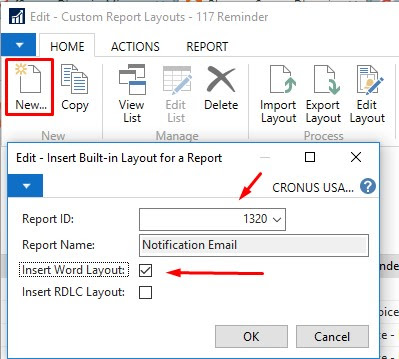
Step 5 - Click New to add a new record, specify Report ID = 1320 and Insert Word Layout to TRUE.
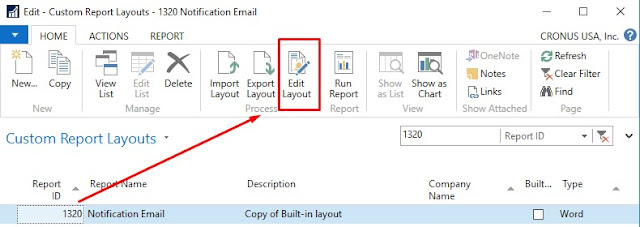
Step 6 - Select the Record in New page and click on Edit Layout from the Ribbon.
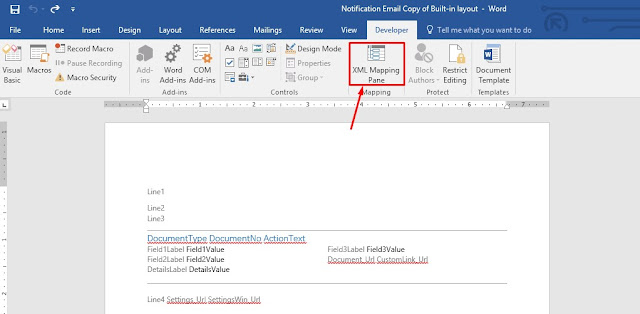
Step 7 - This will open Microsoft word for editing the word layout. From the Developer Tab, select XML Mapping Pane as shown below.
** If you don't see Developer tab you can enable that from the options.
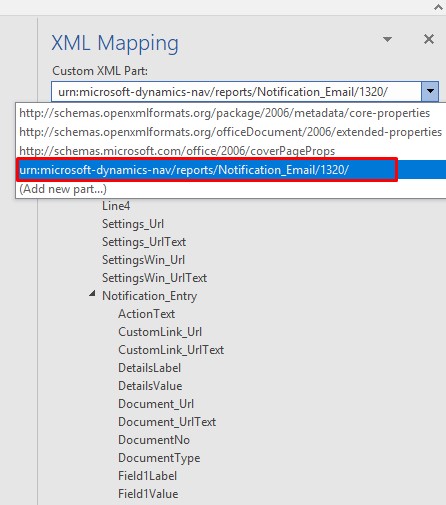
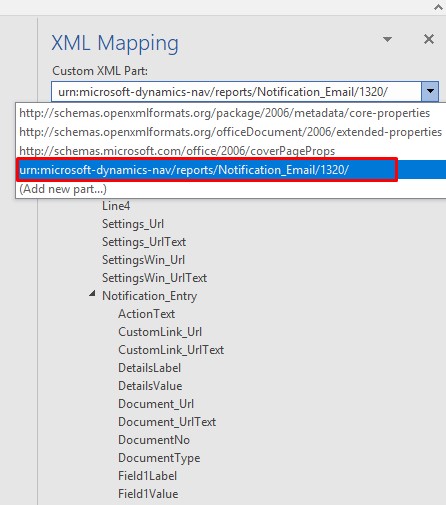
Step 8 - Select XML Mapping and select the Custom XML Part that is with Report ID, as shown below.
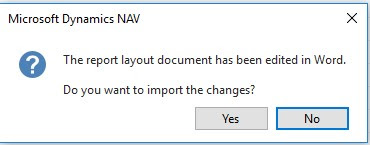
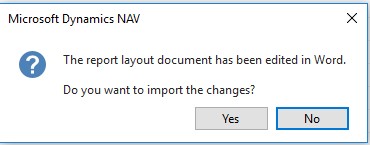
Step 9 - Once you are done with customizing the word layout, close Microsoft word and select Yes to import changes in NAV Report.
Changes should be available going forward.
Let me know if you find information useful or if you have any questions or suggestions.
Regards,
Saurav Dhyani
saurav-nav.blogspot.in
This article is based on an email request that I received on my blog Contact form. The Request is sent from Rathnakumar.
I thought it would be good to write an article as I am getting this question multiple time.
Let me know your thoughts and views about it.
One Good example is Report 1320 "Notification Email". This report is used for sending workflow email notification.
Step 1 - Let's check what is there in RDLC Layout and guess what there is no RDLC Layout as shown below.

Step 2 - To Customize the word layout let's navigate to RTC Client.
Step 3 - Navigate to "Departments/Administration/IT Administration/Reports".
Step 4 - Open Custom Report Layout.
Step 5 - Click New to add a new record, specify Report ID = 1320 and Insert Word Layout to TRUE.
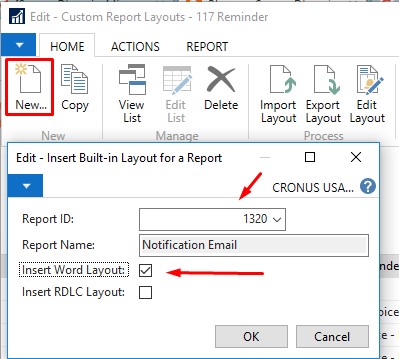
Step 6 - Select the Record in New page and click on Edit Layout from the Ribbon.

Step 7 - This will open Microsoft word for editing the word layout. From the Developer Tab, select XML Mapping Pane as shown below.
** If you don't see Developer tab you can enable that from the options.
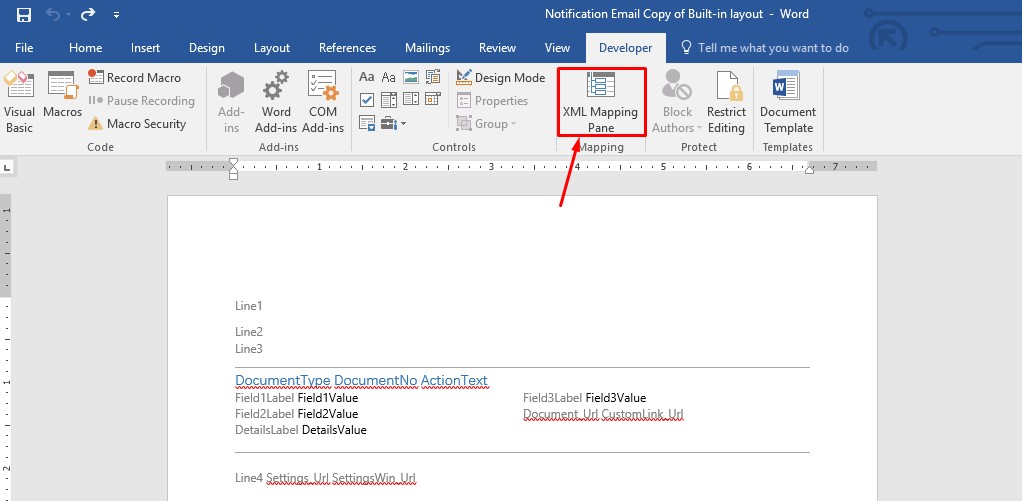
Step 8 - Select XML Mapping and select the Custom XML Part that is with Report ID, as shown below.
Step 9 - Once you are done with customizing the word layout, close Microsoft word and select Yes to import changes in NAV Report.
Changes should be available going forward.
Let me know if you find information useful or if you have any questions or suggestions.
Regards,
Saurav Dhyani
saurav-nav.blogspot.in
*This post is locked for comments