




 22,769
 Like
Like Share
Share
 Report
Here is a new Crystal Reports tip from the Flexible Solutions GP Reports newsletter. I have added an example with some screenshots to better illustrate.
Want to spruce up your Crystal report a little by adding alternate color shading to the lines? Here is how. (Click on the screenshots to see them clearer.)
As an example, let’s start with a report that lists of customers fro the GP sample company:

I want to shade the alternating lines to make this a little easier to read. Here are the steps:
-
Go to Report > Section Expert
-
Click on Details on the left and switch to the Color tab on the right
-
Click on the formula button:

- Copy/type the following formula in:
select RecordNumber mod 2
case 0: crWhite
case 1: color(222,222,222)
- Click Save and Close
- Click OK to close the Section Expert window
Here are the results:
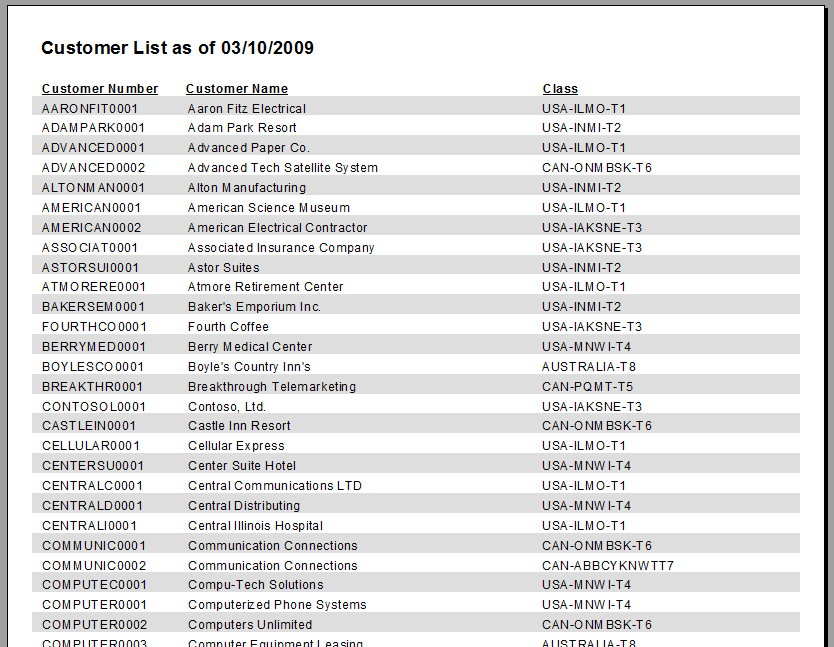
You can make the color of the shading anything you want. Crystal has colors that you can call by name, here is the list: crBlack, crMaroon, crGreen, crOlive, crNavy, crPurple, crTeal, crGray, crSilver, crRed, crLime, crYellow, crBlue, crFuchsia, crAqua, crWhite. I have found that most of these are much too dark, so I just pick my own RGB colors.
If you want to shade Group lines instead of Detail lines, change the formula to the following:
select GroupNumber mod 2
case 0: crWhite
case 1: color(222,222,222)


*This post is locked for comments