




 2,702
2,702 Like
Like Share
Share
 Report
Very happy new year to all of my blog readers. This is my first post of the year and it could not have started in a better way. I am delighted to announce the new “Multi-Select Picklist control” from XrmForYou.com tools library.
Showing a picklist attribute as multi-select is a requirement we get every now and then for our CRM implementations and either we tend to implement workarounds or we spend up too much time coding for it and it adds up to your project budget. What if this be can be done just through few clicks? Well you wish for and this is granted.
Before I go into the detailed documentation of the tool, some details as to where you can get hands on the tool.
A free version of the tool is available for only OOB entities. The licensed version comes with support for all OOB entities as well as custom entities. For both the free version and the licensed version, please write to info@xrmforyou.com
Okay, so let’s see how the tool works. The tool comes as a managed solution. Import the solution and open it in a browser of your choice and navigate to the ‘Configuration’ page of the solution. You would be presented with a screen like the one below.

Through this screen, you basically need to select the optionsets that you want to enable for multi-select.
Select the desired entity and all the available optionsets for the entity would be shown up. I have selected ‘Account’ for this example.

Select the Optionset that you want to enable for multi-select and move it to the ‘Enabled for Multi-Select’ pane.
I have selected the Category optionset to be enabled for multi-select

Click on Save to save the configurations.
The next step is to configure the optionset as multi-select on the form. To do this, follow the below steps.
- Open the form in which you want to insert the multi-select control in the form editor.
- Click on Form Properties and add the library xrm4you_/scripts/ms_formevents.js as shown in the below screenshot

- Add a form load event with the below details
- Function Name – XrmForYou.MultiSelect.FormEvents.FormLoad
- Library – xrm4you_/scripts/ms_formevents.js

- And you are done! Please note that you would need to do this for each form where you want to show the Multi-select control.
The next step is to configure the control on the form. Again open the form in the form editor and follow the below steps
- Select the area where you want to render the multi-select control and click on Insert – > Web Resource.
- In the webresource lookup, select the web resource – xrm4you_/pages/ms_control.html
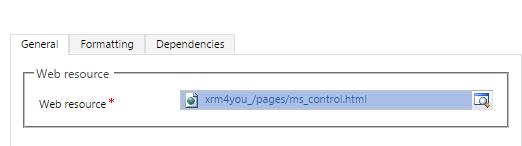
- Now comes the name of the web resource. Naming the webresource is very important here and improper naming would lead to control not rendering properly. By default CRM mandates each web resource should start with the word ‘WebResource_’ as shown in the screenshot below

- the remaining name should follow the pattern – xrm4you_multiselect_<optionsetname>. For example – I have selected category for my example. Schema name is ‘accountcategorycode’. So my webresource name would be xrm4you_multiselect_accountcategorycode as shown in the screenshot below.

- You can choose a label to display to make it similar to like other CRM field. I have chosen label as ‘Category’ as in the above screenshot.
- In the formatting you can choose to display border or not as you wish. I have chosen not to display the border.

- Close the webresource.
- In the Field Explorer, Select Custom Fields

- For every field we configure for multiselect, a new field is created with the name format – Multiselect for <Optionset name>. As you can see in the below screenshot, there is a field created for accountcategorycode as well

- Drag and drop the field on the form and Set uncheck the box – Visible by default
That’s all. Save and publish the form
I opened a new Account form and this is how it renders.

Great isn’t it. You can select you choices and save the record.
Hope you liked this tool. To explore more of our tools, please visit the products page http://www.xrmforyou.com/products.html


*This post is locked for comments