




 Like
Like Share
Share
 Report
In this article, we will take look at the post configuration setting for Finance and Operations environment.
- You can login to your LCS environment and check whether D365 Operations environment deployed or not.
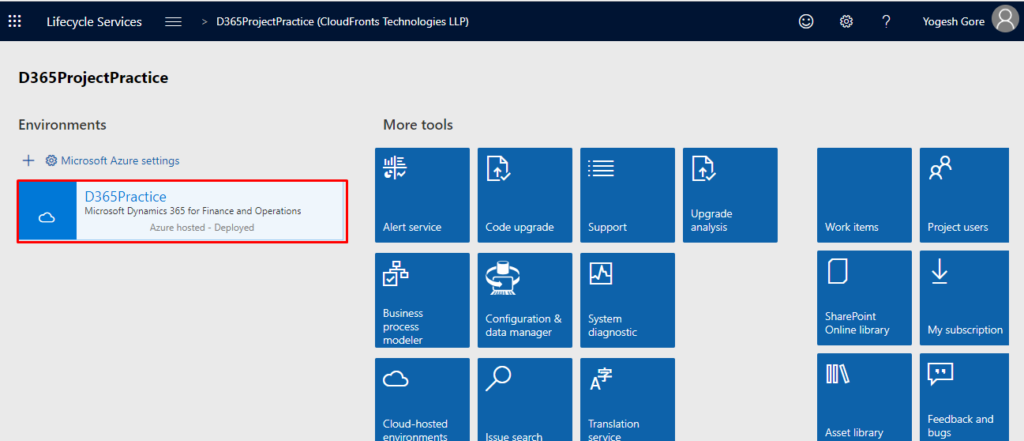 2. Once you click on the deployed environment you’ll see the screen that shows the network configuration, storage details, environment details, service account use to deploy the environment and administrator details. We are not going into all this details, we’ll click on the login to the environment to configure the setting for AX development.
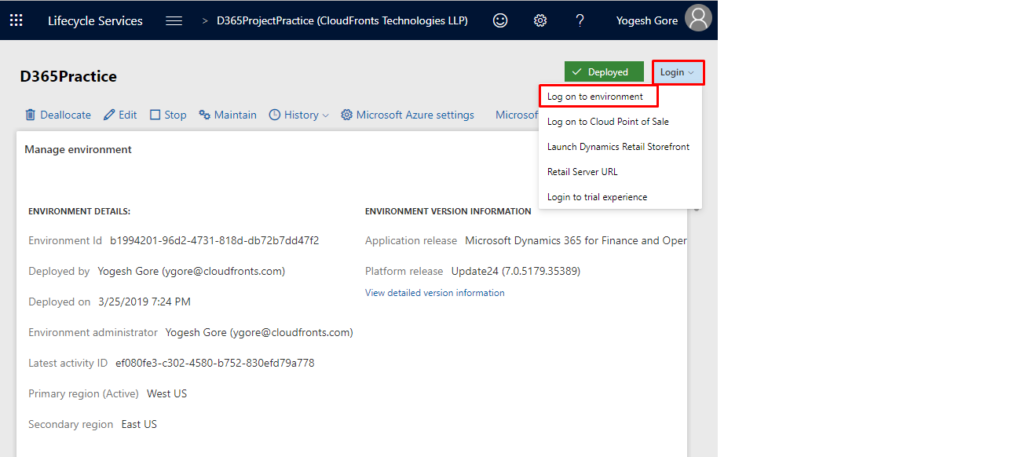
3. Once we click on the Log on to environment we’ll see the following D365 finance and operation environment screen. For now only the Admin who deployed the environment is able to access the environment so we need to add some user to the environment. Click here and scroll down to module section.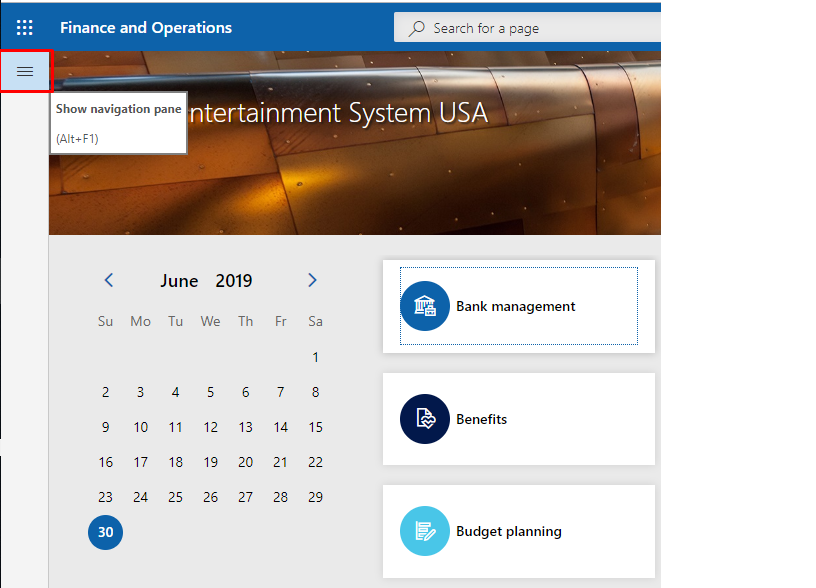
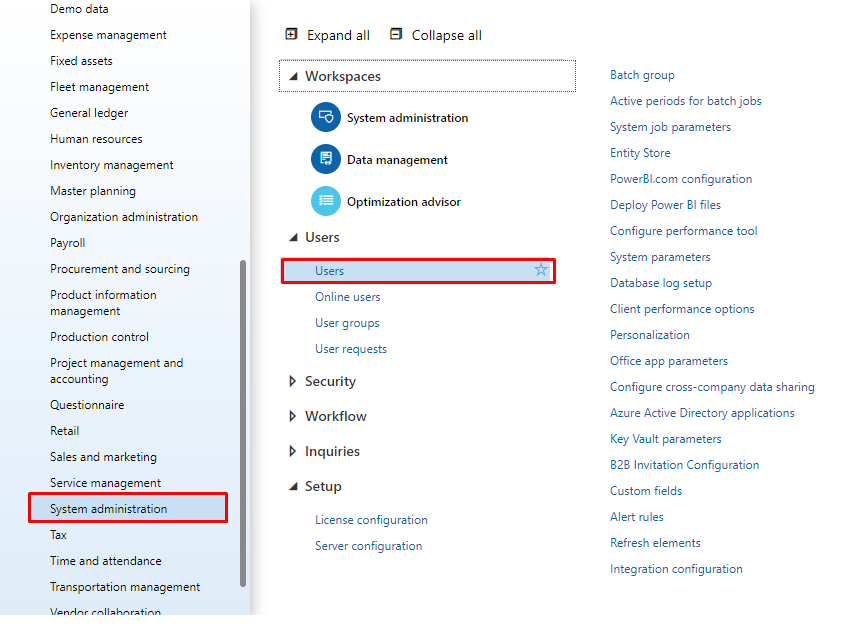
4. Once we click on the Users we can see list of the users with role, Click on the import users link, We can then see the list of users in the tenant we have if we are D365 tenant then we’ll have all the user from the organisation.
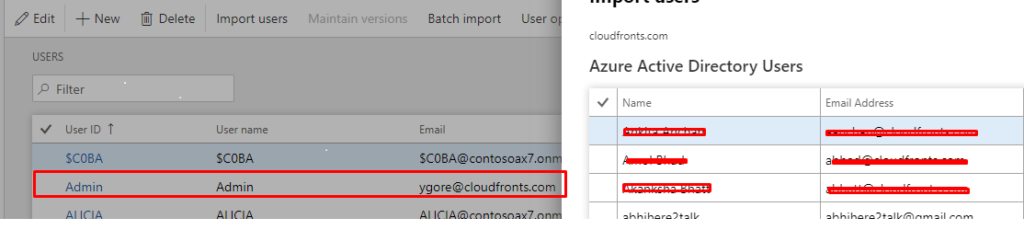
5. From the list of user we can add the users and assign the role for the user for the D365 development. We can also set the configuration for the different tools that Microsoft offer as a part of the development like Power BI integration.
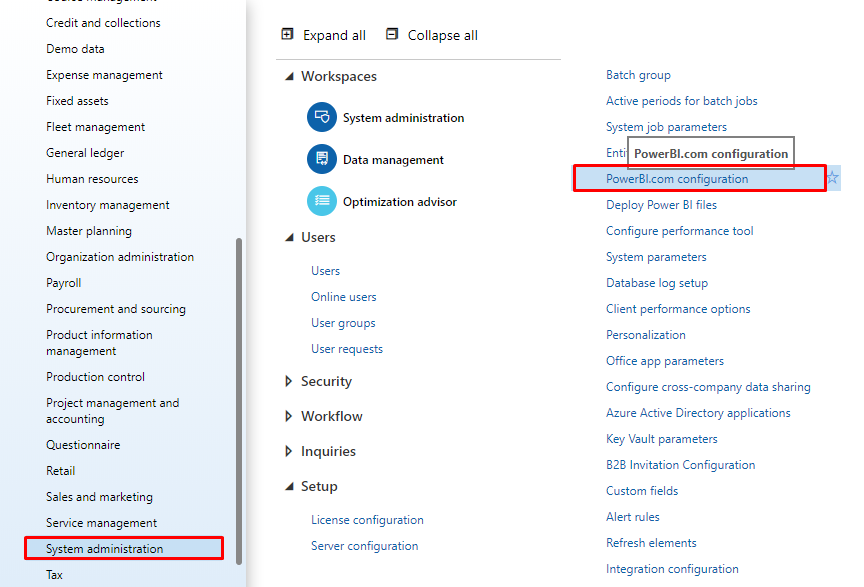
So, in this blog we see how to set up the post configuration setting for the LCS and how to add users to environment for D365 development
The post Deploy Dynamics 365 Operations Environment using Lifecycle Services – Part 2 appeared first on Cloudfronts - Microsoft Dynamics 365 | Power Bi | Azure.
*This post is locked for comments