




 21
21 Like
Like Share
Share
 Report
The new Dynamics CRM 2013’s command bar has deliberatly limited space for buttons due to the ‘intentionally constrained’ user interface design. The idea being that if you limit the space for buttons, then designers will be forced to only show those that are absolutely necessary and the user experience will be improved. As result, many of the buttons from the CRM 2011 Ribbon Bar have been removed from the CRM 2013 Command Bar.
The CRM2011 Ribbon Buttons are still there, but hidden using a new RibbonXml Display Rule named 'Mscrm.HideOnCommandBar'. This article shows you how to restore those buttons to the Command Bar that your users absolutely must have using the Ribbon Workbench for CRM2013.
1. Create a solution containing the entities that you wish to restore buttons for. This example uses the ‘Case’ entity, and we are restoring the ‘Connect’ button on the ‘Form’ command bar.
Before customising, the Form Command Bar looks like the following: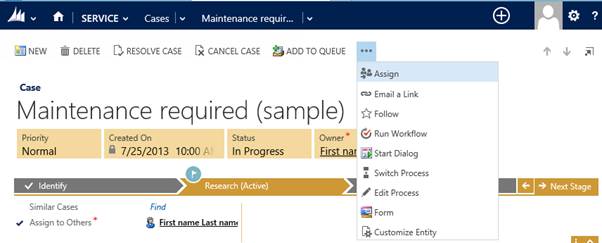
You’ll notice that only 5 buttons are shown until buttons are added to the ‘overflow’ menu. The ‘Connect’ button is not here since it was deemed unessential.
2. Open the solution containing the Case entity in the Ribbon Workbench for CRM 2013 and select the ‘incident’ entity if not already selected. You will see by default the Command Bar is selected.
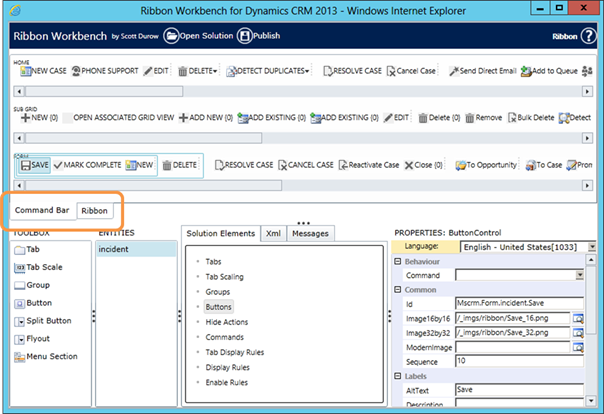
3. In order to locate the button we want to restore, click on the ‘Ribbon’ selector to show the Ribbon. This will show the Ribbon Design surface.
4. Select the ‘Form’ ribbon using the dropdown on the top right of the design surface, then select the ‘Connect’ button and Right-Click ‘Customize Command’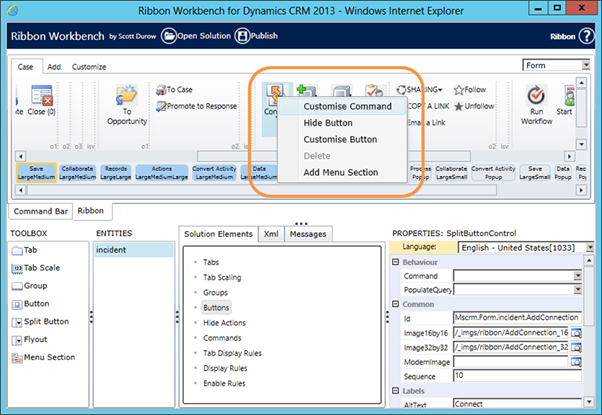
5. Locate the Customised Command in the ‘Solution Elements’ tab under ‘Commands’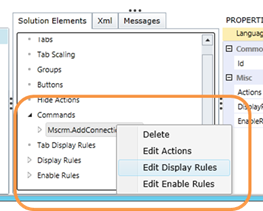
6. In the Edit Display Rules dialog, select the ‘Mscrm.HideOnCommandBar’ rule and click the ‘<Remove’ button.
7. Important: Locate the following Display Rules, and set the ‘IsCore’ property to ‘True’ – this will prevent them from being customised as well:
a. Mscrm.HideOnCommandBar
b. Mscrm.CreateConnection
c. Mscrm.IsConnectionsEnabledPrimary
d. Mscrm.HideOnModern
8. Important: Locate the ‘Mscrm.FormStateExistingOrReadOnlyOrDisabled’ Enable Rule, and set the ‘IsCore’ property to ‘True’
9. Click ‘Publish’
10 Now when you refresh the Case Form, you will see the Connect button again.
11 You’ll notice that only the default button is shown – so if you use the drop down, you’ll only get the ‘Connect to Another’ option. To enable the ‘To Me’ button repeat the process for the ‘To Me’ button: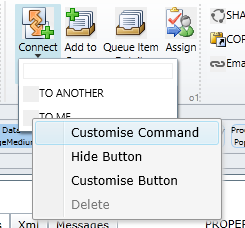
Remember to make sure that only the buttons that are really needed are included - the Command Bar has been constrained intentially to give your users the best experience.


*This post is locked for comments