




 958
958 Like
Like Share
Share
 Report
View are used to display list of records for the user. XrmToolBox - View Designer can be a tool that help you to edit the views.
I would like to show you a plugin in XrmToolBox which can help you to design views in Dynamics 365 and basic knowledge about View. With this tool you can modify complex query which configuration on CRM can not achieve.
1. Quick presentation of a view definition
- Layout: Uses XML format and define how the View are shown to the user. You can see an example for layout in the code snippet below
- Query: Also based on XML format, it uses a syntax named "FetchXml". This XML indicate the DB query executed behind the view.
2. XrmToolBox - View Designer
As I mentioned in the beginning of this article, View Designer is a plugin in XrmToolBox. It will help you to change the layout, filter and definition of the View. You can also preview your design with this tool.
a/ How to install?
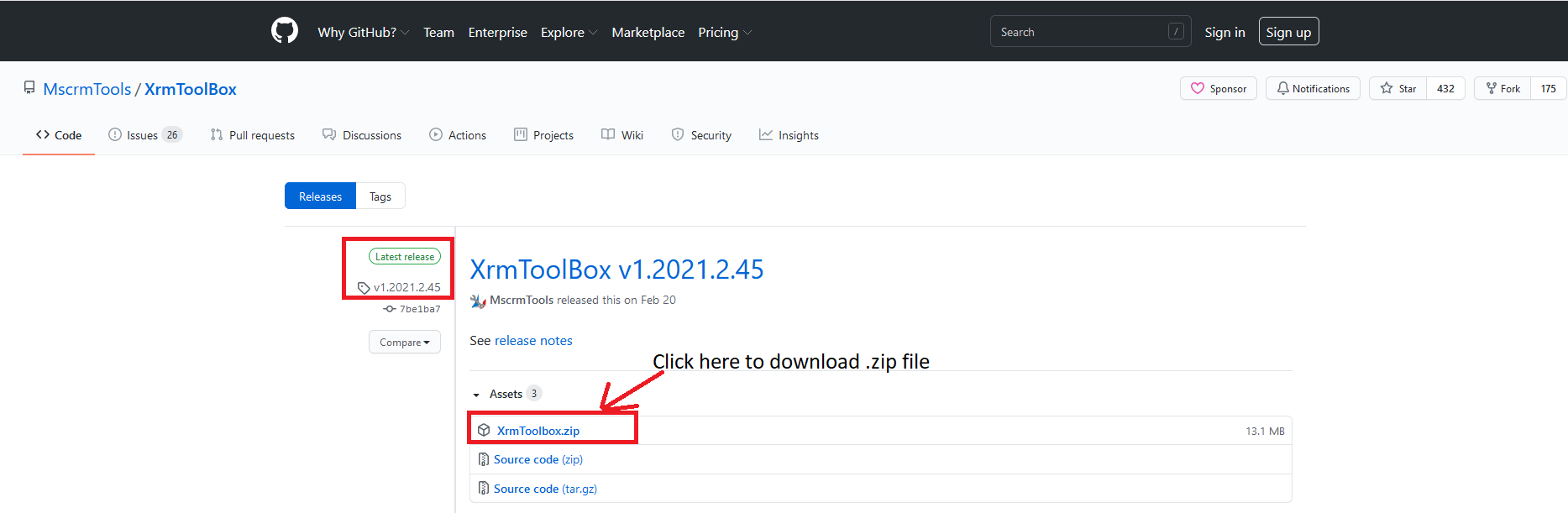
- Step 1: Install XrmToolBox. You can go to https://github.com/MscrmTools/XrmToolBox/releases/ to get lastest version of XrmToolBox
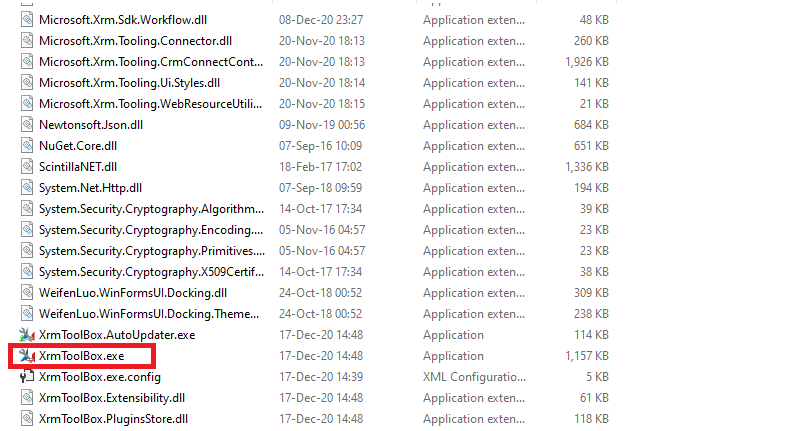
- Step 2: Unzip the downloaded file then open XrmToolBox.exe
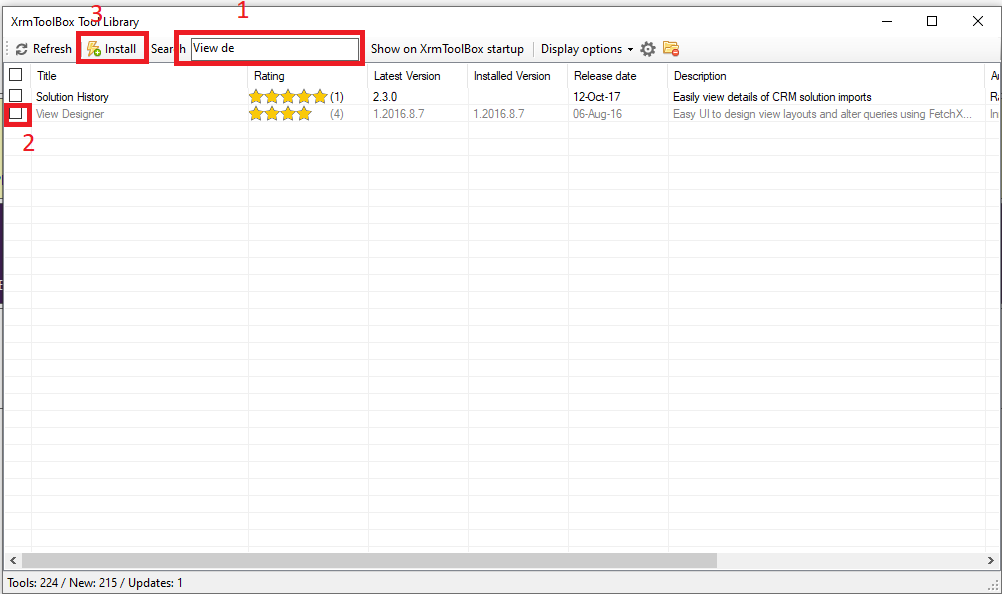
- Step 3: Open Tool Library and search for View Designer then install the plugin
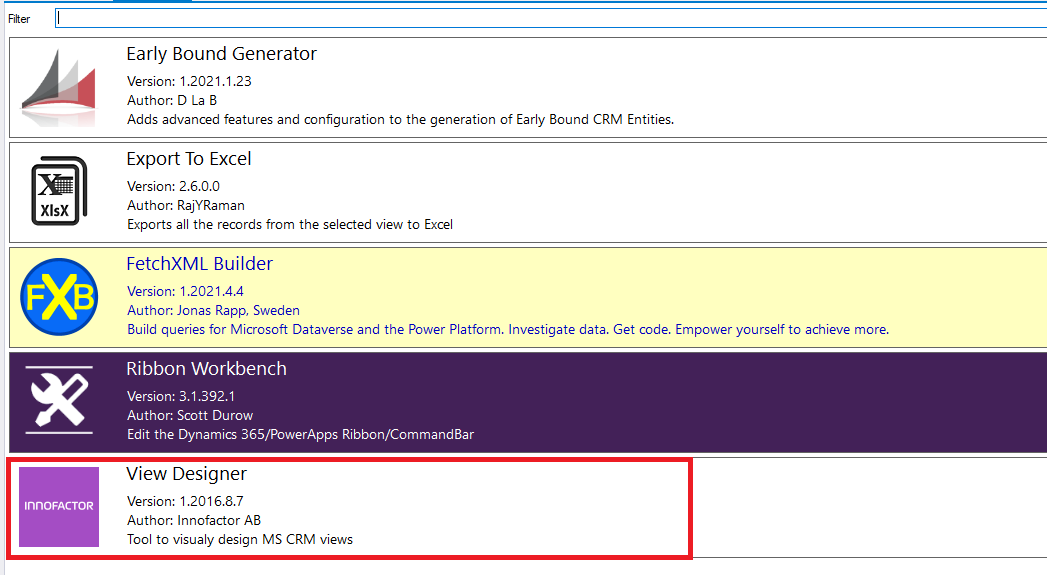
- After installed, you will have something like this
b/ How to use?
- Connect to your Dataverse organization and Open View designer tool
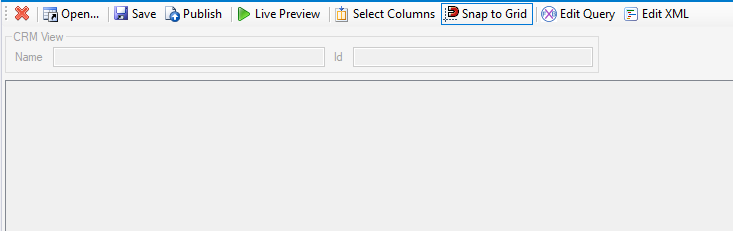
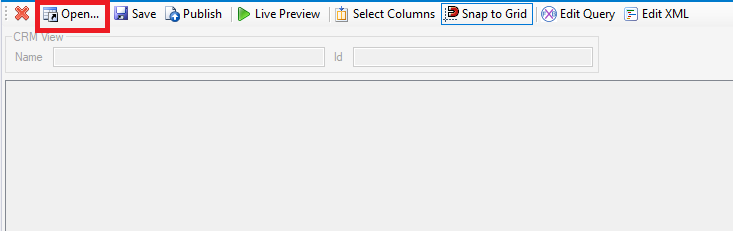
- Open a View in CRM
Click Open button
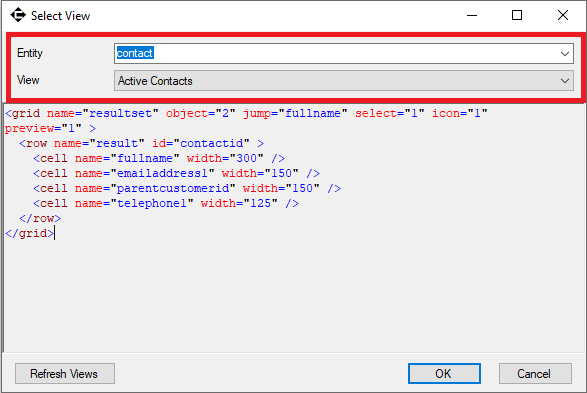
Enter entity name and select the view, then click OK button
View will be load to the View designer
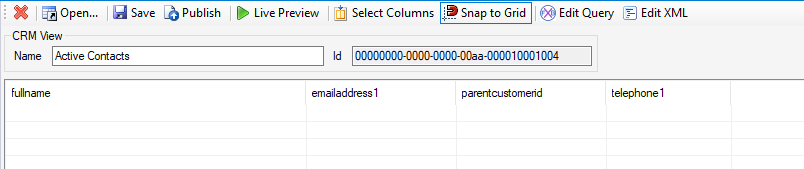
- You will be able to preview data

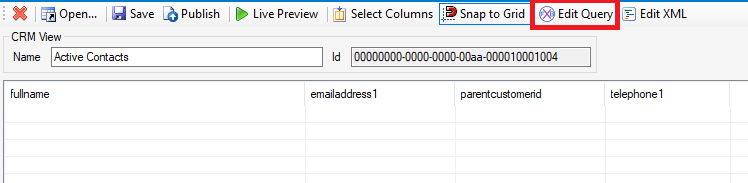
- And edit the query (FetchXml)
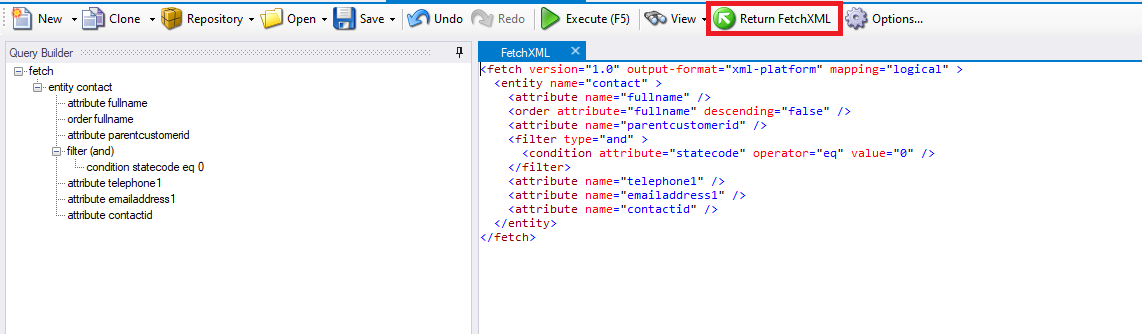
Click Edit Query button, it will open FetchXml builder. You can find more information of FetchXml Builder at https://dynamics-chronicles.com/article/xrmtoolbox-fetchxml-builder
After changing FetchXml, Click Return FetchXml button to apply filter to the view.
- Edit Layout, Select column and Live Preview
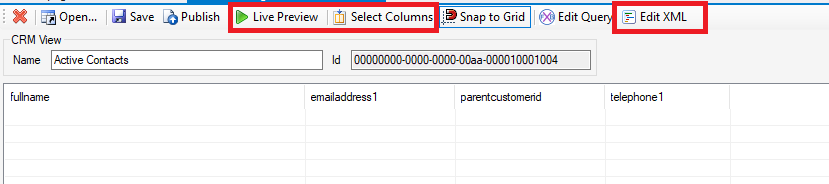
You can edit view's layout by clicking Edit Xml button and select which column can display by clicking Select Columns button.
To Live Preview, click Live Preview button
3. Notices
- After changes, you need to click Publish button to publish all changes
- You should only add column that included in the FetchXML
- You can only change the filter with static value. To use dynamics value in the filter, you need to implement they in source code.
*This post is locked for comments