




 841
841 Like
Like Share
Share
 Report
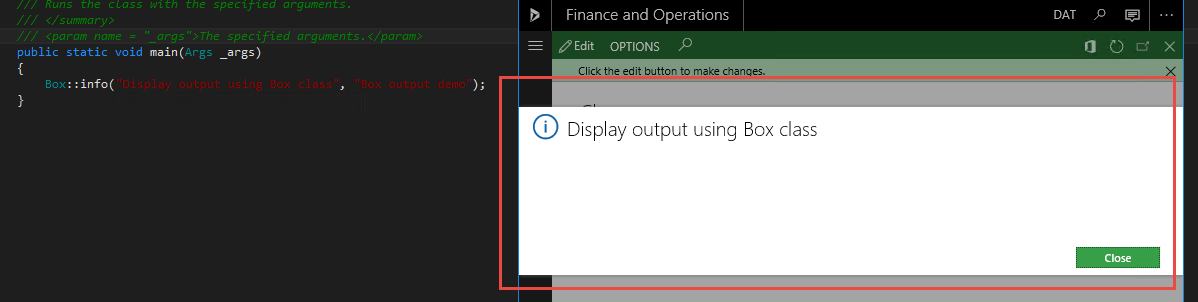
1- By using box class
The box output will create a popup box displaying text to the user.
Info log will display on the top of the window as ribbons. The type of info message (info, warning, or error) will define the color and symbol used to display the information.

Also by using setPrefix, you can create an info message with a “Message details” link. The link will show the info statements created after the call to “setPrefix”. You need to include more than one info statement for the “Message details” to appear.

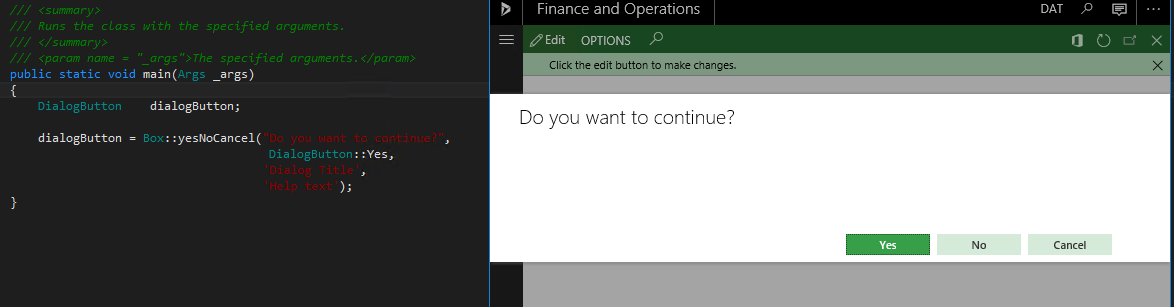
3- By using dialogButton class
A dialogbutton set to a box will create a popup box asking for input from the user. The results of which button was selected will be set to the dialogButton variable.
*This post is locked for comments