




 6,230
6,230 Like
Like Share
Share
 Report
Relevance Search is a great feature that helps you perform a global search in Microsoft Dynamics 365 Online, similar to Google search. The search can be performed on multiple entities without building any search queries. The search data is sorted by relevance in a single list upon its return. It can also search for text in documents attached to a Note, Email or an Appointment in Dynamics 365. The search data can further be filtered down by using the facets and the filters as shown in the screenshot below.
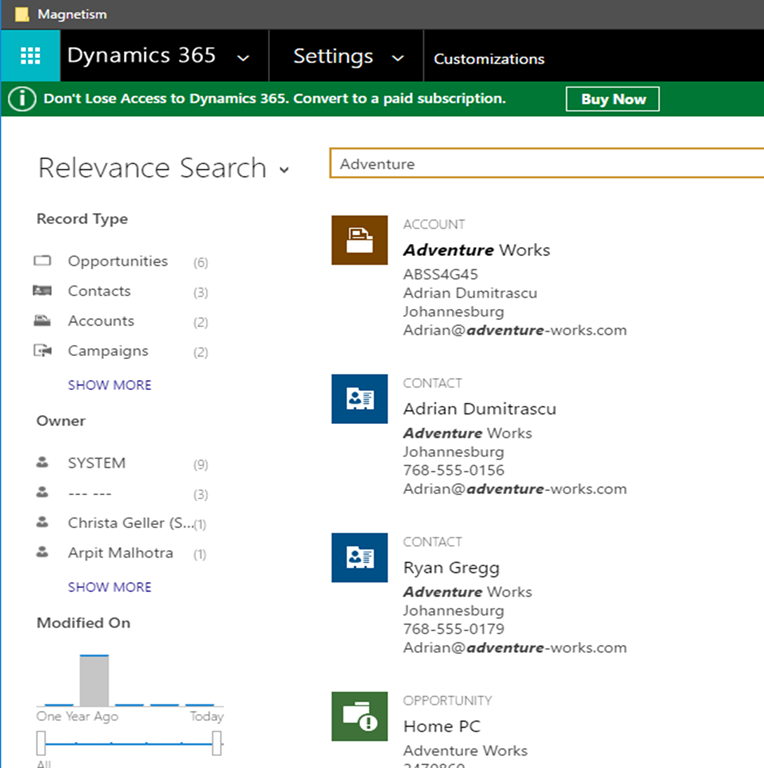
Relevance Search is turned off by default in Dynamics 365 online. It can be enabled by the System Administrators and they are empowered to control the data that can be searchable. Upon enabling this feature, the data associated with the enabled entities is synced to the Azure search index. The complete sync process can take up to an hour depending on the volume of the data. The System Administrators can also select the entities that are required for search by clicking on the Entities and “Configure Relevance Search” option from the solution window as per the below image. It is important to note that Relevance Search doesn’t replace the Global search and hence can be turned off from the System Settings.

Relevance Search utilizes the power of Azure search technology by indexing the data externally to deliver the results faster. Searching for the keywords is executed against the Azure Search index. Since, the data is synced to an external search index, you’ll need to be mindful in selecting the data that will leave your system and the sensitive data that should require to remain in your online environment.
*This post is locked for comments