




 3,569
3,569 Like
Like Share
Share
 Report
 When creating a Dynamics 365 Trial environment, each time you want to login, you will be promted by a security message.
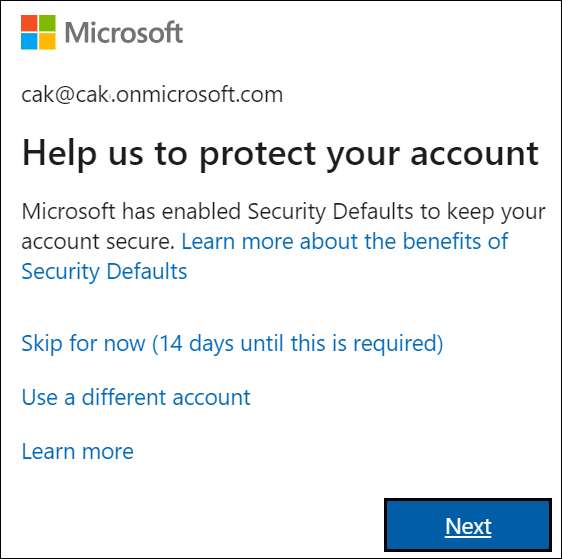
Security Defaults are a series of settings enabled by default on your Microsoft Office 365 account, to provide better security where every user is required to log in using Multi-Factor Authentication (MFA).
To know more information about the Security Defaults, check Microsoft's documentation.
In this post, we will see how to disable Security Defaults message when logging in.
You can change the security defaults from Office 365 Admin center or from the Azure Portal
- Log into your Office 365 management area > Admin > Azure Active Directory or from the Azure portal > Azure Active Directory
- Under Azure Active Directory, click Properties and then Manage Security Defaults

- In the right pane, select No for Enable security defaults, and click Save

- A Success message will appear indicating that Security Defaults changes have been saved

- Click Save again to publish the changes on the tenant

- Once done, you will no longer be prompted to set up Security Defaults when logging in
Hope This Helps!
*This post is locked for comments