




 332
332 Like
Like Share
Share
 Report
Hello Everyone,
We can view NAV Standard Objects Code and Extension code in RTC and below is the detailed information for same.
Prerequisites
Code Viewer Control AddIn

Point 1: View Standard Objects Code in RTC
CAL Language is used in Dynamics NAV Objects. CAL is converted into C# at Compile Time. The converted C# code is then handled by DotNet Framework when object is ran and the appropriate result is displayed.
NAV save this code in table 2000000071 Object Metadata.
2 Blob Fields:
- User AL Code contains the C/Al code of the object.
- User Code contains the C# code of the same object which is generated when the object is compiled.
This would also allow us to see code of objects which are not in our License range.
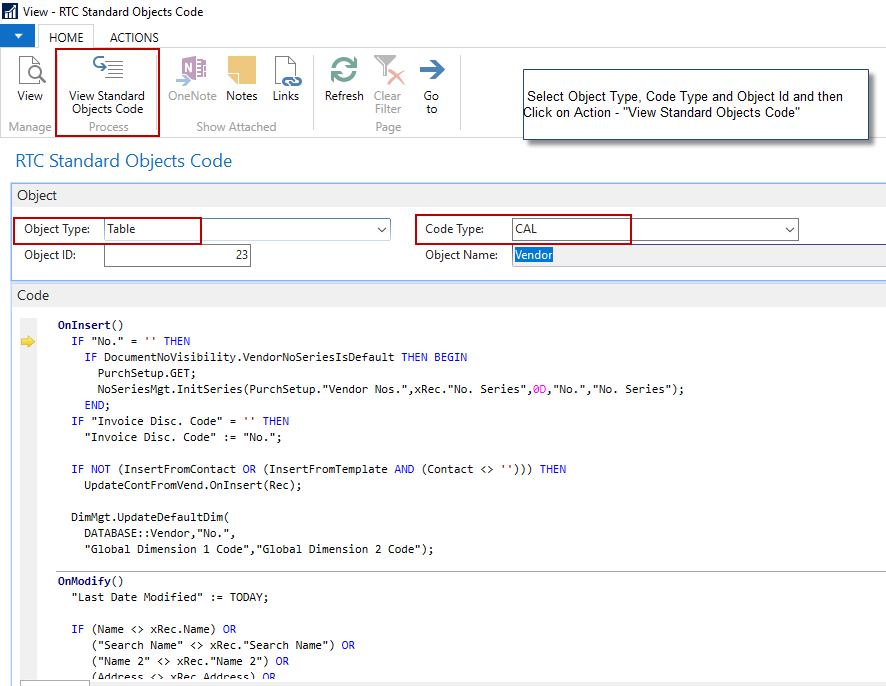
I created a simple Page “RTC Standard Objects Code” in NAV 2017 to see this code in RTC. Please see below snapshots for details.
1 – View Standard Code Objects – C/AL
- Select Object Type (Example – Table, Report, Codeunit, Page, Etc.)
- Select Code Type (CAL, DotNet)
- Enter Object Id
- Click on Action – “View Standard Objects Code” à You can see the Code in Code Tab.
2 – View Standard Code Objects – DotNet

Point 2: View Extension Code in RTC
Once an extension is installed for a tenant you cannot see the objects in Developer environment. NAV stores these objects in table 2000000150 (Nav App Object Metadata).
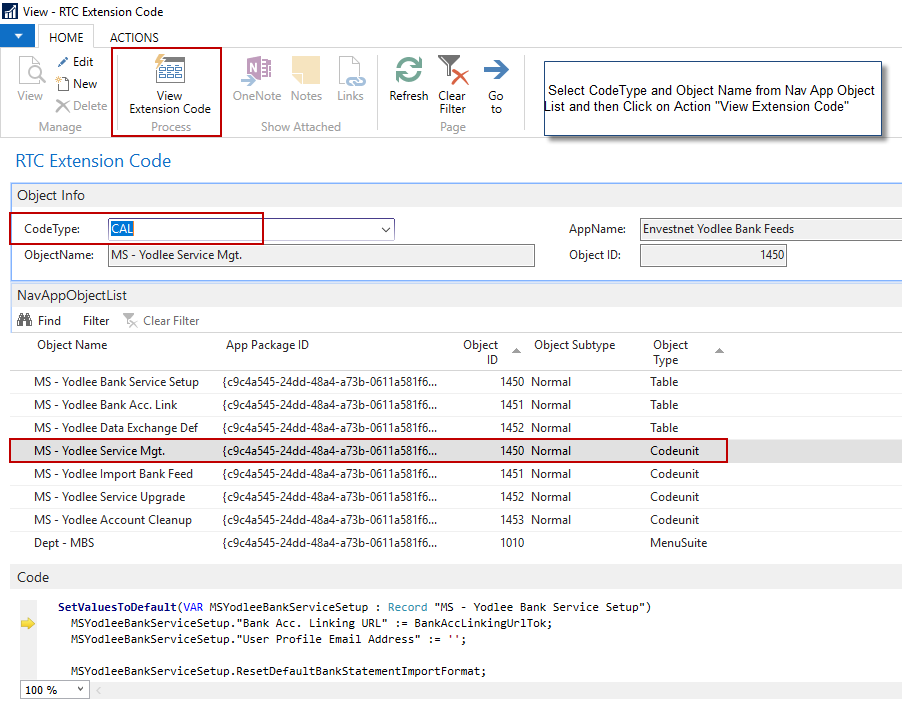
I created a simple Page “RTC Extension Code” and “Nav App Object List” in NAV 2017 to see this code in RTC. Please see below snapshots for details.
3 – NAV Installed Extensions

4 – View Extension Code – C/AL
- Select Code Type (CAL, DotNet)
- Select Object Name from Nav APP Object List
- Click on Action – “View Extension Code” à You can see the Code in Code Tab.
5 – View Extension Code – DotNet

You can download the Objects from here.
I hope this would help you a lot.
Your valuable comments and feedback are appreciated.
*This post is locked for comments