




 Like
Like Share
Share
 Report
In this blog article, we will explain you on how to connect dynamics 365 financials service connector inside of Power BI.
Below are the steps to connect over Financial OData:
- Open the Power BI.com online account
- Select Get Data option from the bottom menu
- Click on the Get service option

- Select dynamics 365 financial from the list and click on “Get it Now”
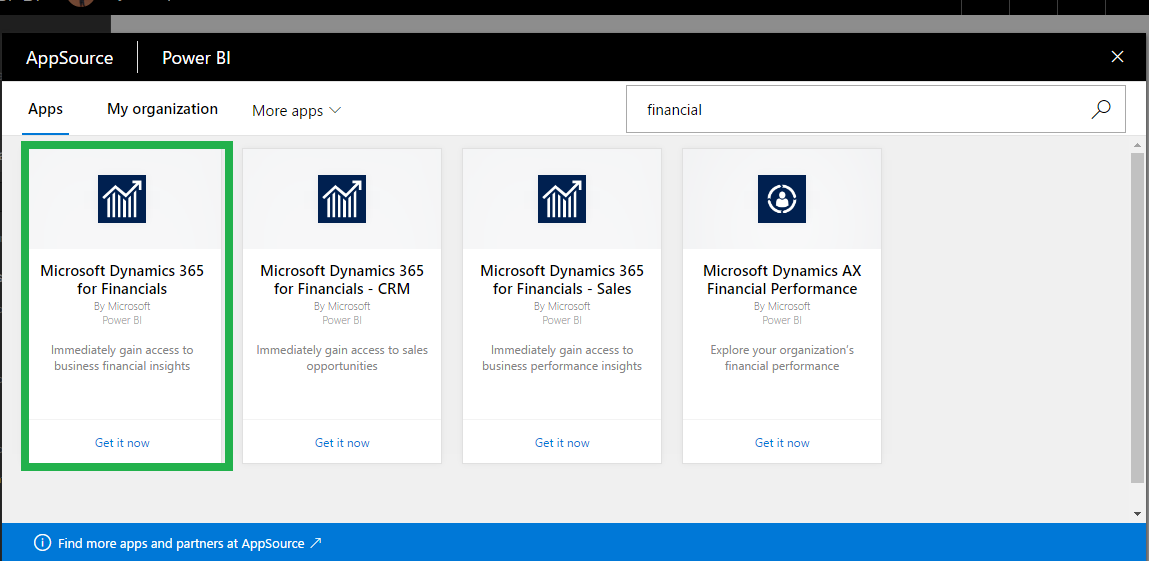
New Connection window appears which asking for OData URL to connect financial account.

So for getting OData url we need to connect our D365 financial account in browser window and then search for web service.

Select Power BI report selection Url from list of objects.

Copy this url up to “Cronus” company name into powerbi connection window.

Your password is the web service access key of the Admin user and you can get it from users tab.

So, after connecting to the financial ODATA services we will get readymade dashboard created for financials.

And now we can embedded this dashboard inside of Dynamics financial account.

So list of reports appear and we can select required one from that.

Note: As of now, Microsoft allow us to show only one graph/tiles inside of Financial embedded page, we hope more updates on this features.
The post Dynamics 365 Financials connector for Power BI embedded appeared first on CloudFronts - Microsoft Dynamics 365 | Power BI | Azure.
*This post is locked for comments