




 239,035
 Like
Like Share
Share
 Report
Moving Dynamics AX development to Visual Studio gave us a state-of-art IDE with many features and configuration options. For instance, you can modify fonts, font sizes and color to match your preference and to help to overcome certain visual impairments.
These options are available from Options > Environment > Fonts and Colors. You can configure many things there, such changing colors of the Output Window or setting Environment Font to Snap ITC (try it :-)), nevertheless let’s look at Text Editor right now.
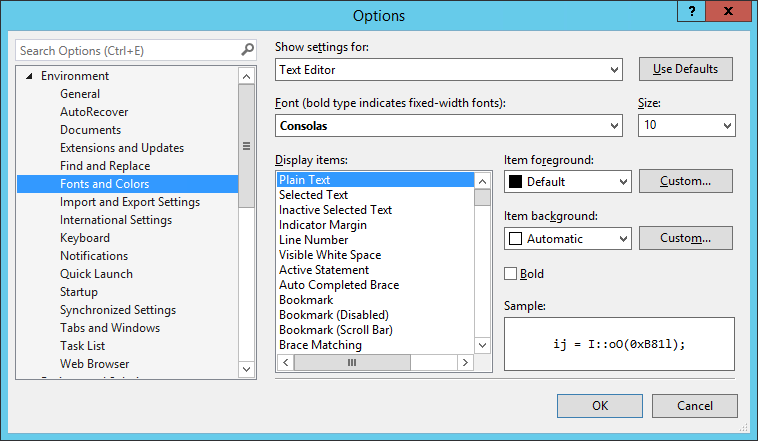
There are some generic options, such as the background color, and then some language-specific settings. This includes X++, therefore you can customize, for example, how overlayered code is displayed in code editor.
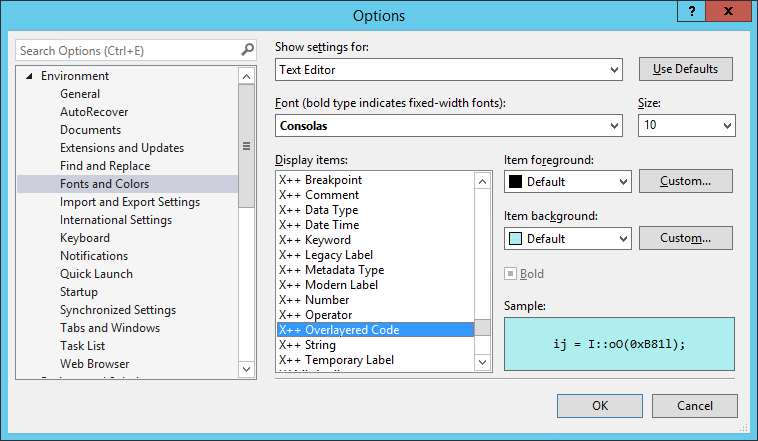
Personally I haven’t changed any of these setting for X++, but it’s good to know about them.
*This post is locked for comments