




 14,673
 Like
Like Share
Share
 Report
Tips & Tricks — Manage Employee Vendor relationship
For expense management to work in Dynamics 365 Finance, it is required to map employee to a vendor. This blog post provides tips and tricks on how to setup a relationship between employee and vendor, change employee — vendor mapping OR delete employee vendor relationship if relationship got setup wrong or is not required.
How to setup relationship between Employee and Vendor
Go to Human Resources > Workers > Employees.
Employees form open. Select the employee for which you want to assign relationship.
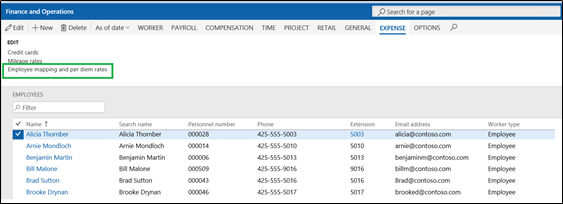
On expense tab, click “employee mapping and per diem rates”. Form TrvWorkerVendorMapping open. This is different type of form and doesn’t have any tabs/buttons to create new record, delete record etc.

To setup a mapping, select vendor from the drop down and click ok at the bottom of the form to setup the relationship successfully. That’s how simple it is.
How to change relationship between Employee and Vendor
Go to Employees form, select employee and click on “employee mapping and per diem rates”. Form TrvWorkerVendorMapping open and show existing employee vendor relationship.
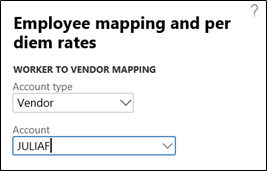
Select another vendor.

Click ok and the mapping has now been changed.
How to delete relationship between Employee and Vendor
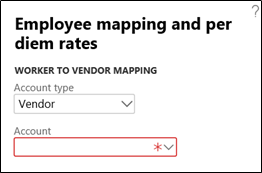
The form TrvWorkerVendorMapping doesn’t have a delete button or an option to delete the relationship from user interface. If you try to remove vendor from the drop down but when you click ok, you will receive an error message as Account field is mandatory on this form.
However, we can use shortcut keys to delete the relationship on this form. This form can only be opened from the employee form and we don’t seem to find any form that shows relationship between all employees and vendors. Shortcut key is “Alt+F9”. Once you press these keys, message box below is displayed.

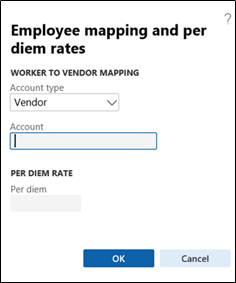
Click yes and the relation ship between employee and vendor is deleted successfully. The form TrvWorkerVendorMapping is still open, click “Cancel”.
That’s it for now, if you like the content above Or Run into any issues while performing above steps, please leave a comment below with details.
*This post is locked for comments