




 22,784
 Like
Like Share
Share
 Report
 This post is part of the In Microsoft Dynamics 365 Business Central, how do I… series which I am posting as I familiarise myself with Microsoft Dynamics 365 Business Central.
Your role in Dynamics BC determines the default layout of your home screen; it doesn’t affect what you have access to, but what you se.
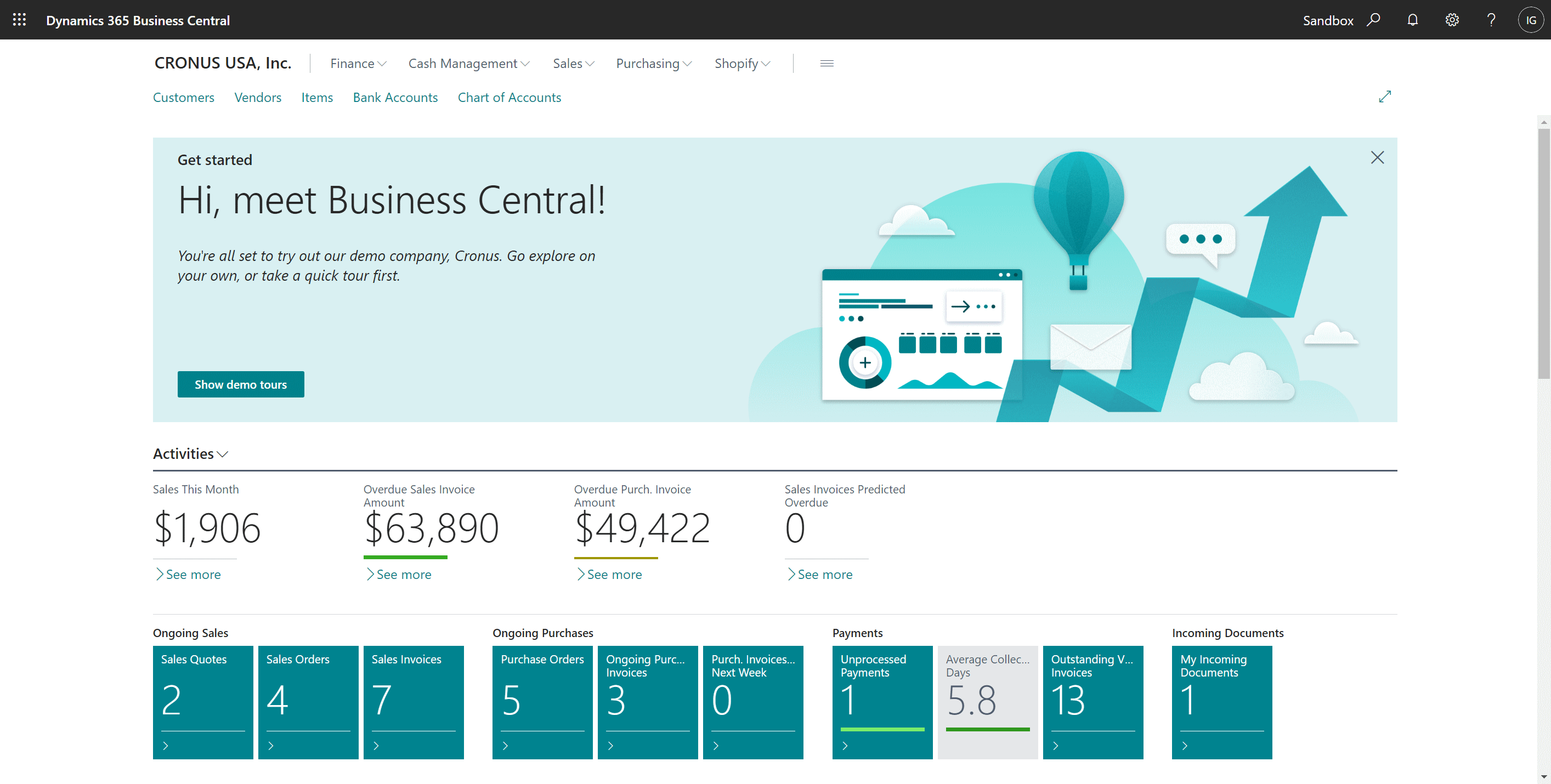
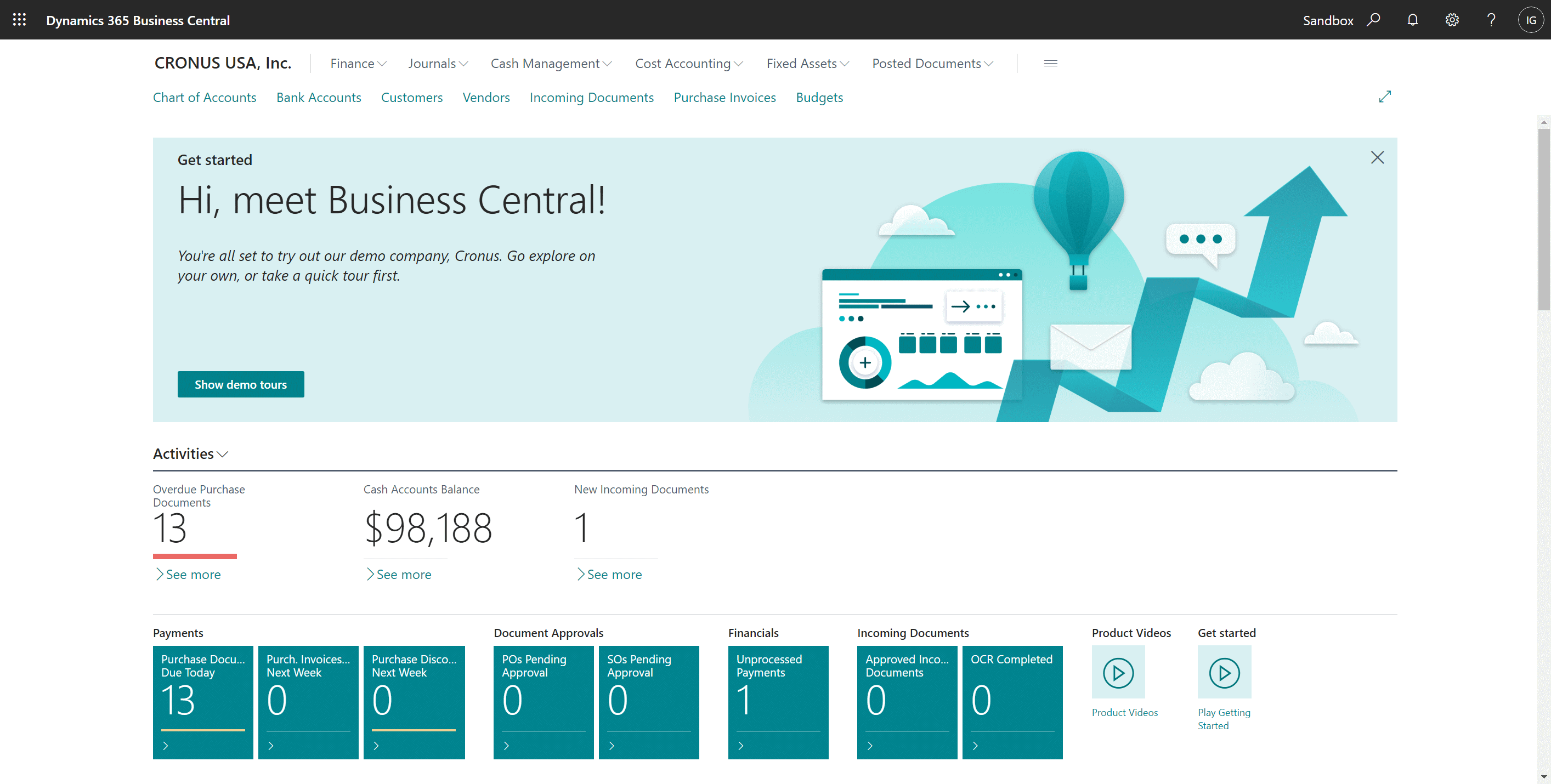
When you log into Dynamics BC, you will see the home page layout determined by your role:
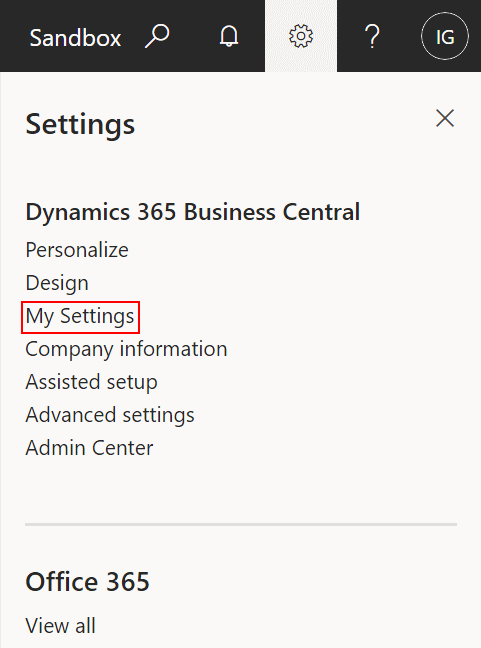
To change your role, click the Settings cog in ghe top right corner and select My Settings:
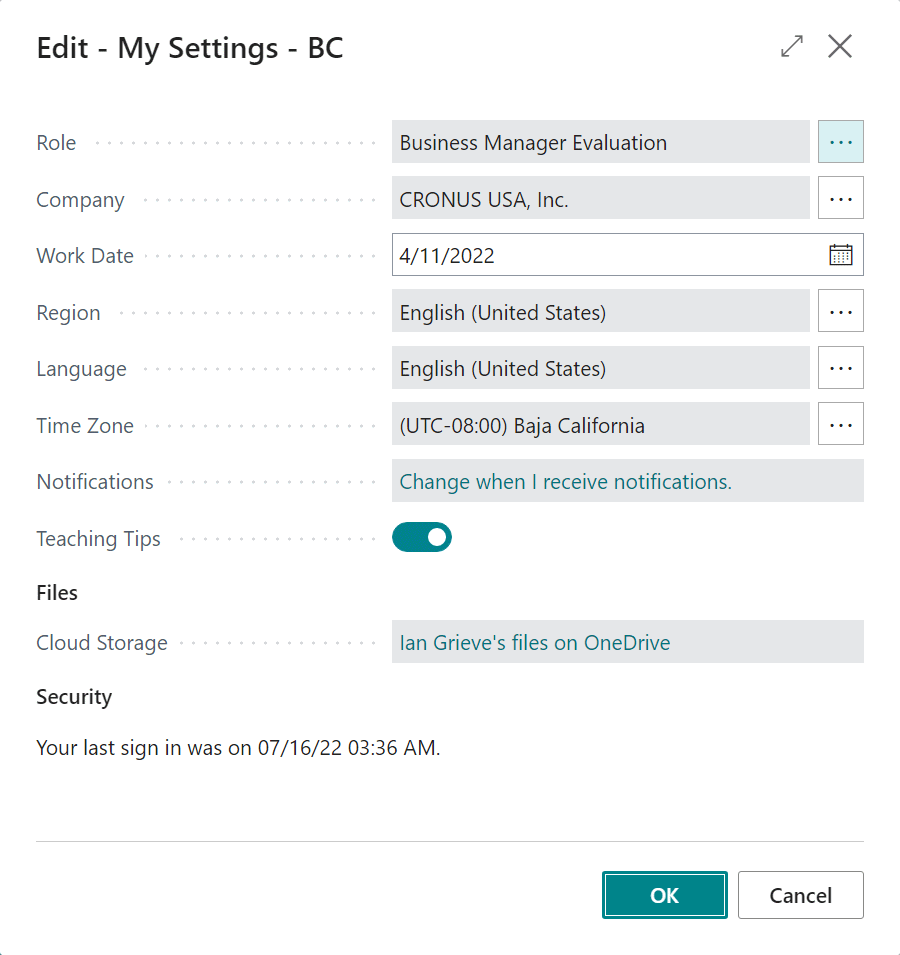
Your current role is displayed in the first field on the Edit – My Settings window; to change the role click the ellipsis button next to the current role:
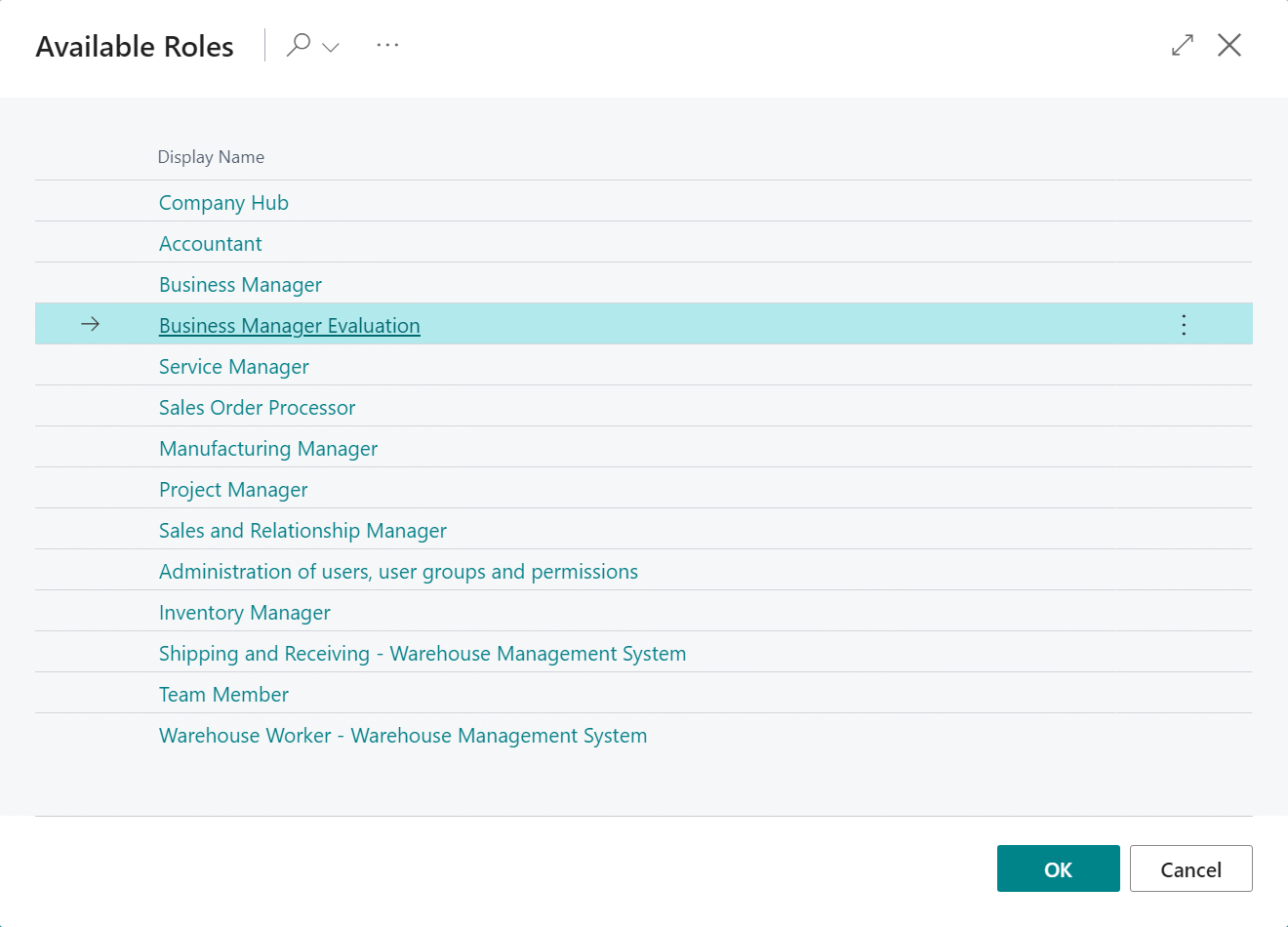
The list of available roles are listed; click a role to select it and then click the OK button (or double click the role):
The newly selected role will be confirmed in the Role field of the Edit – My Settings page; click OK to accept and return to the Dynamics BC home page:
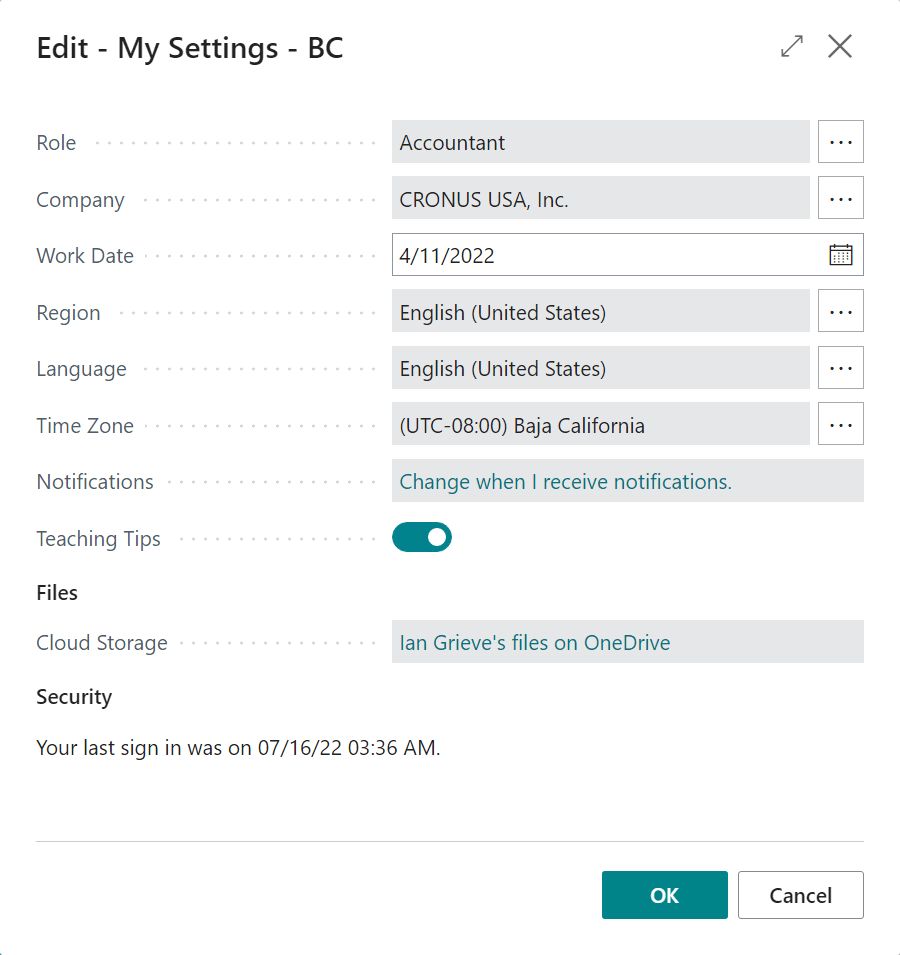
The home page will automatically refresh with the newly selected role configuration:
In Microsoft Dynamics 365 Business Central, how do I…
In Microsoft Dynamics 365 Business Central (Administration), how do I…
Read original post In Microsoft Dynamics 365 Business Central, how do I… Change My Role at azurecurve|Ramblings of an IT Professional
*This post is locked for comments