




 195
195 Like
Like Share
Share
 Report
This second part of the series shows step by step, how to setup a connection with Dynamics 365 and create a simple account.
| 1. | Have a look at Part l to setup the basis. |
| 2. | Open the “Windows PowerShell ISE”: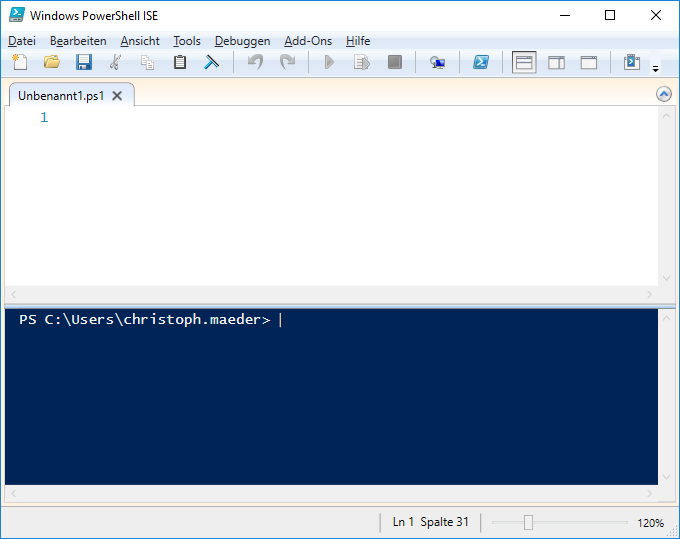 |
| 3. | Import the module
# import the module |
| 4. | Connect to the Org:
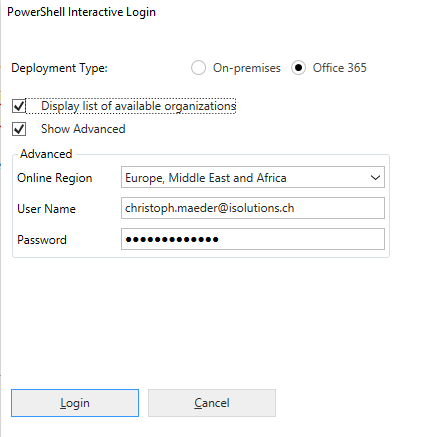
# connect to a dynamics 365 organisation This will show a modal dialog where you can access the CRM (Online or OnPrem):
Click “Login” to get the available orgs and then click “Login” again to setup the connection to Dynamics 365. After successful login the prompt shows you information about your organisation:
|
| 4. | And now, let us create some data! The following command will create a simple account and return the GUID:
$accountId = New-CrmRecord -conn $CRMConn -EntityLogicalName account -Fields @{"name"="proCRM";"telephone1"="123-456"}
|

That’s it for today. The next post will show how to get data from CRM by PowerShell
*This post is locked for comments