




 Like
Like Share
Share
 Report
Today is St. Patrick’s Day, a day when many celebrate by wearing green and ingesting green-colored beer.
As you probably know, we at crmtipoftheday are fans of making CRM more festive. So wouldn’t it be great to be able to make CRM green?
With the CRM Online Spring ’15 Update, you can!
- Go to Settings–>Customization
- Click “Themes”
- Select the CRM default theme, then click “Clone” to make a copy of the default theme.
- Change the value for Header Color to HTML color code #006551
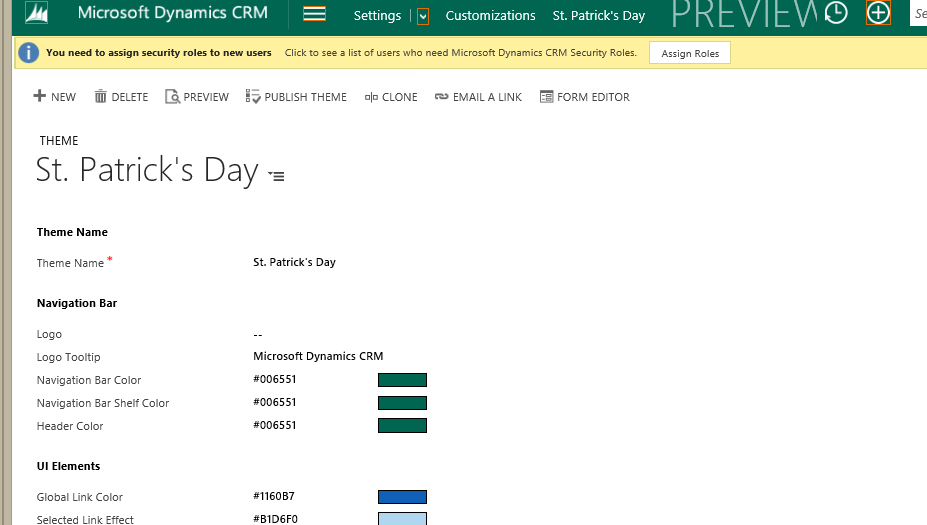
The results will leave you yearning for the emerald isle.
Not only can you change the application colors, you can also now replace the logo. This “branding” feature is something that CRM users have frequently requested. We suggest that you choose something seasonally appropriate. A leprechaun, for example.

*This post is locked for comments