




 7,396
7,396 Like
Like Share
Share
 Report
Syndicated from - https://d365demystified.com/2020/04/14/debug-ribbon-button-customization-using-command-checker-in-dynamics-365-ce-unified-interface/
Developers, it’s a little irksome to keep struggling with issues around making your ribbon buttons work correctly during the development phase.
At times, you wonder why your button didn’t show up on the form although you had set everything up correctly. Or even for out-of-box button, that didn’t show?
Scenario
In this example, I’ll find out by my Project Service Quote record doesn’t have a Activate Quote button on the ribbon.

We can use Command Checker to find out why.
Enable Command Checker
Remember, this only works in the Unified Interface and not on the classic UI.
Command Checker is a developer feature to identify how a certain ribbon button has or has not rendered on your form/view. So let’s begin –
Add this command to the end of the Entity form page URL: &flags=FCB.CommandChecker=true&ribbondebug=true
Add make it look like something like below –
https://<ORG_NAME>.crm<REGION>.dynamics.com/main.aspx?appid=7fbb5a25-b903-ea11-a816-000d3a58f769&pagetype=entityrecord&etn=account&id=aaa19cdd-88df-e311-b8e5-6c3be5a8b200&flags=FCB.CommandChecker=true&ribbondebug=true
Command Checker
Form Command Checker
- Now, if you navigate to the ellipses on the ribbon, check that Command Checker has now appeared.
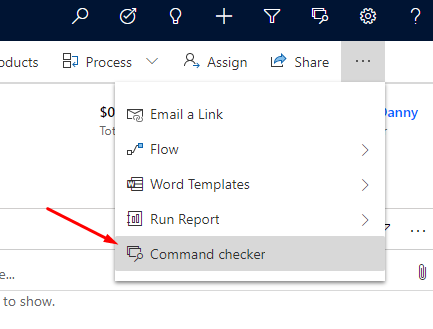
- A Command Checker Window will appear as below. Navigate to the button you are having issue on.

- Then, click on Command Properties as shown above to see what didn’t pass through. And as shown below, we could see that one of the conditions in Enable Rule didn’t get through and hence, the button didn’t show up on the ribbon.
 In case you are also looking at how to hide out-of-the-box ribbon buttons, check this – Hide Custom Ribbon Button [Easy Way] – Ribbon Workbench
Global Command Checker
And with that, you must have also observed the Command Checker on the Navigation Ribbon bar as well.

And it opens up as below –

Some other Ribbon Workbench related posts –
- Show Ribbon button only on record selection in Dynamics CRM
- Enable Flow button on D365 Ribbon
- [SOLVED] Navigating URL from Ribbon’s custom button in Dynamics for Phones app
- Fix Ribbon icons on the Unified Interface in D365 CE
- Create a New Record button for Activity Type entity using Ribbon Workbench: D365
- D365 Ribbon Button shortcut to open a Document in SharePoint Online
Hope this helps! Happy 365ing!
*This post is locked for comments