




 61,204
 Like
Like Share
Share
 Report
We change the language, the region, and the time zone in the Microsoft Dynamics NAV Web client by using the My Settings page located in the upper right corner under the user name that you are signed in with.
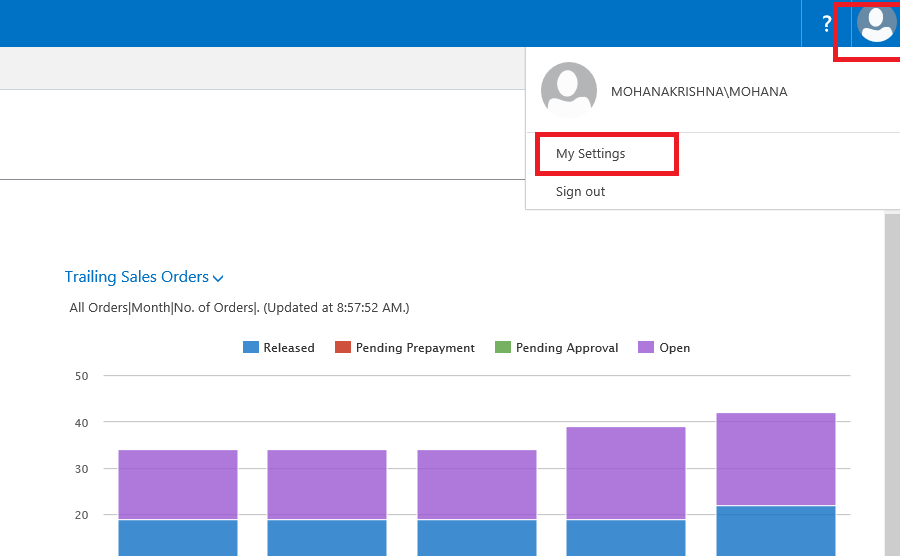
The regional settings determine the format of data such as dates, times, numbers, currency, and so on. The time zone specifies the time zone that is applied to date and time data that a user views or enters in the Microsoft Dynamics NAV Web client. You need to sign out and sign in again for the change to take effect.

With the new My Settings page, it is now possible to dynamically switch the UI language, region, time zone, company, and work date of the Microsoft Dynamics NAV Web client, Microsoft Dynamics NAV Tablet client, and Microsoft Dynamics NAV Phone client. You need to sign out and sign in again to have the change take effect, except for changing work date that takes effect immediately.

The number of available languages is based on the installed language modules. All settings are based on the selection in My Settings.

NOTE:
With the introduction of the My Settings page, the settings in the Web.config file for Company, Time Zone, Region, and Language have been removed. Using an old link that contains a specific company to open, for example, the Microsoft Dynamics NAV Web client will overwrite the choice in My Settings.
*This post is locked for comments