




 943
943 Like
Like Share
Share
 Report
Using Credentials (User name and password) to authenticate with Dynamics 365 CRM Online, can be a problem when executing long running background application processes that integrates with Dynamics CRM 365 Online. As you know due to network polices user account or service account needs to update the password in regular frequencies.
Using authentication type Client Credentials for authentication with Dynamics 365 CRM Online will resolve this issue of using User Credentials which constantly changes and requires a Dynamics CRM 365 Online license. Client Credentials are made up of a client id and client secret which firstly need to be setup in Azure Portal. Once we have the client id and client secret, this can be used to obtain a bearer token. Here are the steps you would need to follow to authenticate using Client Credentials.
1. Register a App against Azure Active Directory
a) Log into https://portal.azure.com, navigate to Azure Active Directory -> App registrations and click on New application registration

b) Create the new App registration with Web app / API as the Application Type
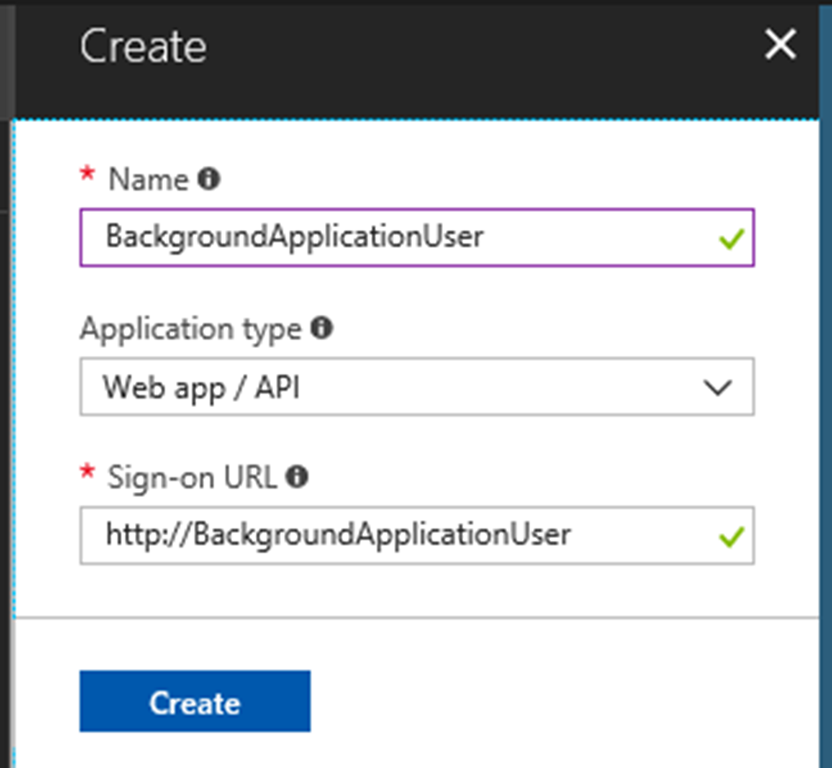
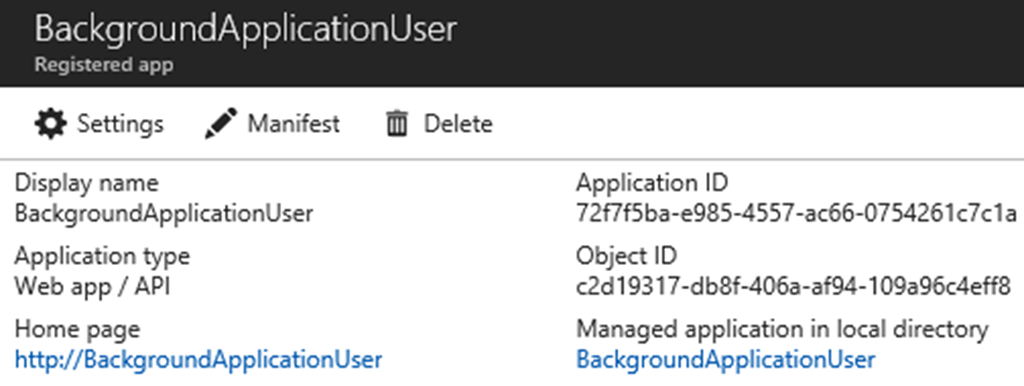
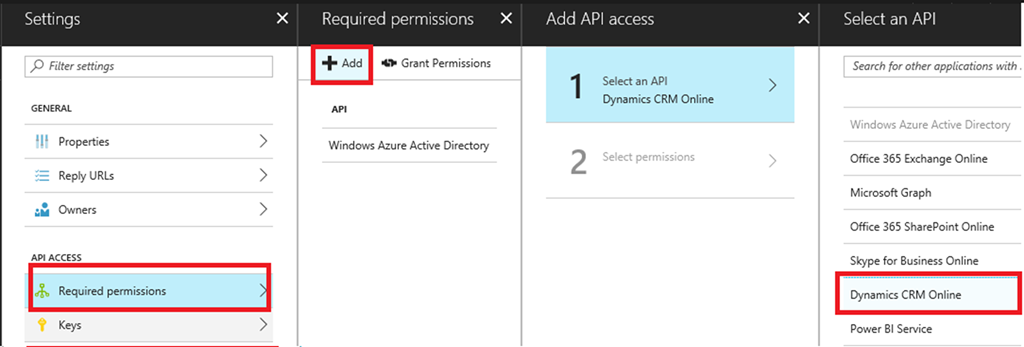
c) Grant permissions to Dynamics CRM Online by navigating to Settings -> Required permissions. Click on Add and select Dynamics CRM Online
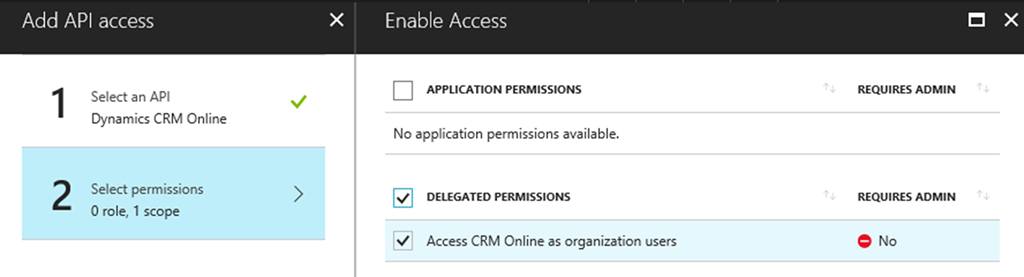
d) Select the following permissions then click Done
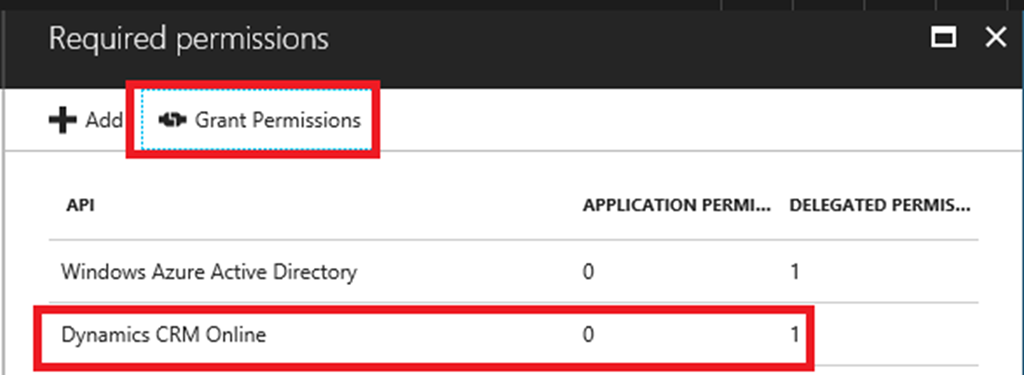
e) Dynamics CRM Online should now be added to the list of Required permissions. Click on Grant Permissions to complete the process
f) Setup client secret key by navigating to Settings -> Keys, create a new Key and save to generate a new Secret key value
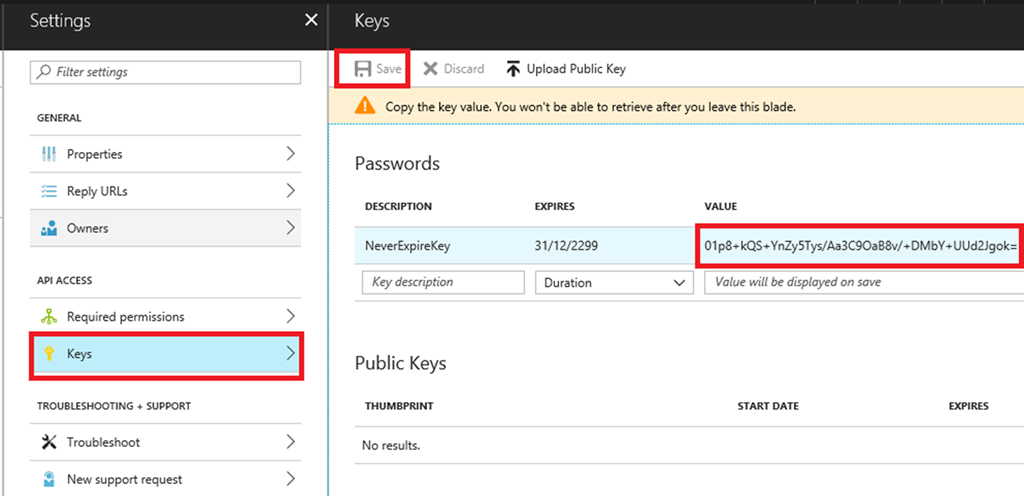
NOTE: Take note of the generated key value since it would not be visible the next time you navigate to the Keys List
2. Create a new Office 365 user
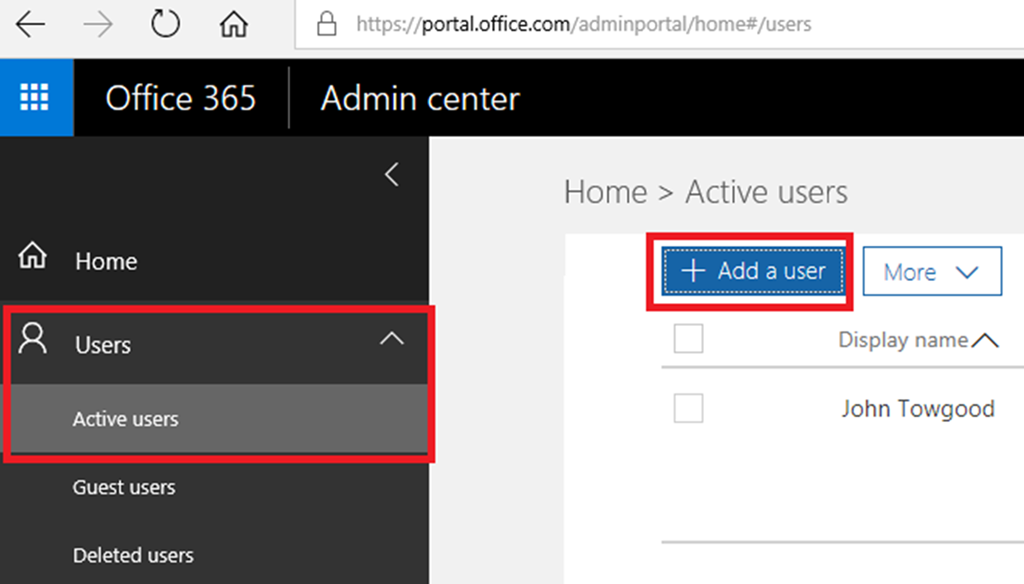
a) Log into https://portal.office.com/adminportal, navigate to User -> Active users and click on Add a user
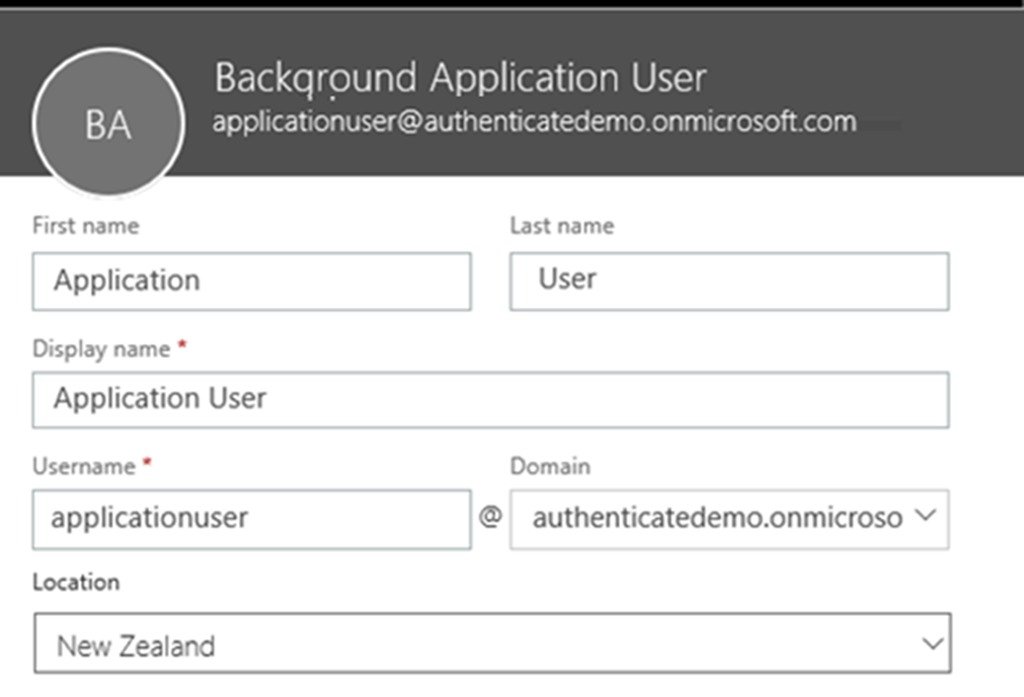
b) Fill in User details
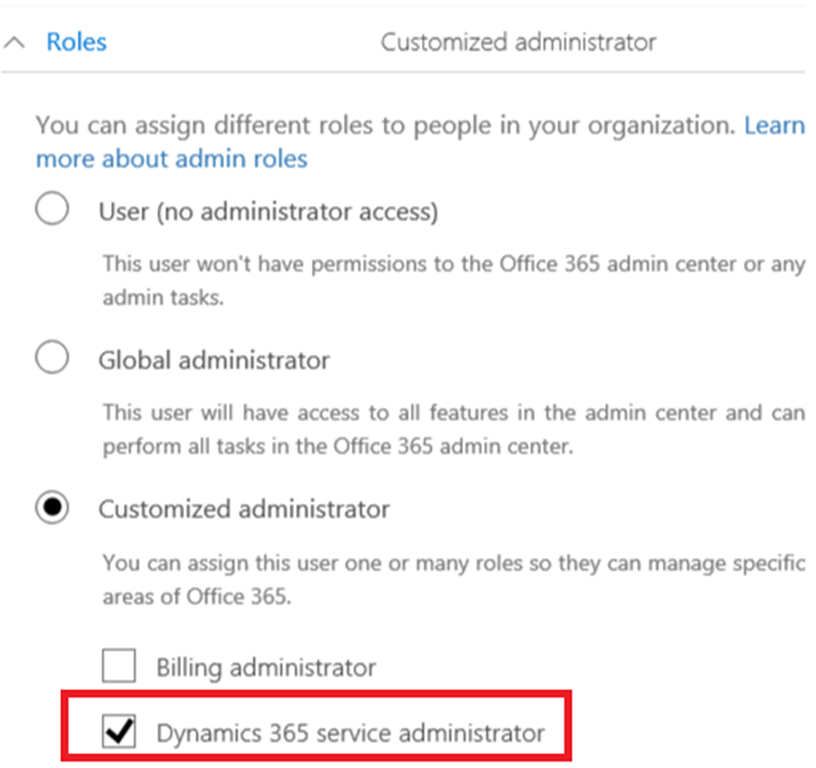
c) Assign the Dynamics 365 Service Administrator Role
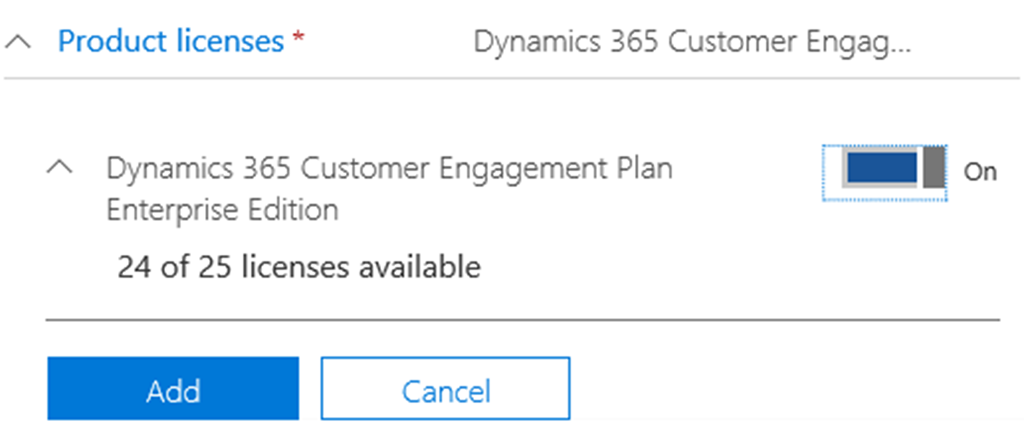
d). Apply the Dynamics 365 Product Licence and click Add
3. Create a new Dynamics 365 Application user
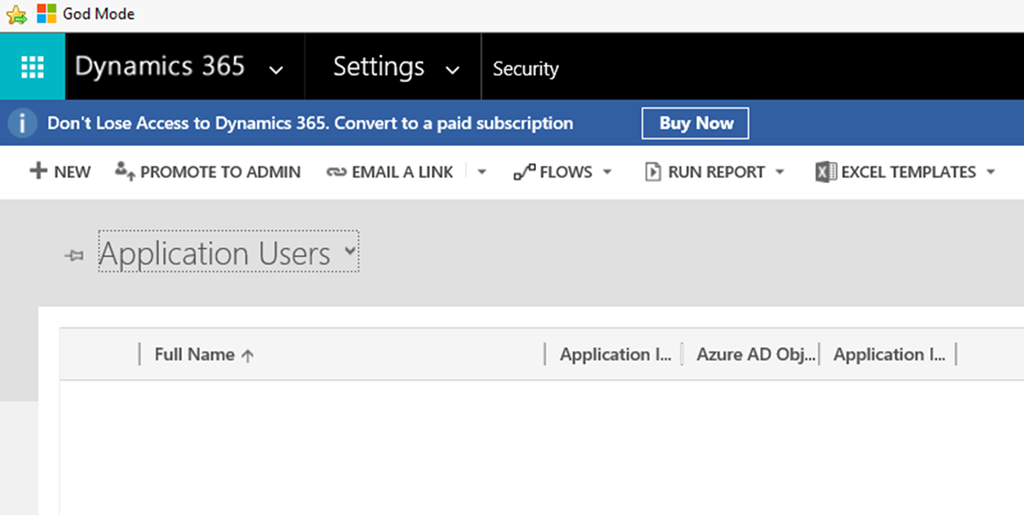
a) Log into Dynamics 365 Online, navigate to Settings -> Security -> Users and change the view to Application Users. Click on New to open a new Application User Form
b) Fill in the following fields.
The value of the Application ID field will be the GUID value obtained from previous steps 1.
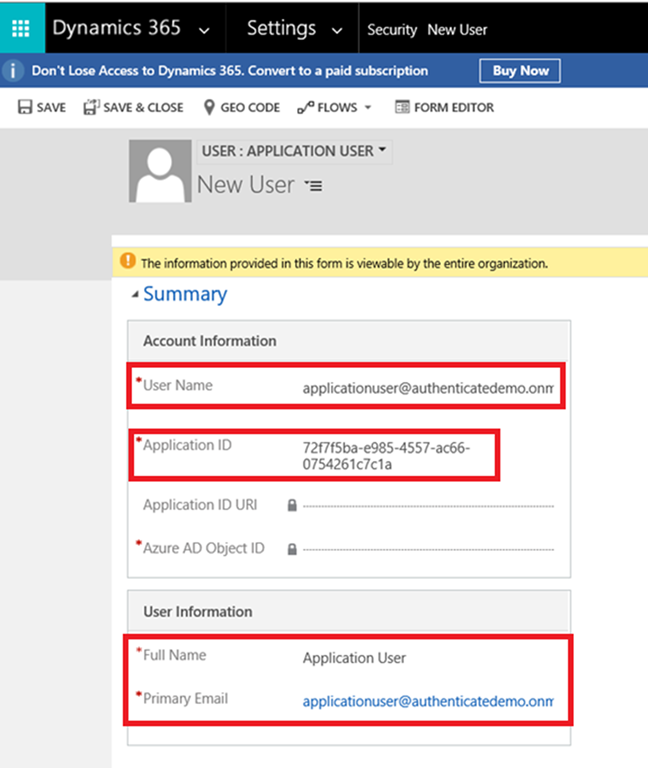
c) Once saving the record the following fields will be auto populated by Dynamics 365

4. Create new Security Role and assign to Application user
a) Navigate to Settings -> Security -> Security Role and Copy the System Administrator Role
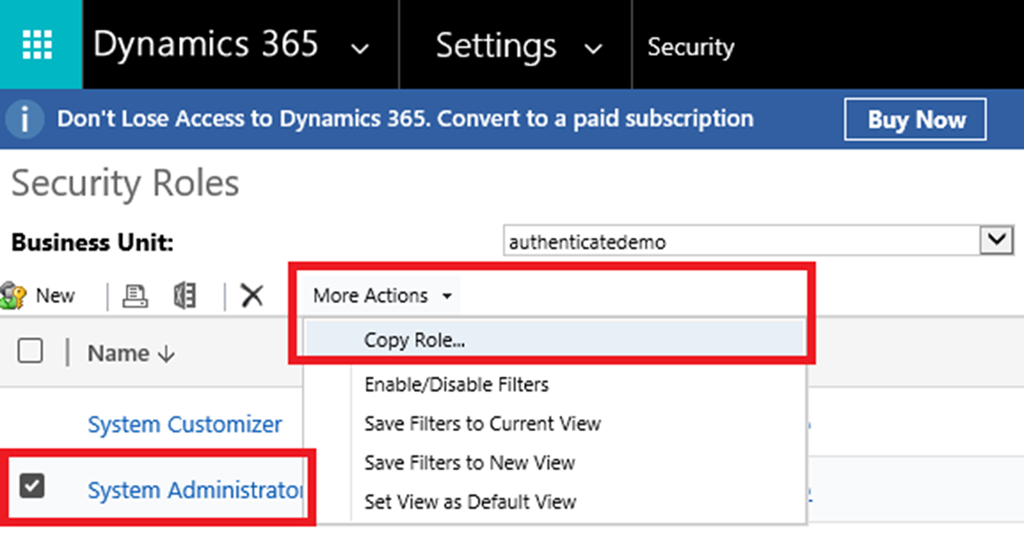
b) Name the new security role and completed the creation process
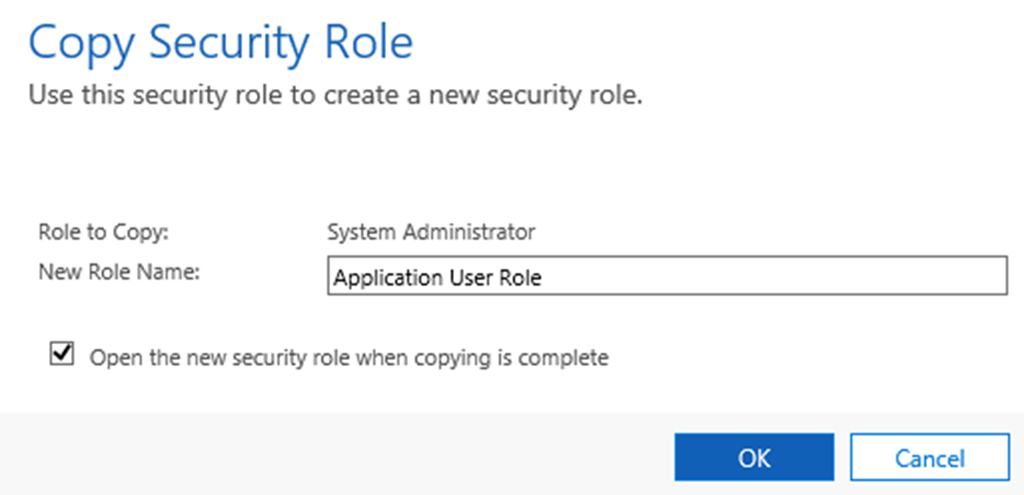
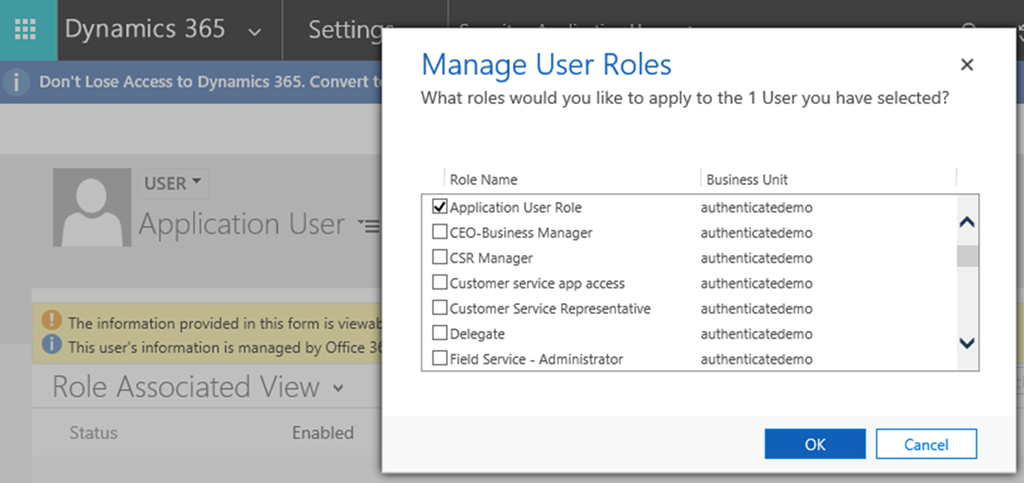
c) Assign the new security role to the Application User
d) Remove Dynamics 365 license for the User in Office365 admin portal

5. Get Bearer Access Token by sending HTTP POST request to Token endpoint
The Token URL endpoint for any Dynamics CRM 365 Online would be https://login.microsoftonline.com/<tenant id>/oauth2/token
Obtain the tenant id from the Azure Portal

The body content of the HTTP Request will contain the following and will be URL encoded
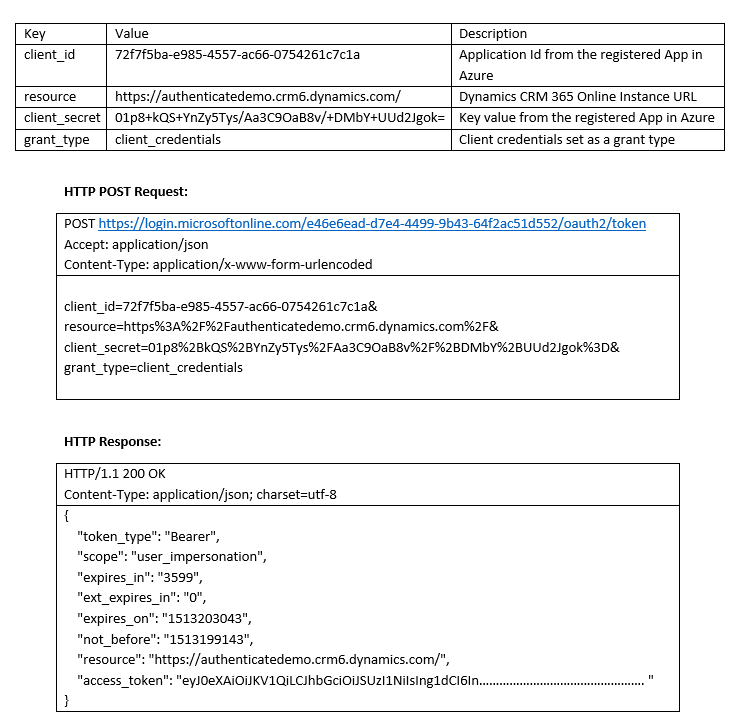
A refresh token is not included as part of the response when using Client Credentials to authenticate, this is only available when authenticating using User Credentials.
So once the access token has been obtained then you can use this token in the Authorization header for all the request to Dynamics CRM 365 Online Web API.
*This post is locked for comments