web
You’re offline. This is a read only version of the page.
close
Skip to main content

Notifications

Announcements

Community site session details

Community site session details

Session Id :
Microsoft Dynamics 365 | Integration, Dataverse...
Suggested Answer

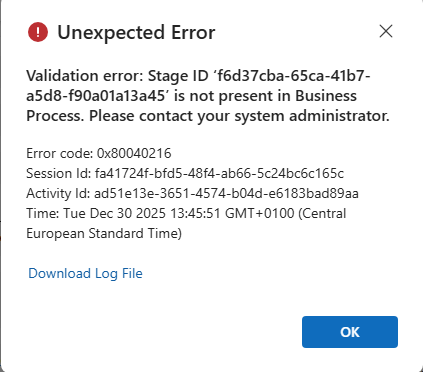
Stage ID ‘f6d37cba-65ca-41b7-a5d8-f90a01a13a45’ is not present in Business Process.

(1) ShareShare
ReportReport
Posted on by 4
I had to delete a certain stage in dev environment and after deploying to prod, there were still records left which had that certain stage id as active stage id. When I try to change the active stage, it says I'm trying to change an inactive process which is not possible. Any ideas how to fix the broken records? They just have no BPF now. Records in other stages work fine, and newly created records work as well
 
.
Categories:
I have the same question (0)
  • Mansi Soni Profile Picture
    8,933 Super User 2025 Season 2 on at
    Hello, Can you clarify which Dynamics 365 Products are you using like D365 Business Central, CRM, F&O?

    Regards,
    Mansi Soni
  • AT-30121247-0 Profile Picture
    4 on at
    @Mansi Soni I am using D365 CRM, specifically a Model Driven Power Apps application using Dataverse as the database.
  • Suggested answer
    iampranjal Profile Picture
    67 on at

    Hi there,

    ​This is a common issue when a BPF stage is removed in Development and the change is deployed to Production while active records are still sitting in that specific stage.

    ​Essentially, the backend record for the Business Process Flow (e.g., the opportunitysalesprocess table) still has its ActiveStageId column set to the GUID of the deleted stage. Since the metadata for that stage no longer exists in the system, the form cannot render the process bar and throws this error.

    ​Here are two ways to fix the broken records:

    Method 1: The "Clean" Fix (Update the Stage via Flow)

    You need to force the ActiveStageId to point to a valid stage (e.g., the first stage or the one prior to the deleted one).


    1. Get a valid Stage ID: Open a working record, use the browser console (F12), and run Xrm.Page.data.process.getActiveStage().getId() to get a valid GUID.

    2. Create an Instant Cloud Flow:

      • List rows: Query the BPF Table (e.g., Opportunity Sales Process, not the Opportunity table).

      • Filter: Filter for the records related to your broken main records.

      • Update row: Update the ActiveStageId field on these records with the valid GUID you found in step 1. 

      •  
    3. ​Refresh the record in the UI; it should now load correctly on the new stage.

    4.  

    Method 2: The "Quick" Fix (Delete the BPF Instance)

    If you don't mind resetting the process progress for these specific records:


    1. ​Go to the Maker Portal (https://www.google.com/search?q=make.powerapps.com) or use Advanced Find.

    2. ​Look for the table corresponding to your BPF (e.g., "Lead to Opportunity Sales Process").

    3. ​Find the entries associated with the broken records and Delete them.

    4. ​When you open the main record again, the system will generate a fresh BPF instance starting at the first stage.


    5.  

    ​Hope this helps!

Under review

Thank you for your reply! To ensure a great experience for everyone, your content is awaiting approval by our Community Managers. Please check back later.

Helpful resources

News and Announcements

Season of Giving Solutions is Here!

Quick Links

Responsible AI policies

As AI tools become more common, we’re introducing a Responsible AI Use…

Neeraj Kumar – Community Spotlight

We are honored to recognize Neeraj Kumar as our Community Spotlight honoree for…

Leaderboard > Microsoft Dynamics 365 | Integration, Dataverse, and general topics

#1
iampranjal Profile Picture

iampranjal 65

#2
André Arnaud de Calavon Profile Picture

André Arnaud de Cal... 34 Super User 2025 Season 2

#3
Pallavi Phade Profile Picture

Pallavi Phade 24

Last 30 days Overall leaderboard

Product updates

Dynamics 365 release plans
