web
You’re offline. This is a read only version of the page.
close
Skip to main content

Announcements

No record found.

News and Announcements icon
Community site session details

Community site session details

Session Id :
Microsoft Dynamics CRM (Archived)

Automatically create case from support mail, and assign to the user that has the cust. account

(0) ShareShare
ReportReport
Posted on by

Hi!

Office 365

CRM Online 2015, Update (7.1.1.4312) (DB 7.1.1.4309)

I have a mail address for support requests, that creates cases and puts them in a queue. When a support request is made, I need to assign that case to the user that is responsible to that customer. So if customer A sends an email to our support mail address, I need the routine to create a case, and assign that case to the user, that "owns" the customer.

How to do that?

Best regards

Erik

*This post is locked for comments

I have the same question (0)
  • Suggested answer
    razdynamics Profile Picture
    17,308 User Group Leader on at

    Hi Erik, so the Owner of the Account or Contact needs to be the of the Case? Have you tried creating a workflow?

    On Create of Case (Trigger), Set  Owner(Case) = Parent Account / Contact (Case)

    Let me know how you do

    Best Wishes, Raz

  • Community Member Profile Picture
    on at

    Hi Raz!

    Thank you for the answer, I am just having a difficulty in where to find these settings. Your answer is exactly what I am looking for, but I need to find how to apply it :)

  • Suggested answer
    Drew Poggemann Profile Picture
    4 on at

    Hi Erik,

    Raz is exactly correct.  Here are the details...

    1.  Navigate to Settings --> Customizations

    2.  Go into Customize the System option on Customization page

    3.  Under Components on the left hand navigation, you will see Processes as an option, highlight this option

    Create New Workflow

    4.  In the main area of the page you will see the option for "New" on the menu bar above the process listing

    5.  Click New and then you will need to Name your new process, select category of "Workflow" and select entity of "Case", keep the selection to run in background, and finally type will be "New blank process" and select OK.

    6.  The next screen will be the workflow information page.  You should change the workflow here in the scope to run at the right level.  For most of the workflows I create Organization is the right level which means it will run for case creation for all users in your organization.

    Create Steps

    7.  In the steps choose "Add Step" and choose "Assign Record" as the option

    8.  Click on the "Properties" and it will bring up the following type of screen where you will want to use a dynamic setting of the Owner with the Form Assistant on the right of the workflow page.

    In Form Assistant Choose for the two lines under Look for:

    a.  Customer (Account)

    b.  Owner 

    Click Add and then Click OK

    This will fill in the text in "Yellow" as shown on the screen shot below:

    Screen-Shot-2016_2D00_02_2D00_21-at-5.24.58-AM.png

    9.  Save and Close from this page

    10.  Activate your workflow.

    Thanks Much,

  • Community Member Profile Picture
    on at

    Thanks for the great answer. I think I´m getting there, though I have some difficulties. It seems pretty simple.

    Basically case is created when a email is sent to a specific email address. The case is automatically assigned to the user that "owns" the customer. Just like you guys have described.

    An email from an unknown address, that is not a registered customer must still create a case, and that case is assigned to a default user.

    And it must be able to assign the case to another user, either in CRM or via email.

    I am getting the feel for the system, but I still need some help to get this running smoothly !

    So please any help will be very appreciated

    Best

    Erik

  • Community Member Profile Picture
    on at

    Or perhaps you guys can point me to a ressource that can guide me through the proces in the same way as Drews excellent answer? :)

  • Suggested answer
    Drew Poggemann Profile Picture
    4 on at

    Hi Erik,

    On an "unknown sender" there is a little more that comes into play here.  Microsoft has documented the case creation and all the details on what to set and what happens here:  

    https://www.microsoft.com/en-us/dynamics/crm-customer-center/automatically-create-a-case-from-an-email.aspx

    See step 6 for an important table (you will see after expanding the "Specify conditions for email to case creation").  
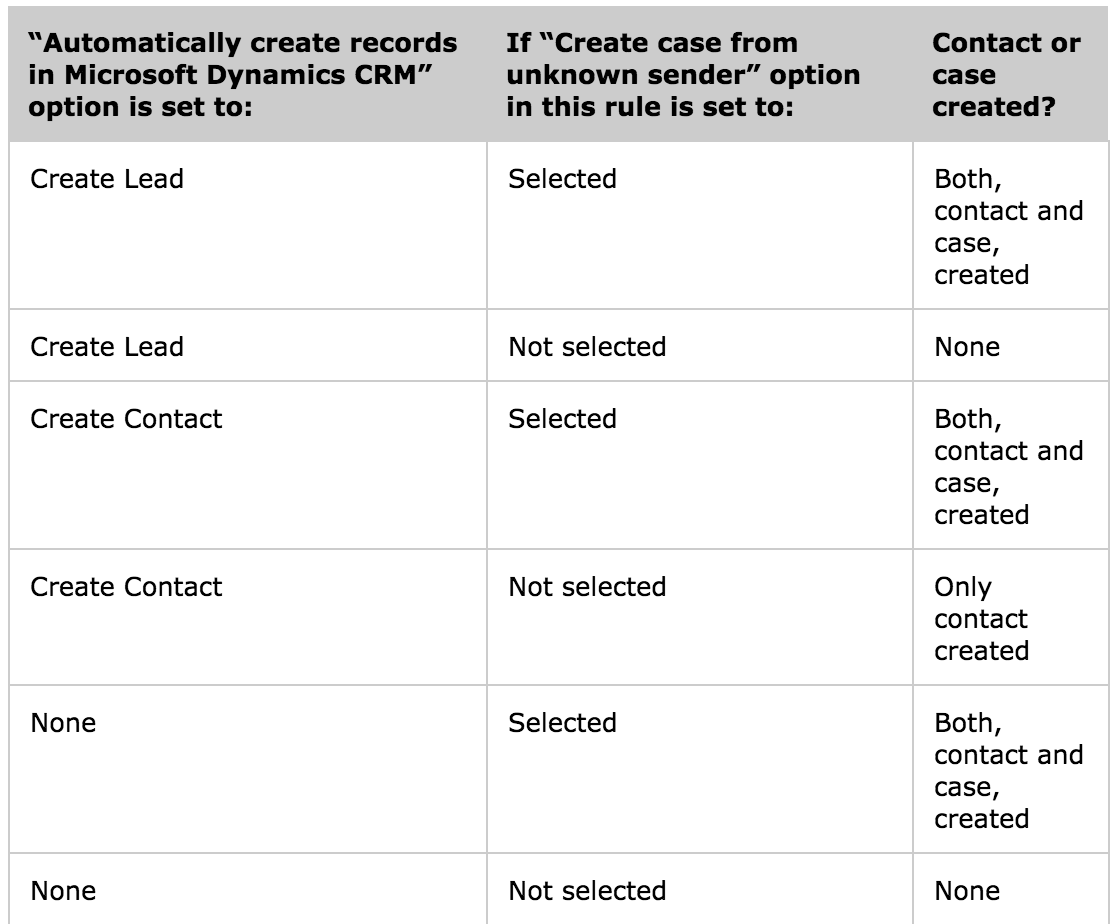
    Screen-Shot-2016_2D00_02_2D00_22-at-4.53.06-AM.png

    Also, as I was answering this I thought of another approach you could do on assigning the case to a specific user / team.  Microsoft introduced Routing Rule Sets that you should be able to utilize to accomplish what you need to do to route the case.  

    Overall you should be able to do the following to complete what you are looking to do:

    1.  Create your case creation rule that will create the cases from the email that is received.  The "queue" would be tied to the queue you created for the email that the cases are received.  Here it is "Email Support" as an example:

    Screen-Shot-2016_2D00_02_2D00_22-at-4.53.06-AM.png  

    a.  You will see I selected to automatically create cases for unknown senders

    b.  Currently no other rules / conditions are in place.  If you needed to add record creation and update details then there is a lot that can be done there.

    2.  You will need to make sure that whomever is setup to own this rule has the checkbox set to automatically create records in Microsoft Dynamics CRM will create a contact.  
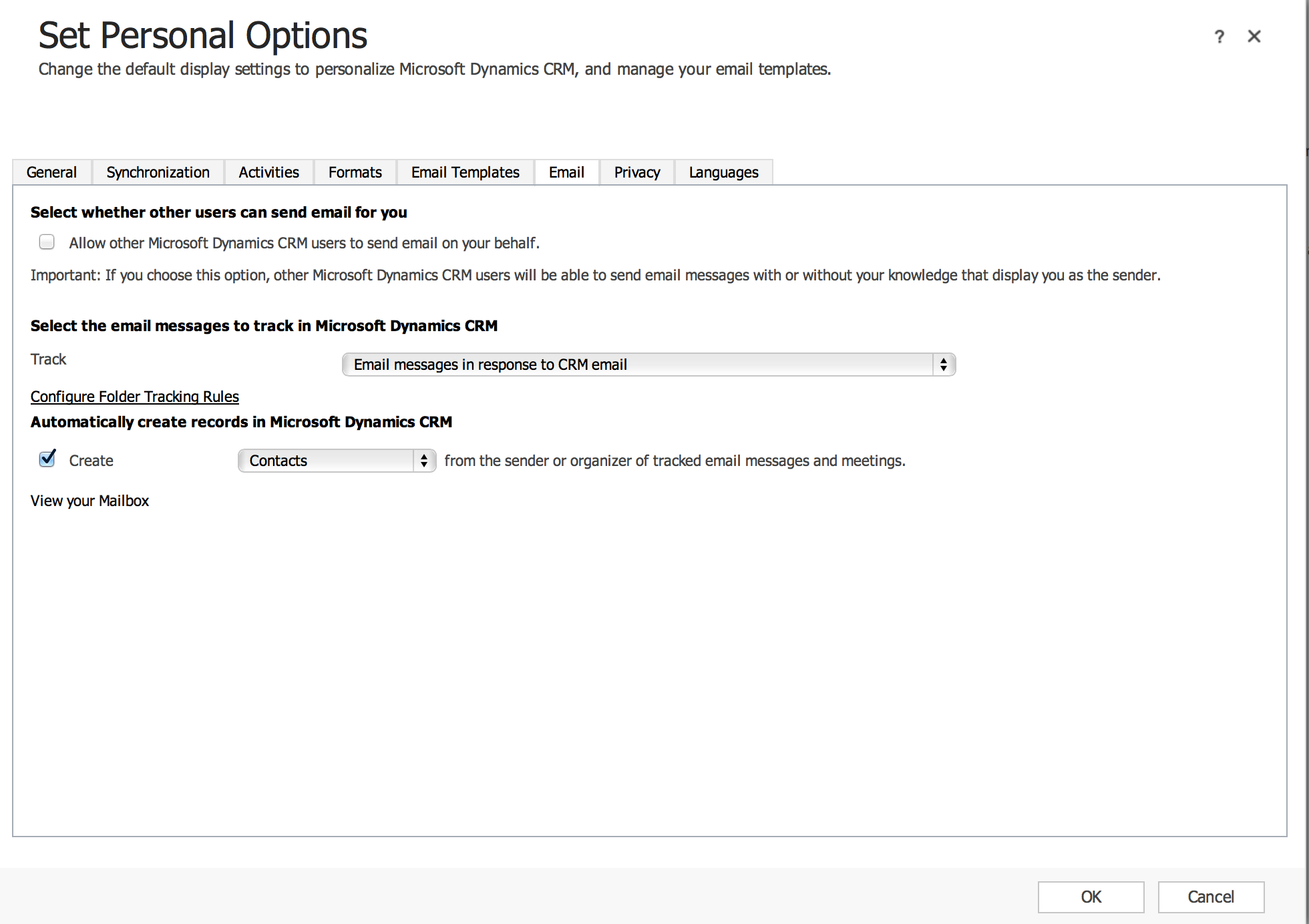
    Screen-Shot-2016_2D00_02_2D00_22-at-5.09.17-AM.png

    At this point after this rule is activated and an email comes into that mailbox it will create the case and if there is no customer / contact associated with the email address of the person who sent the email it will create a Contact in the system and assign the case to that contact.  Note, no account will exist in this situation, only a Contact.

    Now we can create a routing rule set to handle the routing of these cases after they are created.  This provides a lot of flexibility without the workflow as I had answered before.  You can setup different rules within the routing ruleset to determine where the case is assigned (either to a queue or a user / team).  It is really a nice capability.  Only 1 routing rule set can be active at a time...  You will find this on the Service Management page under Settings.

    3.  Create the Routing Rule set and name and put in description.

    4.  In the rule items you can define rules that will match your needs and then you can select where the case should be assigned by the rule.  

    5.  You should be able to use these rules to look at your cases that are created and decide who the owner of the case should be and just put that in the Route To section.  If you have no real rules and they all should route to the same person then you can just setup the Route To with no rule details.

    With the setup here you should be able to remove the workflow we had discussed when I answered before as this provides more functionality / capabilities.

    Thanks much,

  • Community Member Profile Picture
    on at

    Hi Drew!

    Thank you so much, your help is amazing.

    I will start working on the approach you well have described, and hopefully I´ll get it running. I´ll get back here afterwards :)

    Thank you again :)

    Best regards

    Erik

Under review

Thank you for your reply! To ensure a great experience for everyone, your content is awaiting approval by our Community Managers. Please check back later.

Helpful resources

Quick Links

Introducing the 2026 Season 1 community Super Users

Congratulations to our 2026 Super Stars!

Meet the Microsoft Dynamics 365 Contact Center Champions

We are thrilled to have these Champions in our Community!

Congratulations to the March Top 10 Community Leaders

These are the community rock stars!

Leaderboard > 🔒一 Microsoft Dynamics CRM (Archived)

#1
AS-17030037-0 Profile Picture

AS-17030037-0 2

Last 30 days Overall leaderboard

Featured topics

Product updates

Dynamics 365 release plans
