web
You’re offline. This is a read only version of the page.
close
Skip to main content

Announcements

No record found.

News and Announcements icon
Community site session details

Community site session details

Session Id :
Microsoft Dynamics CRM (Archived)

My registered Dynamic Trial version contains only Sales, missing work area contains entities such as Marketing, Service, Setting etc.

(0) ShareShare
ReportReport
Posted on by 137

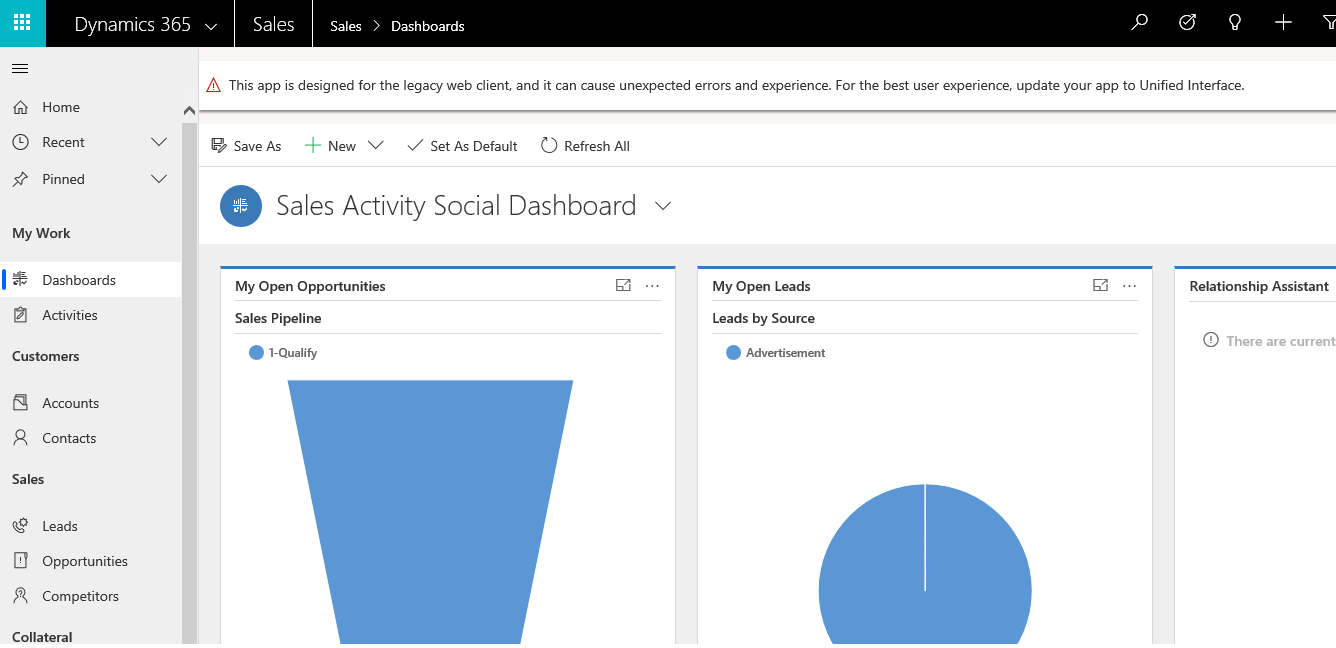
Hi, I want to learn Dynamic 365 CRM, so I registered a trial version, but after the process completed, I can only see "Sales", there is no way I can click to get the work area that contains other models such as : Marketing, Service, Account, Opportunity, Settings, etc.

Edit: I have checked my Role from the Gear icon on the top right, and my ID has "System Administrator" role,

Can anybody help me how to get all of them?
7801.screen1.png

Thanks,7801.screen2.png

*This post is locked for comments

I have the same question (0)
  • Suggested answer
    Charles Abi Khirs Profile Picture
    3,569 on at

    Hello,

    Go to Settings > Security > Users, select the user you are logging in and click "Promote to Admin" button in the ribbon.

  • Peter Cong Profile Picture
    137 on at

    Hi Charles, thanks a lot for your help, it seems you are following the right track.

    Following your instruction, I click the Gear icon on the top right corner which labelled "Settings", then select "Advanced Settings", then I can see "Settings" on the menu ribbon, and then I click Settings, a work area showing under it, from there I click "Security" under "System" section, and then click "Users", then check the checkbox under my log in name, then click "Promote to Admin" button, and click OK from next window to confirm, then I log out and restart my computer and log in again, but unfortunately, nothing changes, I still can not see other models.

    Please let me know where I should do, or if there is any steps I missed.

    By the way, there can I check if my current role is "Admin" role, apparently, I still do not have fully Admin role to access all models.

    Any further actions?

    Thanks again,

    Dan

  • Suggested answer
    Charles Abi Khirs Profile Picture
    3,569 on at

    To check the user security role, go to Settings > Security > Users, select the user you are logging in and click "Manage Roles" button in the ribbon.

    If the "System Administrator" role is not selected, you can redo the above steps (no need to logout or restart. A simple browser refresh is enough).

    Can you please share a screen shot of the security roles assigned to your user.

  • Peter Cong Profile Picture
    137 on at

    Following your new instructions, I find my ID has : "System Administrator", "System Customizer" and "Customer service app access" are checked,

    Unfortunately, I can not find the options to attach the screenshot in this forum, I may not have the access to attach a screenshot, it is OK, please let me know if you need more info from me.

    From this check, it seems my ID has the System Administrator privilege, what else should I check from now? thanks again

  • Suggested answer
    Charles Abi Khirs Profile Picture
    3,569 on at

    This is weird since you have system administrator.

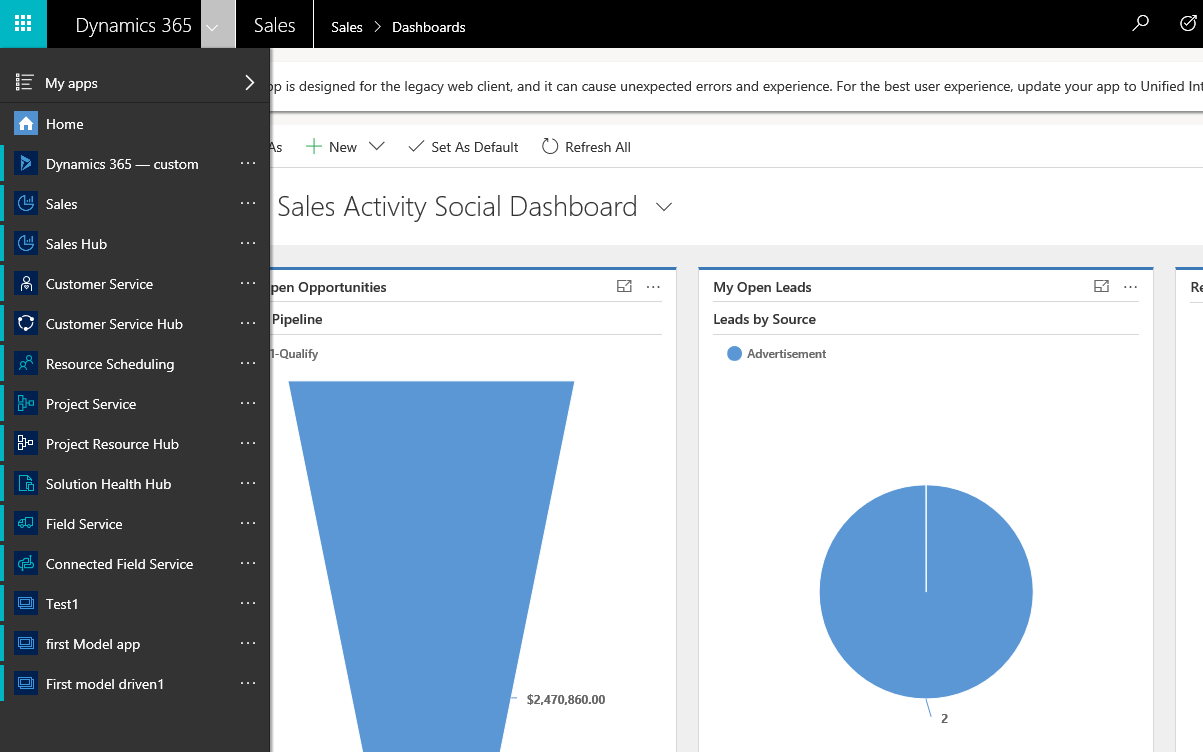
    Most probably you are accessing the Sales App directly. If it is the case, you cannot access to the other modules. You have to enter to the other Apps from MyApps navigation as in the below screen shot.

    MyApps.png

  • Peter Cong Profile Picture
    137 on at

    I can see the Navigation menu you showed, I have the similar menu as yours, but there are a lot models are missing from that navigation menu, such as Marketing, Account, Service, Activity, etc.

    So I do not think that can resolve my problem. Also I can see your screen there is twisty angle of "Sales" pointing down, but in my case, it is pointing to the right something like:

    Sales > Dashboard > ,

    If you can create a new trial version, can you create the same problem as mines.

    I also tried to create another trial version using different ID, I got as the same result as this one.  

    finally, I find a way to attach the screenshot, please find them below:

    5852.screen1.png

    5852.screen1.png

    There are many functions are not available based on current menu, for example, I follow a tutorial to create a new Entity Employer, and then I can not create records of through this option: Navigate to Employer entity records grid via Show work areas → Sales → Extensions → Employers.,

  • Verified answer
    Charles Abi Khirs Profile Picture
    3,569 on at

    As per my previous reply and based on your screenshots, you are accessing the sales app in the unified interface and not the web interface.

    What you need is to switch to the original web interface in order to navigate into the other modules. To do this in your URL, you need to add a querystring as yourcrmurl/main.aspx.

    Once the web interface is opened, and in case you need to always open the original web interface, go to Settings > Administration > General tab, and set to No the option "enable unified interface (recommended)".

  • Suggested answer
    Kokulan Profile Picture
    18,054 on at

    Hi

    I assume you have created this trial recently.  The trial has been updated to default to Unified Interface.

    In the list of Apps, if you select the Dynamics 365 - Custom as shown below

    ScreenClip-_5B00_381_5D00_.png

    You will have access to all the areas you mentioned in Unified Interface, please see below

    3835.ScreenClip-_5B00_384_5D00_.png

    One thing you might notice straight away is that Settings is no there in the areas, its because it has been moved to the following location

    2211.ScreenClip-_5B00_387_5D00_.png

    In earlier versions of the trial, the default was classic UI now it's not. Unified Interface is the future so I would recommend you get used to the new navigation and areas and sub areas. Almost everything is there, it's just they have moved around menu items and it looks different.

    But if you do not like the unified interface, want the classic UI, you can change the behavior in the System Settings area. Please see below

    ScreenClip-_5B00_381_5D00_.png

    Once the Unified Interface is not set to the default UI, you will be landing on classic UI and that should have the areas you are expecting

    ScreenClip-_5B00_382_5D00_.png

    Hope this helps

  • Peter Cong Profile Picture
    137 on at

    Hi Kokulan, thanks a lot for your help, it seems you are on the right track, but I have different screens than yours.
    First, after I click Dynamic 365 - Custom, the options I got under Tools is different than yours, I can only see Reports under it, please see my screenshot :system1.png

    second, my system setting is different than yours, there is no options as you mentioned in your screenshot, I also checked all tabs, there is no same option either,

    please see my screenshot below:

    system1.png

    any idea?  again, your help is much appreciated!!!

  • Suggested answer
    Kokulan Profile Picture
    18,054 on at

    Could you please share your trial version, mine is the below

    ScreenClip-_5B00_388_5D00_.png

Under review

Thank you for your reply! To ensure a great experience for everyone, your content is awaiting approval by our Community Managers. Please check back later.

Helpful resources

Quick Links

Introducing the 2026 Season 1 community Super Users

Congratulations to our 2026 Super Stars!

Congratulations to our 2025 Community Spotlights

Thanks to all of our 2025 Community Spotlight stars!

Leaderboard > 🔒一 Microsoft Dynamics CRM (Archived)

#1
JS-09031509-0 Profile Picture

JS-09031509-0 3

#2
AS-17030037-0 Profile Picture

AS-17030037-0 2

#2
Mark Eckert Profile Picture

Mark Eckert 2

Last 30 days Overall leaderboard

Featured topics

Product updates

Dynamics 365 release plans