Hello Ayush,
You can create a business rule.
First, you need to have the privileges necessary to navigate to Settings > Customization. This typically requires the System Administrator or System Customizer security role. To activate a business rule, you must have the Activate Business Rules privilege.
There are four ways you can view, create, or edit business rules:
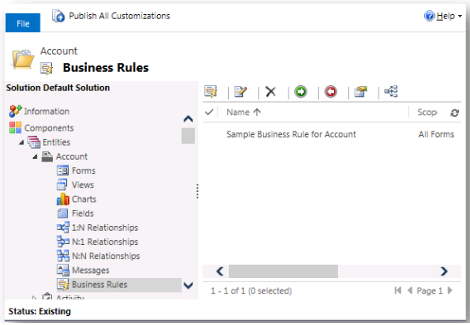
Solution > Entity
From a solution, such as the default solution, you will find a Business Rules node for all entities.
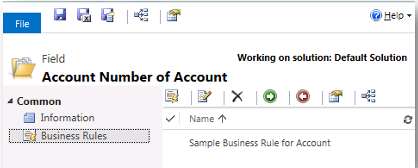
Solution > Entity > Field
When you view an entity field, you will find a Business Rules node that will show you only the business rules that include this attribute.
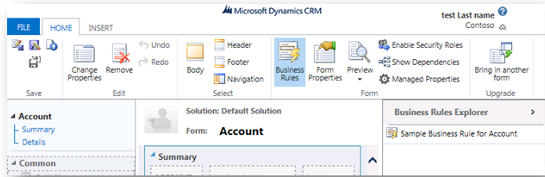
Form Editor
From the form editor, you can use the Business Rules button in the ribbon to show the Business Rules Explorer on the right side. This will show you all business rules that will be applied just for this form.
If you create a rule from the form editor, the default scope is for that form. More information: Set the scope
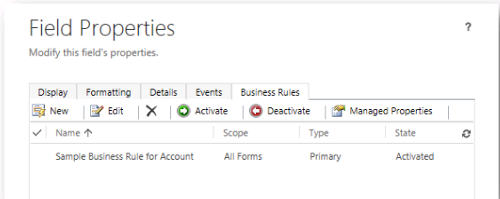
Form Editor > Field
When you view the properties for a field that is used in a form, you will see a Business Rules tab that shows you the business rules that include this attribute.
If an existing rule is similar to a rule you want to make, you can open that rule and use the Save As button to copy an existing rule as a starting point for a new rule.
You can set the scope :- In the top right of the form, use the Scope field to set the scope for the rule to All Forms or choose any one of the Main forms. You cannot select multiple specific forms. If you choose All Forms, the rule will be applied to all the Main forms and the Quick Create form, as long as the form includes all the fields referenced by the rule. If you create a new business rule by using the form editor, the default scope is just that form.
Configure Conditions :- If you want to change an activated business rule, you must deactivate it before you can edit it. To add a condition, click the + icon and a new condition row will appear with default values set. Enter the field name to set the Field, and then choose the appropriate Operator. Operator options will change depending on the data type of the field.
Conditions are checked whenever any field referenced within the condition changes.
You can chose three different types of conditions:
Field
Use this type to compare the value of one form field with another.
Value
Use this type to compare the value of one form field with a value you enter.
Formula
This option appears only for numerical or date data types. It does not appear for fields that contain text. Use this type to compare the result of a simple calculation that may use either a value in another form field or a value you enter.
When you are finished entering or editing the rule, click or tap the check mark icon to save it or the (X) icon to discard changes. To remove a previously saved condition, place your cursor over the condition and click the
icon.
Configure Actions :- To add an action, click the + icon and you will have the following options:
Show error message
Use this action to set an error message on a field if the data within it is not valid. The text you specify for the message will be displayed with an error icon near the field.

The record cannot be saved as long as this message is displayed. After the data in the field has been corrected according to the conditions set in your rule, the message will disappear and the record can be saved.
Set field value
Choose the Field and then the Type. There are three types:
Field
Use this type to set the value of one form field with the value of another field.
Value
Use this type to set the value of a form field with a value you enter.
Formula
This option appears only for numerical or date data types. It does not appear for fields that contain text. Use this type to set the value to the result of a simple calculation that may use either a value in another form field or a value you enter.
Set business required
Use this type to change the requirement level for the field. The options are Not Business Required and Business Required. There is no option to set this to business recommended.
Set visibility
Use this type to change whether the field is displayed in the form. The options are Show Field and Hide Field.
Lock or unlock field
Use this type to change whether the field is enabled in the form. The options are Lock and Unlock. When the field is locked, people will not be able to edit the value in the field.
After you have defined an action, you can change the order or delete it by using the options available when you place your cursor over the action.
You can also set Description :- Setting a description is optional. It isn’t displayed anywhere else except in the business rule editor. But it is a good idea to include a description of what the rule is supposed to do and why it has been added.
Hope this helps.
Thanks,
Kamakshi
Microsoft Dynamics™ CRM Support Engineer


